Base Template Publishing Guide
Below you will find a reference for how each Position and View are published, as well as their respective View Classes and the effects they have on the content being published! We would recommend that you Bookmark this tab for easy reference when building pages to ensure that there is less trial-and-error when it comes to testing various View Classes to help reduce the time it takes to build!
IMPORTANT: For your organization specifically, the Content Type names are labels that can be renamed to anything, so examples that could be different are as follows: Articles could be Blogs or Stories, Children could be Students, Missionaries could be Staff, Projects could be Ministries, and Static could be Content, and Opportunities could be Events! You may have multiple folders of these and multiple instances of these Content Types could be renamed uniquely, so please double check those as you follow along this guide!
Static Content Publishing
ANCHOR (BASE)
PREVIEW
Content Type: Static
Position: Body
View: Anchor (Base)
How to publish this:
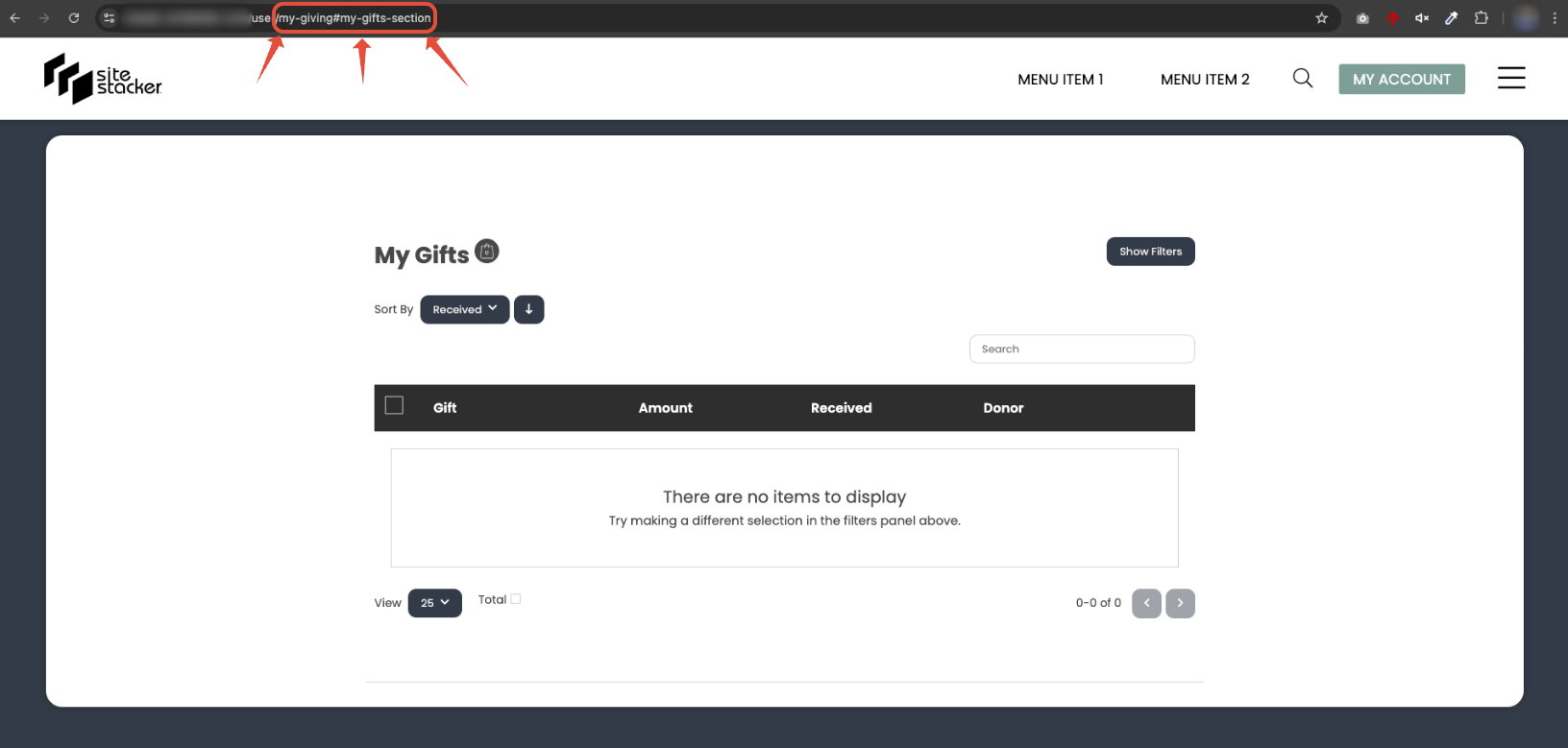
- Add a Basic Wrapper to the site page of your choosing.
- Drag and drop any Content item onto the wrapper and choose the Anchor (Base) view. Note: the alias of your content item will be what is used as the anchor link!
- Drag and drop that same Content onto the wrapper, but this time choosing a different view (depending on the type of content).
- Format of links will be:
https://url.org#content-item-alias
BASIC (BASE)
PREVIEW
Content Type: Static
Position: Body
View: Basic (Base)
How to publish this:
- Drag and drop a Basic Wrapper over onto the page you would like your content to display.
- Choose the Body position and Basic (Base) view.
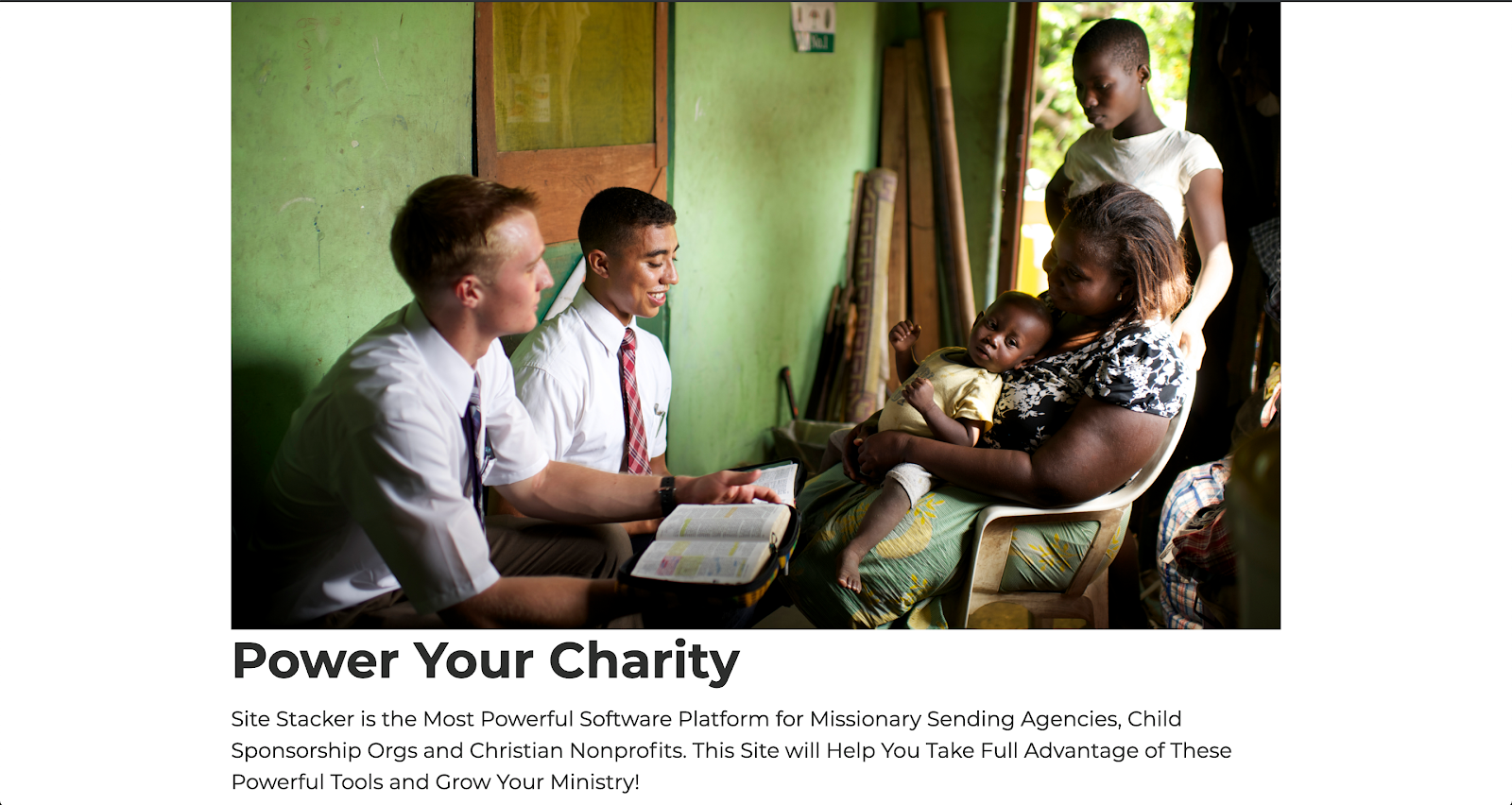
- Create a Static content item with any information you would like to display (Title, Button, Text, Image, etc.).
- Drag and drop your content item onto the Wrapper you had placed on the page.
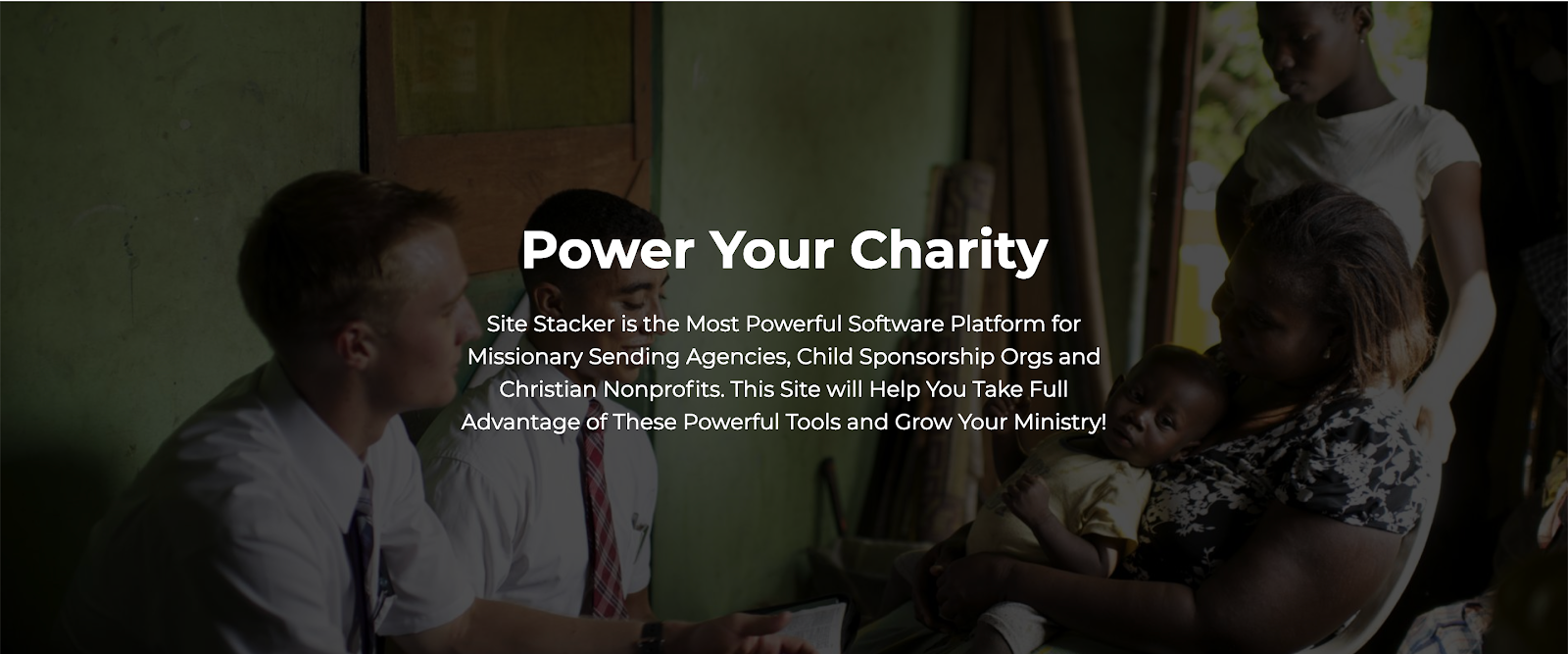
- Choose the View you’d like your content to display. Examples in the screenshot are Basic (Base) and Hero (Base) respectively.
- Preview your page and make any adjustments using View Classes!
BASIC (BASE) VIEW CLASSES
DESCRIPTION
Category: Alignment
Example: Video Link
Button Right - If a button is specified on the content item, then it will align to the right side of the row (as far as it can go)
Text Center - All text within your content item will shift to the center
Text Right - All text within your content item will shift to the right side
Category: Image Style
Example (As Link): Video Link
Example (Positions): Video Link
As Link - An image specified will become a “button” where the link you have set in the Button field will be where the image links
Left - The image appears to the left of the content
Right - The image appears to the right of the content
Top - The image appears on top of the content
Category: Text Color
Example: Video Link
White - Summary and Body text in your content item becomes white
Category: Title
Example: Video Link
H1 - Title of your content becomes largest at 48px*
H2 - Title of your content becomes 40px*
H3 - Title of your content becomes 36px*
H4 - Title of your content becomes 28px*
H5 - Title of your content becomes 25px*
H6 - Title of your content becomes smallest at 18px*
* Custom Templates and Customize variables will change these fixed pixel values!
Category: Video
Example: Video Link
Open in Popup - This can only be used with the Video URL field in a content item. This will display your specified video in a popup rather than replacing the content.
Category: Visibility
Example: Video Link
Hide on Desktop - Hides content on devices that are 1100px or less in width
Hide on Mobile - Hides content on devices that are 600px or less in width
Hide on Tablet - Hides content on devices that are 900px or less in width
BOX SUMMARY (BASE)
PREVIEW
Content Type: Static**
Position: Body**
View: Box Summary (Base)
How to publish this:
- Drag and Drop a Basic Wrapper onto your page.
- Drag and Drop Static content onto the page within the Wrapper and choose the Box Summary (Base) view to get it to look like the screenshot to the right! Note: The image is pulled from the Cover Image related to your content items you publish! Also, it will preview like Screenshot 1, but on hovering the content item it will display the Summary text with a line underneath the title as seen in Screenshot 2.
Example: Video Link
(Screenshot 1)!Box Summary View(Screenshot 2)!Box Summary on Hover
FLIP CARD (BASE)
PREVIEW
Content Type: Static**
Position: Body**
View: Flip Card (Base)
How to publish this:
- Drag and Drop a Basic Wrapper onto your page.
- Drag and Drop your Static content to display on the frontend of your website.
- You will notice that the Image field is being pulled as the image behind the Title, and when clicking the Flip Card you will see the Summary text!
Flip Card:!Flip Card View
Flip Card (Clicked):

FLOATING BUBBLE LINK (BASE)
PREVIEW
Content Type: Static**
Position: Body**
View: Floating Bubble Link (Base)
How to publish this:
- Drag and Drop a Basic Wrapper onto your page.
- Bring over your Static content by dragging and dropping it into the newly added Basic Wrapper and select the Floating Bubble Link (Base) View.
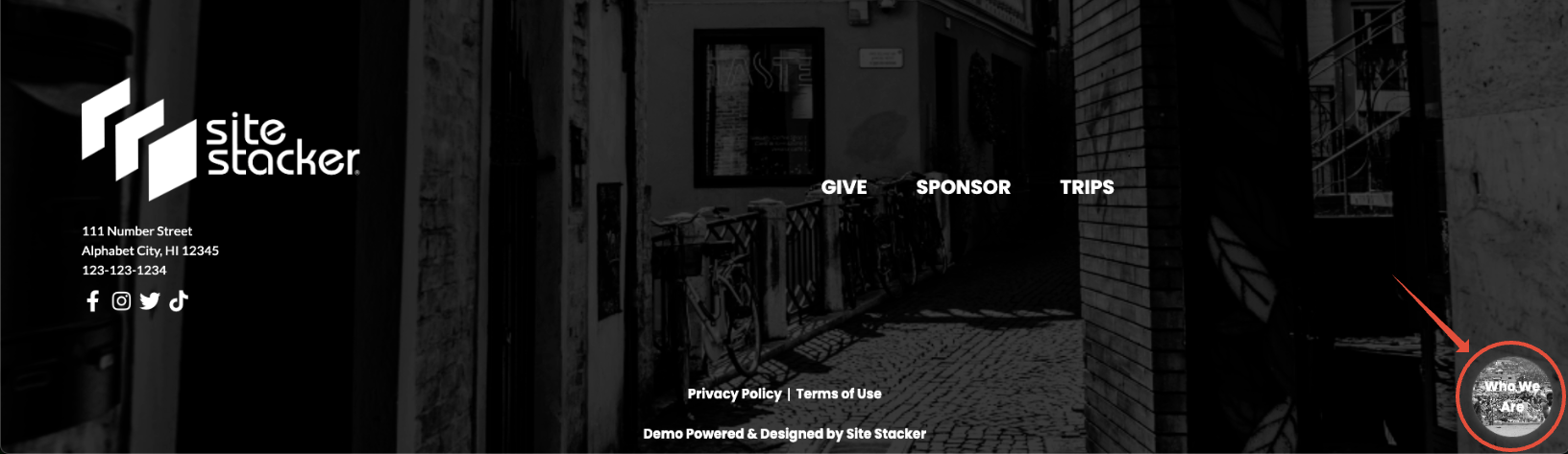
- Preview your page and your content will show up in the bottom right corner of your screen and follow along as you scroll! Note: When adding a link, (found in the Button fields), you can have it link to an anchor or a regular page, or any other custom link you may have!
Example: Video Link
FLOATING BUBBLE LINK (BASE) VIEW CLASSES
DESCRIPTION
Category: General
Align Left - When selected, the floating link will display on the bottom left side of your screen
HERO (BASE)
PREVIEW
Content Type: Static
Position: Body
View: Hero (Base)
How to publish this:
- Add a Basic Wrapper by dragging and dropping it onto your site page.
- Ensure your Static content item has at least an image in the Image field, and an engaging title along with Summary Text and/or a Button that links to a giving or learning outcome!
- Drag and drop your Static content over to the page you want your Hero to be published to and select the Hero (Base) View.
- Your content will now display with a large background image behind it along with your other content as seen in the screenshot on the right! Example: I have the Title, Summary and Button fields filled out in the screenshot.

HERO (BASE) VIEW CLASSES
DESCRIPTION
Category: Alignment
Example: Video Link
Disable Background Resize - This will stop your image from resizing itself based on scaling up or down in screen sizes
Category: Content
Example: Video Link
Hide Summary - This will hide any Summary text that may be present on your Static content item
Category: Effect
Example: Video Link
Fade Out - Content within your Hero image will fade out while scrolling
Fixed Background - The image position stays the same as you scroll
Parallax - The image position moves when scrolling either way
Scroll Down Arrow - This will display an arrow that will jump to the next section below your Hero image
Category: Height
Example: Video Link
Height 1 (Tiny) - The height of your hero image becomes 400
Height 2 (Small) - The height of your hero image becomes 500
Height 3 (Normal) - The height of your hero image becomes 600
Height 4 (Big) - The height of your hero image becomes 700
Height 5 (Large) - The height of your hero image becomes 800
Category: Title
Example: Video Link
H2 - Title of your content becomes 40px*
H3 - Title of your content becomes 36px*
H4 - Title of your content becomes 28px*
H5 - Title of your content becomes 25px*
H6 - Title of your content becomes smallest at 18px*
Text Shadow - This will add shadow behind any text being displayed within your content
* Custom Templates and Customize variables will change these fixed pixel values!
PHOTO ALBUM (BASE)
PREVIEW
Content Type: Static
Position: N/A
View: Photo Album (Base)
How to publish this:
- Add a Basic Wrapper by dragging and dropping it onto your site page.
- Create a content item using ONLY the Image Multi field, adding as many images you would like to display on your page.
- Drag and drop your content item onto the Wrapper you published earlier and choose the Photo Album (Base) view.
- Preview your page and you will now see all of your images populated on the page!
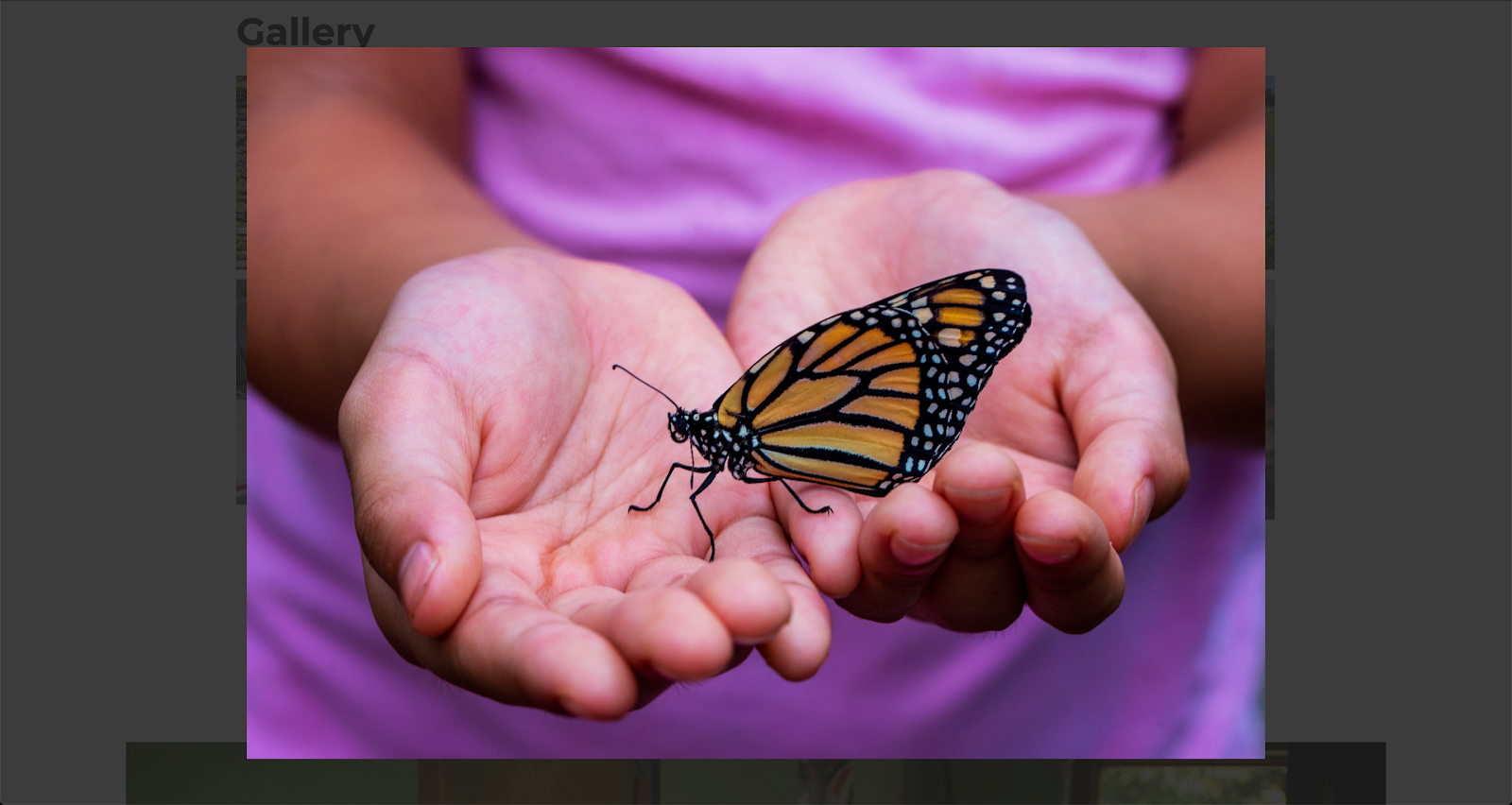
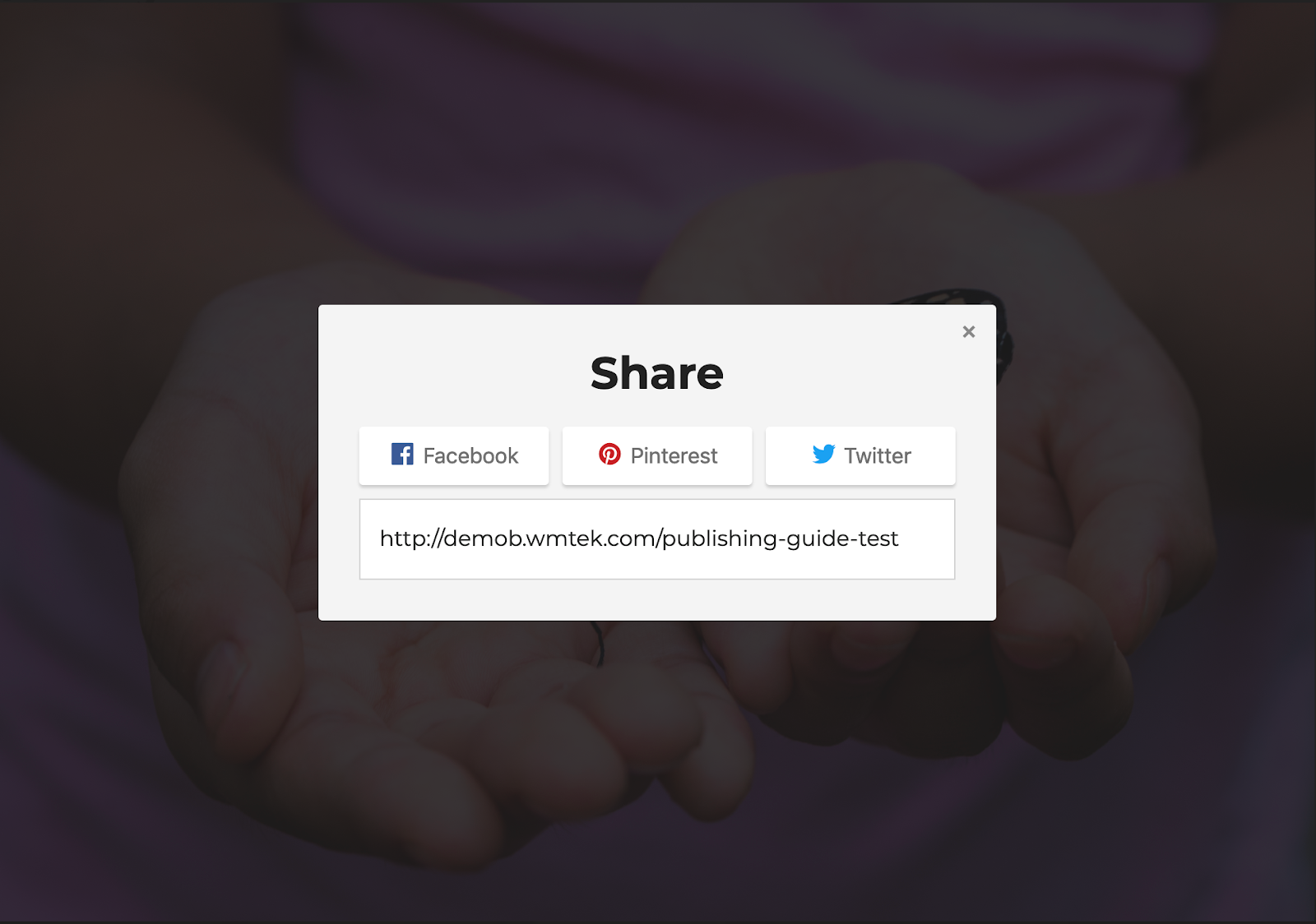
Note: You can also click on any image to show the larger version, view it in fullscreen, as well as share it to your favorite social media platform!
Example: Video Link

TESTIMONY (BASE)
PREVIEW
Content Type: Static
Position: Body
View: Testimony (Base)
How to publish this:
- You will want to add a Basic Wrapper onto the page where you would like your testimonies to be displayed.
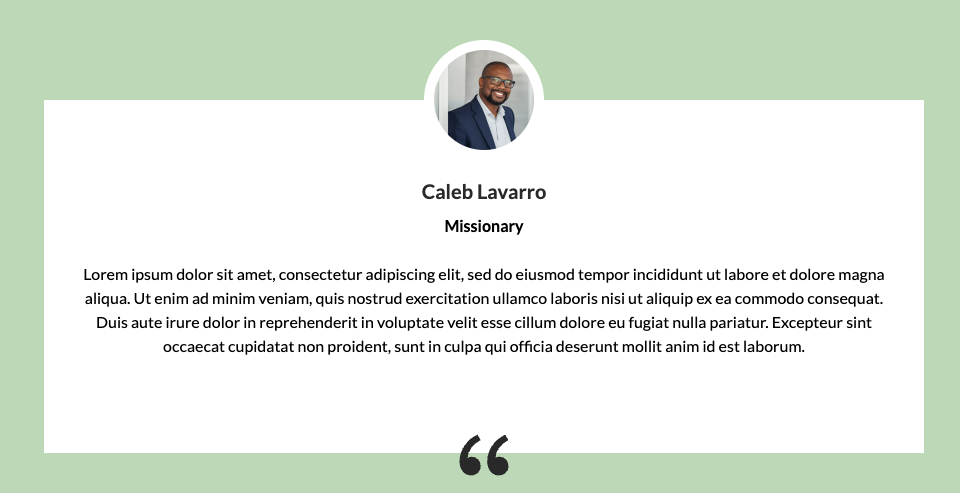
- Create your Static content item(s) with the following: Title (usually a Name), Body text (the testimonial itself, maybe with a small subtitle for their role Example: Missionary), and an Image (the person's image or placeholder image if anonymous).
- Drag and drop the item(s) you created into the Basic Wrapper and select the Testimony (Base) View and it should now show like the screenshot on the right!
VIDEO (BASE)
PREVIEW
Content Type: Static
Position: Body
View: Video (Base)
How to publish this:
- Add a Basic Wrapper to your site page where you would like the video to be displayed.
- Next, add a content item with an Image related to the video you will be showing, along with the link of the video (Video File \[_internal_\] or Video URL \[_external_\]).
- Drag and drop your content item onto the Wrapper you published and choose the Video (Base) view.
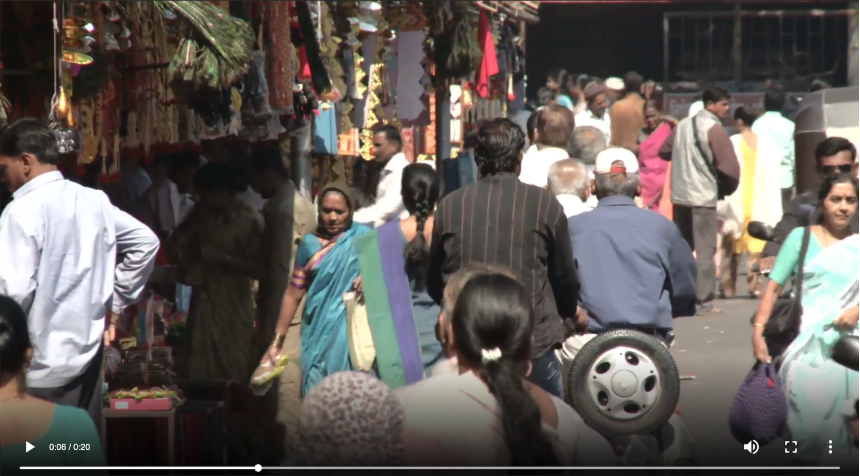
- Preview your page and you will see the video bar with the image you chose along with a Play button (Screenshot 1). When you click the Play button, this will then bring up the video to fit the screen (Screenshot 2).
Screenshot 1!Video Base View
Screenshot 2
VIDEO (BASE) VIEW CLASSES
DESCRIPTION
Category: Height
Example: Video Link
Height 1 (Tiny) - The height of your video’s row becomes 400
Height 2 (Small) - The height of your video’s row becomes 500
Height 3 (Normal) - The height of your video’s row becomes 600
Height 4 (Big) - The height of your video’s row becomes 700
Height 5 (Large) - The height of your video’s row becomes 800
VIDEO DETAIL (BASE)
PREVIEW
Content Type: Static
Position: Body
View: Video Detail (Base)
How to publish this:
- Add a Wrapper to your site page where you would like the video to be displayed.
- Drag and drop your content item onto the Wrapper you published and choose the Video Detail (Base) View.

VIDEO SUMMARY (BASE)
PREVIEW
Content Type: Static
Position: Body
View: Video Summary (Base)
How to publish this:
- Add a Wrapper to your site page where you would like the video to be displayed.
- Drag and drop your content item onto the Wrapper you published and choose the Video Summary (Base) View.
- The screenshot on the right is how your content will show, and when clicking on this it should link to this specific content item's Detail View!

Dynamic Content Publishing (Articles, Children, Child Gifts, Missionaries, Opportunities, and Projects)
ADVOCACY DETAIL (BASE)
PREVIEW
Content Type: Missionary & Project
Position: Body
View: Advocacy Detail (Base)
How to publish this:
- Drag and Drop a Basic Wrapper onto your page that will hold the content.
- Drag and Drop one or more of your content items, or the folder itself (to get all dynamic content).
- After selecting the Advocacy Detail (Base) View, it will show like you see in the screenshot example!
Note: This is good to show the detail body text and the image of your dynamic content type, but no title or link is included in this view! The example given is only a missionary, but other content types will get the same view layout.

ADVOCACY REVIEW (BASE)
PREVIEW
Content Type: Missionary & Project
Position: Body
View: Advocacy Review (Base)
How to publish this:
- Drag and Drop a Basic Wrapper onto your page that will hold the content.
- Drag and Drop one or more of your content items, or the folder itself (to get all dynamic content).
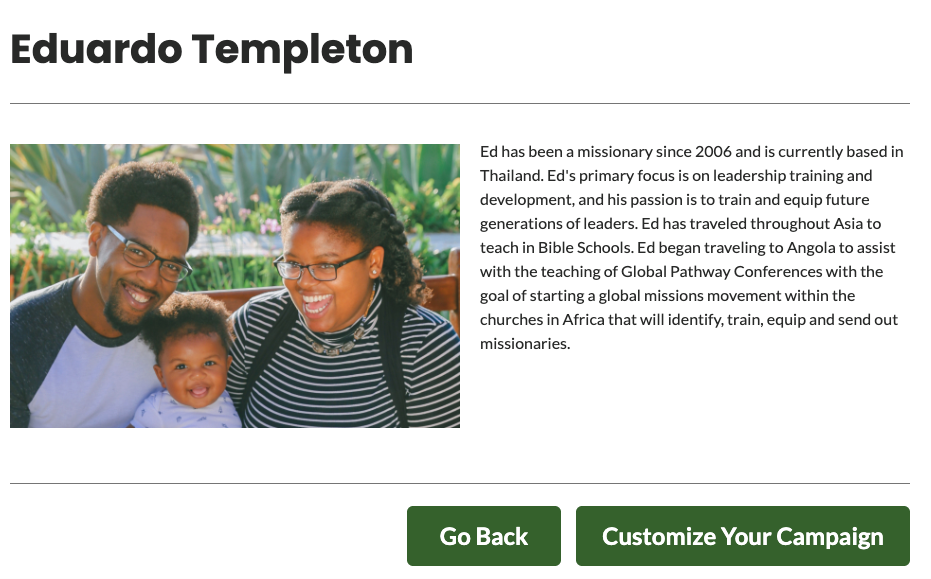
- After selecting the Advocacy Review (Base) View, it will show like you see in the screenshot example!
Note: This is used to show advocacy details where someone can create a new advocacy campaign for, almost like having a featured type of campaign where you are trying to reach specific goals! The example given is only a missionary, but other content types will get the same view layout!
BOX SUMMARY (BASE)
PREVIEW
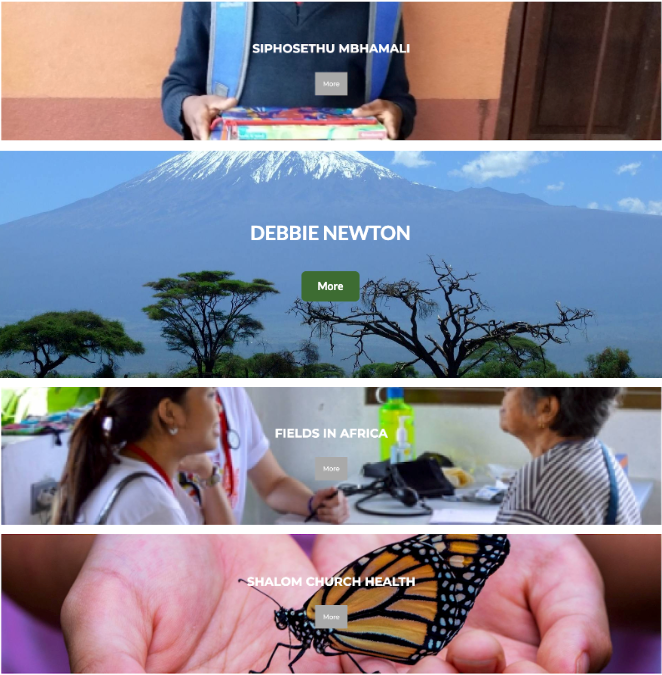
Content Type: All Dynamic Content Types
Position: Body
View: Box Summary (Base)
How to publish this:
- Drag and Drop a Basic Wrapper onto your page
- Drag and Drop one or more of your Missionaries, Projects, or Children onto the page in the Wrapper and choose the Box Summary (Base) view to get it to look like the screenshot to the right! Note: The image is pulled from the Cover Image related to your content items you publish!
Example:
Children (Video Link)
Missionary (Video Link)
Opportunity (Video Link)
CARD
PREVIEW
Content Types: Article
Position: Body
View: Card
How to publish this:
- Drag and drop a Basic Wrapper that will hold your Article.
- Drag an Article into the Basic Wrapper and choose the Card View.
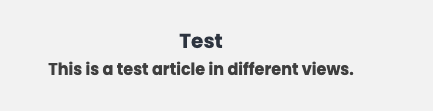
- This will now render your Article with the Title and Summary content.
Example: Video Link
CARD VIEW CLASSES
DESCRIPTION
Category: Alignment
Align Left - Aligns content to the left side of the card boundary
Align Right - Aligns content to the right side of the card boundary
Category: General
Title and Summary on same line - Instead of the Title being stacked on top of the Summary, they will be on a single line together
DETAIL (BASE)
PREVIEW
Content Type: All Dynamic Content Types
Position: Body
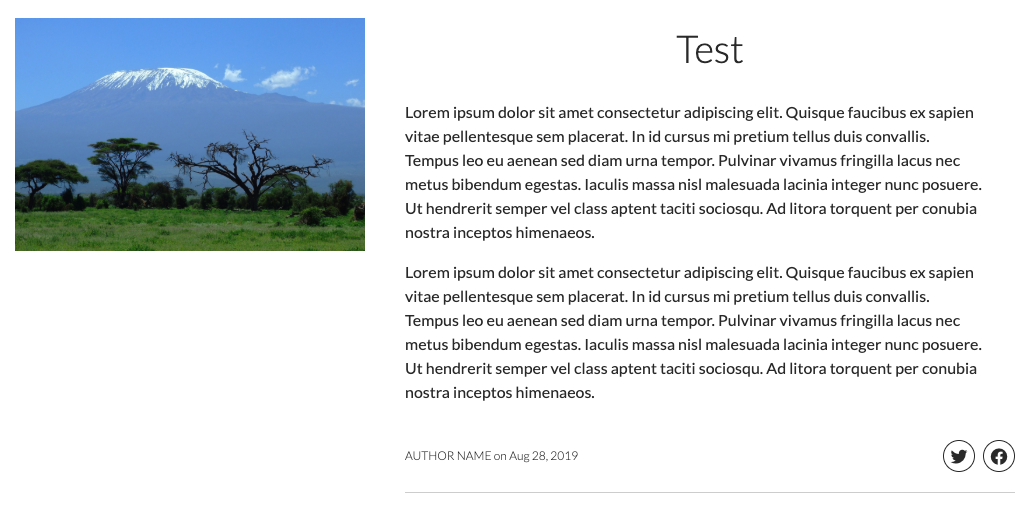
View: Detail (Base)
How to publish this:
- Drag and drop a Basic Wrapper onto your chosen page.
- Drag and drop a Missionary content item, or drag the folder that contains the Missionaries (or any other content type) into that same Basic Wrapper along with choosing the Detail (Base) view to display it correctly.
- Preview your page and it should look similar to the screenshot you see off to the right side.
- You will know if it is working when you either go to the Missionaries page and the content items are linking to that page, or if you right-click on those content items within the Content Explorer side of Site Planner and the Preview button is taking you to that page.
Note: The use case for this view is as a detail page for any dynamically assigned content within a Search Module's Summary View. Learn how to set up the Search Module. Then once you have that setup, you will drag the page you want the Detail (Base) view to display, over to the folder with the content you want to be published! Example: Missionary page is dragged to the Missionary > Active folder and Detail (Base) View selected so that all Active Missionaries show in both the Summary View and have Detail pages!
Examples:
Video Link (Child)
Video Link (Missionary)
_Video Link _(_Opportunity)_
Video Link (Project)
Article Detail Page
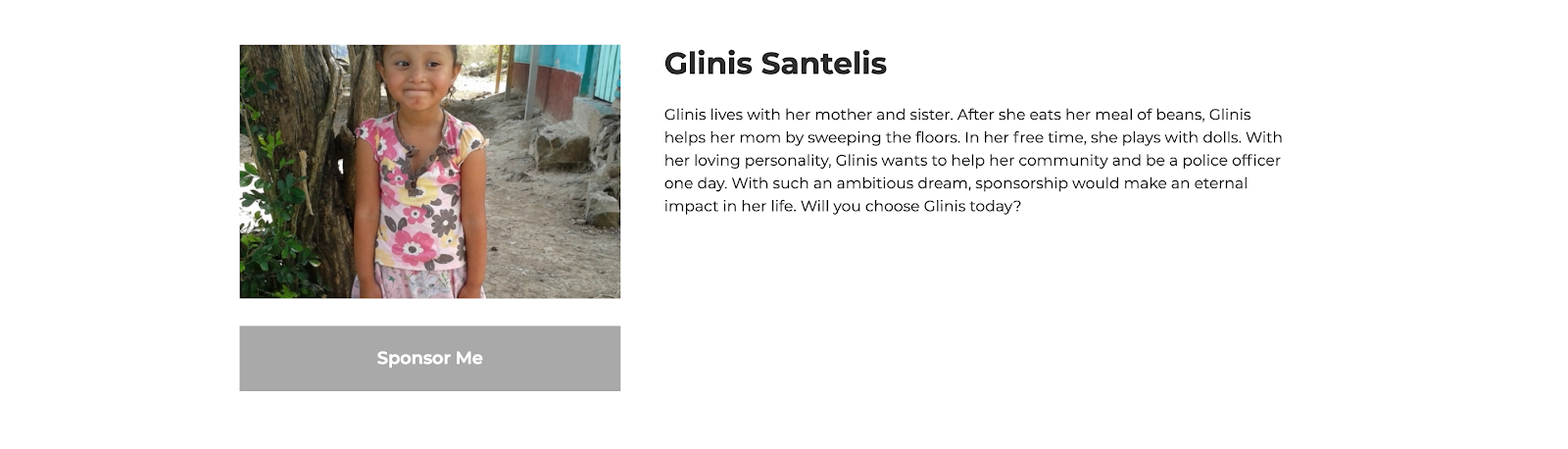
Child Detail Page
Missionary Detail Page!Missionary Detail Page
Opportunity Detail Page
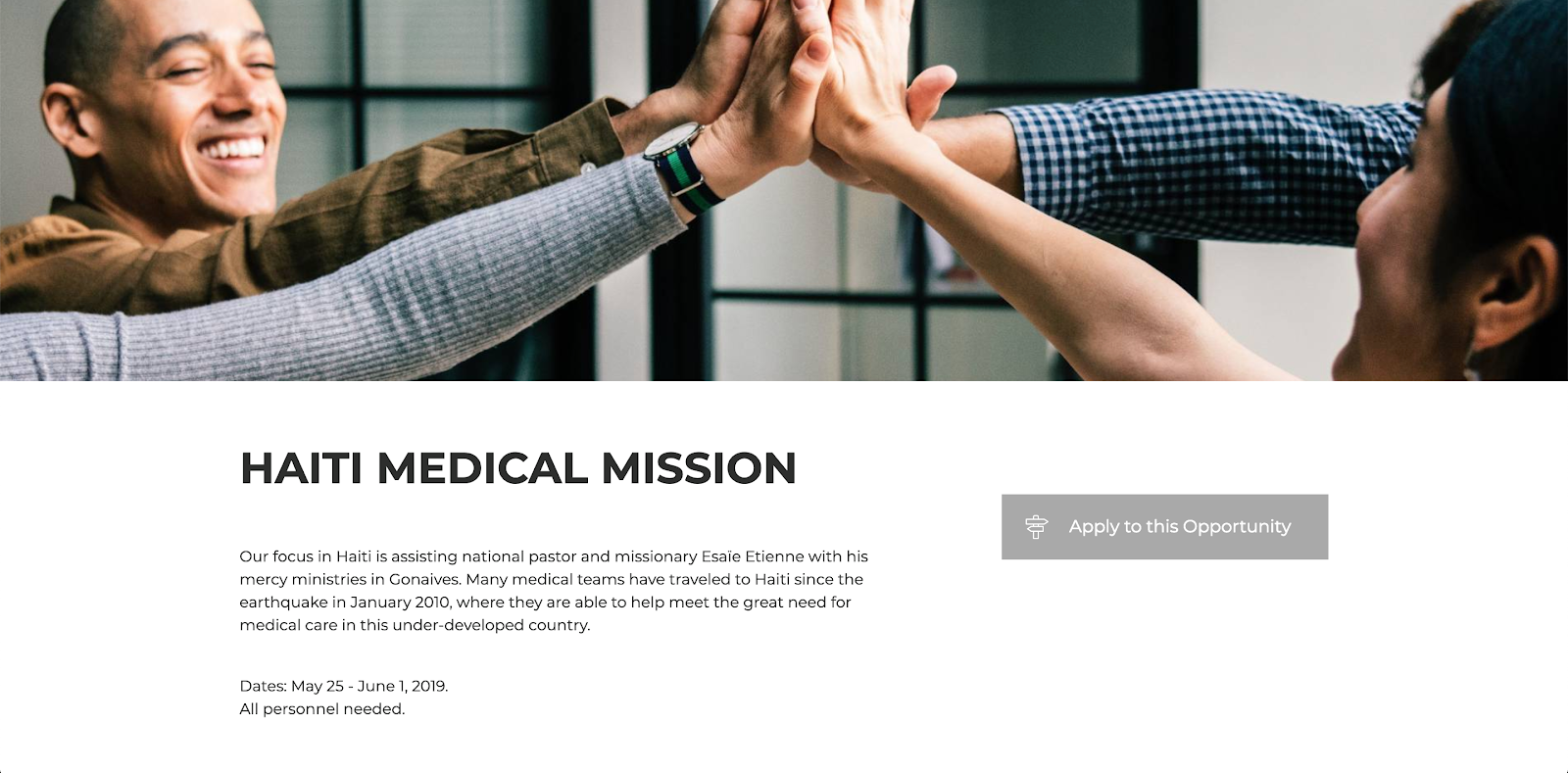
Project Detail Page

EVENT SUMMARY (BASE)
PREVIEW
Content Types: Opportunity
Position: Body
View: Event Summary (Base)
How to publish this:
- Drag and drop a Basic Wrapper onto your chosen page.
- Find an Opportunity content item and drag and drop that within your newly published wrapper.
- Choose the Body (Position) and Event Summary (Base) (View) and you should now see a summary view of your opportunity!
Note: There are two different layouts for this view that you can choose with the "Alternate" View Class
Example: N/A
Default View!Event Summary Default View
Alternate View!Event Summary Alternate View
EVENT SUMMARY (BASE) VIEW CLASSES
DESCRIPTION
Category: General
Alternate - Shows the Alternate View for the Opportunity Summary
FEATURED SUMMARY
PREVIEW
Content Types: Article
Position: Body
View: Featured Summary
How to publish this:
- Drag and drop a Basic Wrapper onto your chosen page.
- Find an Article you would like to feature, and drag and drop that into your Basic Wrapper.
- Choose the Featured Summary (View) and you should now see the featured summary of your desired Article(s)!
Note: At first it will only show the article's image and the title, but on hover it will replace the Title with the Summary and show a "Read More" button (see Hover Effect screenshot)!
Example: N/A
Default View!Featured SummaryHover Effect!Featured Summary on Hover
GIVE INPUT ONLY (BASE)
PREVIEW
Content Type: Children, Missionary & Project
Position: Body
View: Give Input Only (Base)
How to publish this:
- Drag and drop a Basic Wrapper onto your chosen page.
- Drag and drop any of the above Dynamic Content Types and select the Give Input Only (Base) View.
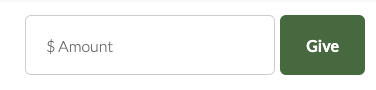
- You will see just the give input where you can give any amount by typing in the field
Note: You can pair this with other kinds of content like call to actions or other information that donors may need to know what they are giving to!
Example: Video Link
GIVE INPUT ONLY (RECURRING) (BASE)
PREVIEW
Content Types: Project
Position: Body
View: Give Input Only (Recurring) (Base)
How to publish this:
- Add a Basic Wrapper to the page where you would like to display your content as Give Inputs only.
- Drag and drop any number of the dynamic content items listed above and select the Give Input Only (Recurring} (Base) View
- You will see the give input along with any Fixed Amounts that you have added to this Project and an "Other" field, where you can give any amount by typing in the field!
Note: By default, the view will be recurring, but if you click on the Give Once tab it will switch the gifts to a one-time gift (see Give Once View screenshot) and not show as Recurring in the cart!
Example: Video Link
Recurring View:!Give Input Only Recurring View
Give Once View:!Give Input Only Give Once View
GIVING POPUP (BASE)
PREVIEW
Content Types: Missionary & Project
Position: Body
View: Giving Popup (Base)
How to publish this:
- Drag and drop a Basic Wrapper that will hold this content.
- Drag and drop a Missionary or Project Content Item into that Basic Wrapper and choose the Giving Popup (Base) View.
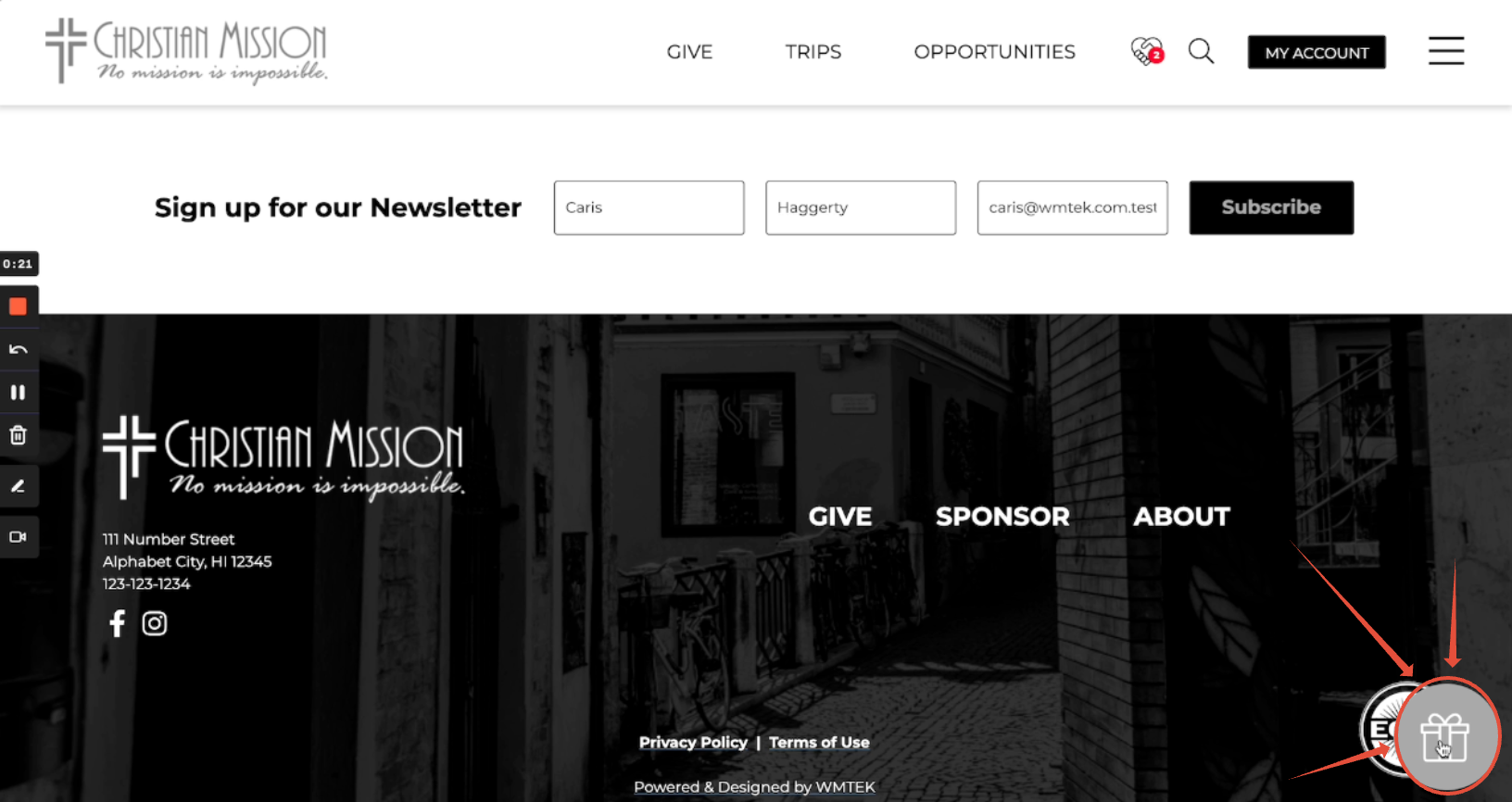
- This will now render a Gift icon in the bottom right of the screen where you can click it and a popup will appear with a Give Input for donors to give any amount they specify.
Example: Video Link
GIVING POPUP (BASE) VIEW CLASSES
DESCRIPTION
Category: Content
Show Summary - This will show whatever content is filled out on your Missionary or Project content item within the Summary field
Category: Functionality
Open Detail Page on Click - Instead of showing the profile glimpse and giving fields, it will instead direct the user to the specified Missionary’s detail (profile) page
GOAL METER (BASE)
PREVIEW
Content Types: Project
Position: Body
View: Goal Meter (Base)
How to publish this:
- Drag and drop a Basic Wrapper that will hold this Goal Meter.
- Drag and drop a Project Content Item into that Basic Wrapper and choose the Goal Meter (Base) View.
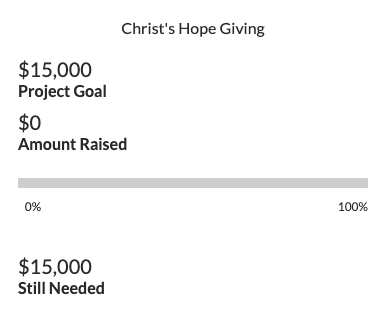
- This will now render a goal meter that shows the giving goal of a Project and fills in when funds are donated to it (both numerical and percentage)!
Example: Video Link
GOAL METER (BASE) VIEW CLASSES
DESCRIPTION
Category: Title
Clickable Title - Makes the title clickable by default
H1 - Title of your content becomes 48px*
H2 - Title of your content becomes 40px*
H3 - Title of your content becomes 36px*
H4 - Title of your content becomes 28px*
H5 - Title of your content becomes 25px*
H6 - Title of your content becomes smallest at 18px*
No Title - Hides the title by default
* Custom Templates and Customize variables will change these fixed pixel values!
HERO (BASE)
PREVIEW
Content Types: Missionary & Project
Position: Body
View: Hero (Base)
How to publish this:
- Drag and drop a Basic Wrapper that will hold your Missionary or Project content.
- Drag and drop your desired Missionary or Project Content Item into the Basic Wrapper and choose the Hero (Base) View.
- This will now render either a Missionary's name with summary text and a give input, or a Project's title, summary, and give input (with fixed amounts and a recurring toggle if set up)!
Example: Video Link
(for Missionaries)
Missionary Hero View:

Project Hero View:
HERO (BASE) VIEW CLASSES
DESCRIPTION
Category: Background
Example (Project): Video Link
\[PROJECTS ONLY\] Disable Background Resize - This will keep the image closer to its original size
Category: Content
Examples:
Video Link (Missionary)
Video Link (Project)
Hide Summary - This will hide the Summary text of your Missionary or Project content item(s)
Category: Effect
Examples:
Video Link (Missionary)
Video Link (Project)
Fade Out - Content within your Hero image will fade out while scrolling
Fixed Background - The image position stays the same as you scroll
Parallax - The image position moves when scrolling either way
Scroll Down Arrow - This will display an arrow that will jump to the next section below your Hero image
Category: Height
Examples:
Video Link (Missionary)
Video Link (Project)
Height 1 (Tiny) - The height of your hero image becomes 400
Height 2 (Small) - The height of your hero image becomes 500
Height 3 (Normal) - The height of your hero image becomes 600
Height 4 (Big) - The height of your hero image becomes 700
Height 5 (Large) - The height of your hero image becomes 800
Category: Title
Examples:
Video Link (Missionary)
Video Link (Project)
H2 - Title of your content becomes 40px*
H3 - Title of your content becomes 36px*
H4 - Title of your content becomes 28px*
H5 - Title of your content becomes 25px*
H6 - Title of your content becomes smallest at 18px*
Text Shadow - This will add shadow behind any text being displayed within your content
* Custom Templates and Customize variables will change these fixed pixel values!
PRAYER POPUP SUMMARY (BASE)
PREVIEW
Content Types: Missionary
Position: Body
View: Prayer Popup Summary (Base)
How to publish this:
- Drag and drop a Basic Wrapper that will hold your Missionary content.
- Drag and drop a Missionary into the Basic Wrapper and choose the Prayer Popup Summary (Base) View.
- This will now render a Missionary content item with their image, name and summary text!
Example: Video Link

READ RELATED STORY (BASE)
PREVIEW
Content Types: Article
Position: Body
View: Read Related Story (Base)
How to publish this:
- Drag and drop a Basic Wrapper that will hold your related Article content.
- Drag and drop your Article into the Basic Wrapper and choose the Read Related Story (Base) View.
- You should now see the related Story with its Title, Summary and a Read Related Story button!
Example: N/A
Related Story View:!Read Related Story View
READ RELATED STORY (BASE) VIEW CLASSES
DESCRIPTION
Category: Background
Color 1, Color 2, Color 3, Color 4 \- These will be colors based upon the Branding Guide that you provided to us and can be used to style the color of the Article's background color
Category: Text
Color White - This will change the Title and Summary text to be white (Best used when there is a darker background color selected)
RELATED (BASE)
PREVIEW
Content Types: Child, Missionary, Opportunity & Project
Position: Body
View: Related (Base)
How to publish this:
- Drag and drop a Basic Wrapper onto any Detail Pages of the above content types (Ex: Missionary Detail Page) where these related items will be displayed
- You will now want to drag a folder containing those exact same Content Types (Usually an Active folder if you have the structure set up that way so not to have any inactive items be shown)
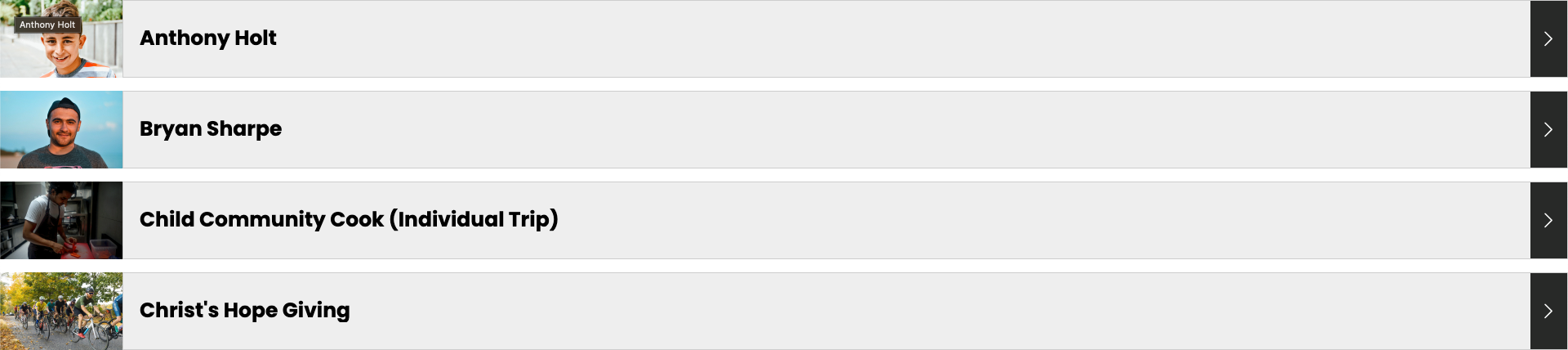
- Now your content should show as a wide view with the image, title and an arrow to click through to that content item's Detail Page!
Note: When publishing the folder, you will want to scroll down to the Tags section and choose a Tag Category and select the Tag Categories Mode to Filter, so that only content specifically related to the specific tags that are on each Content Item show so that it is precise when looking at related content to the one you are currently viewing!
Examples:
Video Link (Children)
Video Link (Missionary)
Video Link (Opportunity)
Video Link _(Project)_
Related Content Views (Child, Missionary, Opportunity & Project):
SUMMARY (BASE)
PREVIEW
Content Types: All Content Types
Position: Body
View: Summary (Base)
How to publish this:
- Drag and drop a Basic Wrapper onto your chosen page.
- Drag and drop a Missionary content item, or drag the folder that contains the Missionaries (or any other content type) into that same Basic Wrapper along with choosing the Summary (Base) view to display it correctly.
- Preview your page and it should look similar to the screenshot you see off to the right side.
- You will know if it is working when you either go to the Missionaries page and the content items are showing with their Images, Summary Text, Give Inputs (if applicable), and linking to their Detail pages.
Note: The most used case for these Content Type views is within a Search Module's Summary View. Learn how to set up the Search Module. You will want to make sure that the Detail (Base) is set up for these Content Items to link to and display!
Examples:
Video Link (Missionary)
Video Link _(Project)_
Opportunities and Children (not listed in the examples) can be published the same way!
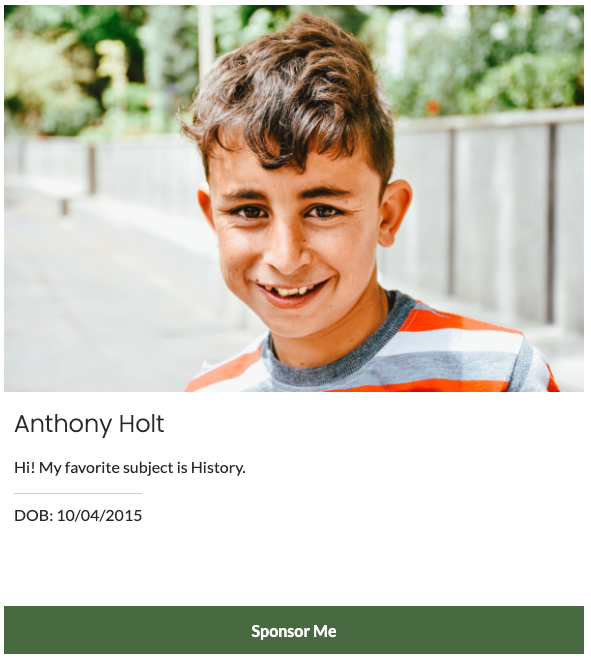
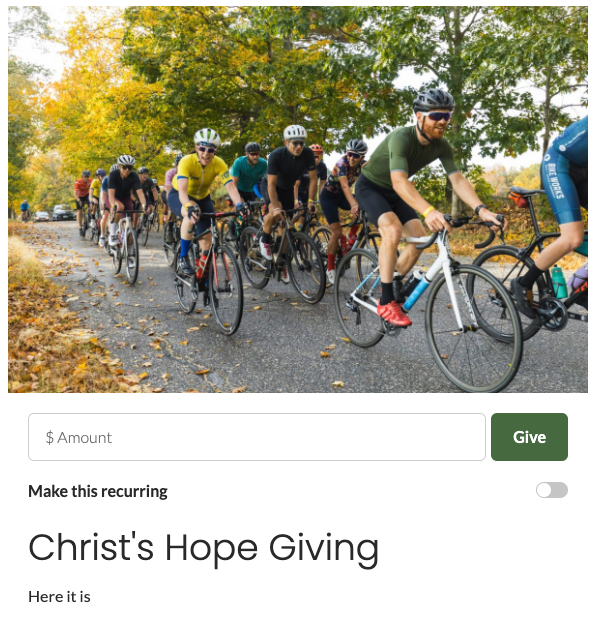
Child Summary View:
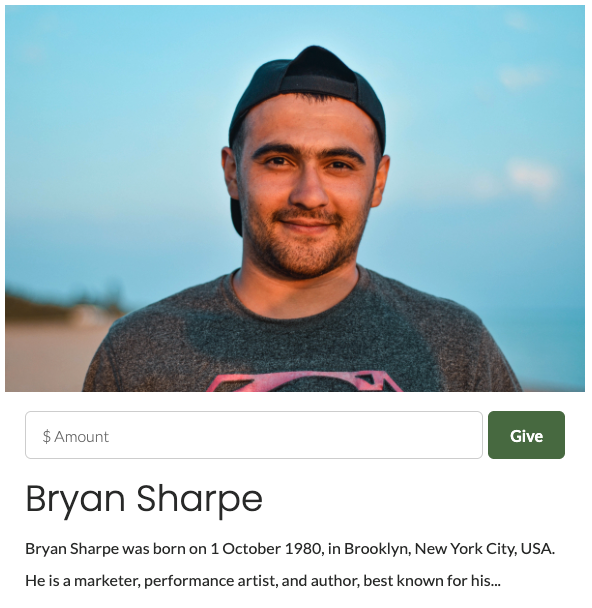
Missionary Summary View:
Opportunity Summary View:
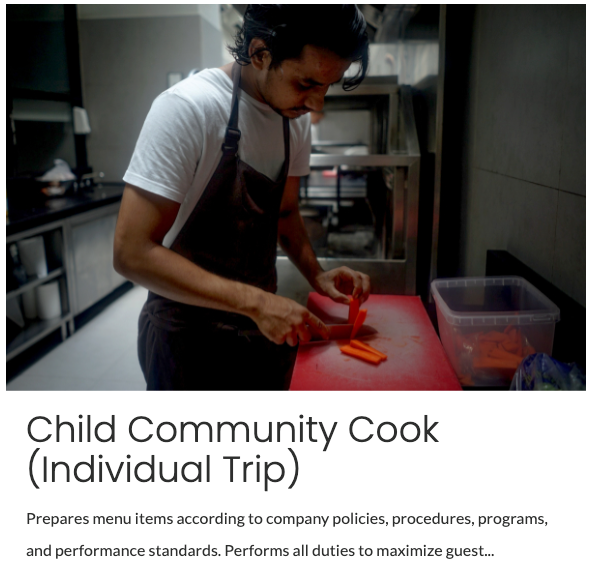
Project Summary View:
SUMMARY (BASE) VIEW CLASSES
DESCRIPTION
Category: Background
Examples:
Video Link (Child)
Video Link **(Opportunity)**
Video Link _(Project)_
Black - This will change the background color of the Accordion
Color 1, Color 2, Color 3, Color 4 \- These will be colors based upon the Branding Guide that you provided to us and can be used to style the color of your Accordion
Dark, Gray, Gray Dark, Light Gray, Lighter Gray - Different shades of Gray that you can style your Accordion background color to become
Category: Shadows
Not available on Child content items!
Shadow - Adds a shadow around your content item (20 wide)
Shadow Large - Adds a shadow around your content item (40 wide)
Shadow Small - Adds a shadow around your content item (10 wide)
Wrapper Publishing
POSITION: BODY
VIEW: ACCORDION (BASE)
PREVIEW
Content Type: Static
Position: Body
View: Accordion (Base)
How to publish this:
- Create a Wrapper with the title you want your Accordion to have (Accordion Wrapper in this example - this can be any text!).
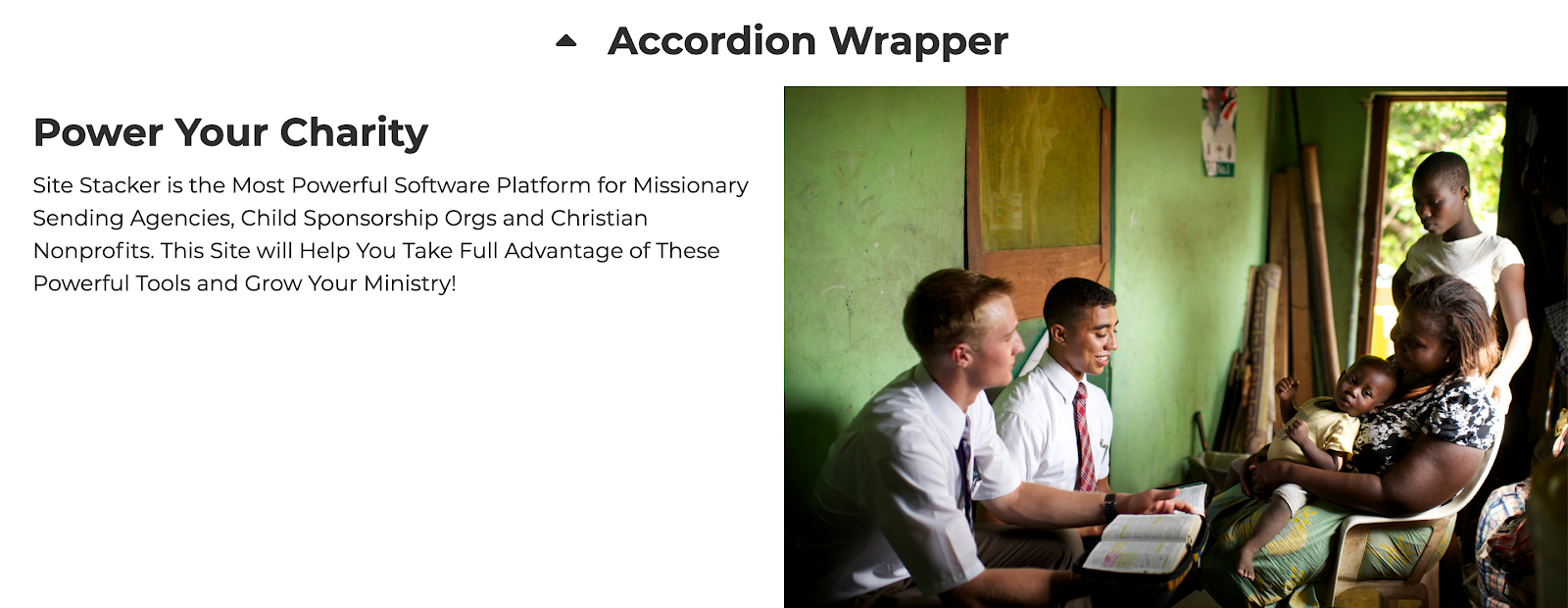
- Create a Static Content item with a Title, Summary Text, Body Text and more! Examples: I used the Title, Image and Summary fields.
- Drag your Wrapper onto the page of your choosing.
- Set your Wrapper to have the Body position and Accordion (Base) view.
- Drag and drop your content item onto the Wrapper and choose the View you would like it to display as. Examples: Hero (Base) and Basic (Base) views respectively
- Right-click and Preview your page and you will see the wrapper name with an arrow that you can click to reveal the content you placed inside of it!
Hero Base Content View:!Accordion Wrapper (Dark)
Basic (Base) Content View:
ACCORDION (BASE) VIEW CLASSES
DESCRIPTION
Category: Background
Example: Video Link
Black - This will change the background color of the Accordion
Color 1, Color 2, Color 3, Color 4 \- These will be colors based upon the Branding Guide that you provided to us and can be used to style the color of your Accordion
Dark, Gray, Gray Dark, Gray Light, Gray Lighter - Different shades of Gray that you can style your Accordion background color to become
Category: Style
Example: Video Link
Simple \- This will change the style of your accordion
Category: Title
Example: Video Link
H1 - Title of your content inside Accordion becomes largest at 48px
H2 - Title on content inside of Accordion becomes 40px
H4 - Title on content inside of Accordion becomes 28px
H5 - Title on content inside of Accordion becomes 25px
H6 - Title on content inside of Accordion becomes smallest at 18px
Category: Title Color
Example: Video Link
Black \- Title Color on the Accordion will become Black
White - Title Color on the Accordion will turn White
POSITION: BODY
VIEW: BASIC (BASE)
PREVIEW
BASIC (BASE) VIEW CLASSES
DESCRIPTION
Category: Alignment
Example: Video Link
Wrapper with centered text align - This will align any text in your content items to the center
Wrapper with left text align \- This will align any text in your content items to the left side
Wrapper with right text align - This will align any text in your content items to the right side
Category: Background
Example: Video Link
Angled (Colors 1-4) - Makes the wrapper have a downward slant through the middle of the section
Angled Top (Colors 1-4) - Makes the wrapper have a downward slant before the top of the content
Bottom Half (Colors 1-4) - Makes the wrapper have the bottom half colored while leaving the other half transparent (this gives a slight overlapping effect this way!)
Black - This will change the background color of the Accordion
Color 1, Color 2, Color 3, Color 4 \- These will be colors based upon the Branding Guide that you provided to us and can be used to style the color of your Accordion
Dark, Gray, Gray Dark, Gray Light, Gray Lighter - Different shades of Gray that you can style your Accordion background color to become
Disable Background Resize - This will keep the image on your wrapper closer to its original size
Fixed Background - This will keep the image in a fixed position in your wrapper so that as you scroll it gives it a scrolling effect
Category: Column
Example: Video Link
1/2 Width Column \- Makes your section of content span 1/2 the width of its current width _(if any padding is included or other view classes causing it to be a smaller width). Only to be used with another 1/2 width column._
1/3 Width Column \- Makes your section of content span 1/3 the width of its current width _(if any padding is included or other view classes causing it to be a smaller width). Best used with other 1/3 width columns or the 2/3 width column depending on desired layout._
1/4 Width Column - Makes your section of content span 1/4 the width of its current width (if any padding is included or other view classes causing it to be a smaller width). Best used with other 1/4 width columns or the 2/4 width column if there are two of these in a single section.
2/3 Width Column - Makes your section of content span 2/3 the width of its current width (if any padding is included or other view classes causing it to be a smaller width). Best used with the 1/3 width column if on either side of this one.
2/4 Width Column - Makes your section of content span 2/4 the width of its current width (if any padding is included or other view classes causing it to be a smaller width). Best used with the 1/4 width columns if on either side(s) of this one.
3/4 Width Column - Makes your section of content span 3/4 the width of its current width (if any padding is included or other view classes causing it to be a smaller width). Best used with the 1/4 width column on either side of this one.
Category: Container Width
Example: Video Link
Centered \- 1000px - Content inside of this wrapper becomes constrained to a 1000px width container
Centered \- 1050px - Content inside of this wrapper becomes constrained to a 1050px width container
Centered \- 1100px - Content inside of this wrapper becomes constrained to a 1100px width container
Centered \- 1200px - Content inside of this wrapper becomes constrained to a 1200px width container
Centered \- 1250px - Content inside of this wrapper becomes constrained to a 1250px width container
Centered \- 1300px - Content inside of this wrapper becomes constrained to a 1300px width container
Centered \- 400px - Content inside of this wrapper becomes constrained to a 400px width container
Centered \- 450px - Content inside of this wrapper becomes constrained to a 450px width container
Centered \- 500px - Content inside of this wrapper becomes constrained to a 500px width container
Centered \- 550px - Content inside of this wrapper becomes constrained to a 550px width container
Centered \- 600px - Content inside of this wrapper becomes constrained to a 600px width container
Centered \- 650px - Content inside of this wrapper becomes constrained to a 650px width container
Centered \- 700px - Content inside of this wrapper becomes constrained to a 700px width container
Centered \- 750px - Content inside of this wrapper becomes constrained to a 750px width container
Centered \- 800px - Content inside of this wrapper becomes constrained to a 800px width container
Centered - 850px - Content inside of this wrapper becomes constrained to a 850px width container
Centered - 900px - Content inside of this wrapper becomes constrained to a 900px width container
Centered - 950px - Content inside of this wrapper becomes constrained to a 950px width container
Centered \- Default Width - This container becomes the width of the content inside of this Wrapper
Category: Effect
Example: Video Link
Fade In Down - Content inside of this Wrapper fades in from top to bottom
Fade In Left - Content inside of this Wrapper fades in from right to left
Fade In Right - Content inside of this Wrapper fades in from left to right
Fade In Up - Content inside of this Wrapper fades in from bottom to top
Category: Flexing
Example: Video Link (Items / Row)
Videos Coming Soon for the Other Alignment View Classes!
2 Items / Row - Fits 2 items in the row, no matter the width
3 Items / Row - Fits 3 items in the row, no matter the width
4 Items / Row - Fits 4 items in the row, no matter the width
Center Content Horizontally - This will center content to the middle of their respective widths
Center Content Vertically - This will center content to the middle of their respective heights. Best used with the Center Content Horizontally View Class to give better visual appeal!
Top Aligned Content Vertically - Used with the Center Content Vertically View Class, this will align your content to the top of the Wrapper
Vertical Items \- This will stack your content items on top of one another
Category: General
Examples:
Video Link (Hide Social Share)
Video Link (Related Items Holder)
Video Link (Equalized Children Height)
Video Link (No Vertical Padding on Smaller Screens)
Hide Social Share - Hides social sharing for Articles
Inline Shopping Cart - Shows the Shopping Cart within this section
No Snippet - Disables any Javascript Snippet usages from affecting this section
Related Items Holder - This will help display Related Items in another format
Wrapper with centered content without side padding - Eliminates any side padding that would be on centered content
Wrapper with equalized children height - Forces all Child, Project, Missionary, etc. content to be the same height regardless of the amount of summary text used
Wrapper without vertical padding on smaller screens - Eliminates vertical padding when viewing content on smaller screens
Category: Padding
Example: Video Link
Padding - Bottom - Adds 10px of padding to the bottom of this section
Padding - Left - Adds 10px of padding to the left side of this section
Padding - Right - Adds 10px of padding to the right side of this section
Padding - Sides - Adds 10px of padding to the both sides of this section
Padding - Top - Adds 10px of padding to the top of this section
Padding Horizontal x 0.5 - Halves the padding on left or right side (5px)
Padding Horizontal x 1.5 - Multiplies the padding on left or right sides (15px)
Padding Horizontal x 2 - Doubles the padding on left or right sides (20px)
Padding Horizontal x 2.5 - Multiplies the padding on the top or bottom (25px)
Padding Horizontal x 3 - Triples the padding on left or right sides (30px)
Padding Horizontal x 4 - Quadruples the padding on left or right sides (40px)
Padding Horizontal x 5 - Multiplies the padding on left or right sides by 5 (50px)
Padding Horizontal x 6 - Multiplies the padding on left or right sides by 6 (60px)
Padding Horizontal x 8 - Multiplies the padding on left or right sides by 8 (80px)
Padding Horizontal x 9 - Multiplies the padding on left or right sides by 9 (90px)
Padding Horizontal x 10 - Multiplies the padding on left or right sides by 10px (100px)
Padding Vertical x 0.5 - Halves the padding on the top or bottom (5px)
Padding Vertical x 1.5 - Multiplies the padding on the top or bottom (15px)
Padding Vertical x 2 - Doubles the padding on the top or bottom (20px)
Padding Vertical x 2.5 - Multiplies the padding on the top or bottom (25px)
Padding Vertical x 3 - Triples the padding on the top or bottom (30px)
Padding Vertical x 4 - Quadruples the padding on the top or bottom (40px)
Padding Vertical x 5 - Multiplies the padding on the top or bottom by 5 (50px)
Padding Vertical x 6 - Multiplies the padding on the top or bottom by 6 (60px)
Padding Vertical x 8 - Multiplies the padding on the top or bottom by 8 (80px)
Padding Vertical x 9 - Multiplies the padding on the top or bottom by 9 (90px)
Padding Vertical x 10 - Multiplies the padding on the top or bottom by 10 (100px)
Category: Shadows
Example: N/A
Shadow - Adds a shadow around your content item (20 wide)
Shadow Large - Adds a shadow around your content item (40 wide)
Shadow Small - Adds a shadow around your content item (10 wide)
Category: Shaping
Example: N/A
Corner Radius (20) \[DEFAULT\] - Makes Rounded Corners a 20 radius
Corner Radius (40) - Makes Rounded Corners a 40 radius
Corner Radius (5px) \- Makes Rounded Corners a 5px radius
Rounded Corner (Bottom Left) - Adds a rounded corner to the bottom left side of the section
Rounded Corner (Bottom Right) - Adds a rounded corner to the bottom right side of the section
Rounded Corner (Top Left) - Adds a rounded corner to the top left side of the section
Rounded Corner (Top Right) - Adds a rounded corner to the top right side of the section
Rounded Corners - Adds rounded corners to your section. These can be made larger or smaller with the Corner Radius 40 or 5px view classes respectively!
Category: Sizing
Example: N/A
Content Max Width (1000) - Section and content is restricted to a maximum of 1000 wide
Content Max Width (1280) - Section and content is restricted to a maximum of 1280 wide
Content Max Width (450) - Section and content is restricted to a maximum of 450 wide
Content Max Width (650) - Section and content is restricted to a maximum of 650 wide
Category: Special Padding
Example: N/A
Important: These are to be used with the Offset Container (Base) View, as this will prevent overlapping of sections from happening!
Padding Bottom (150) - Adds 150 worth of padding to the bottom of your section to prevent overlapping with Offset Containers
Padding Bottom (200) - Adds 200 worth of padding to the bottom of your section to prevent overlapping with Offset Containers
Padding Bottom (325px) - Adds 325px worth of padding to the bottom of your section to prevent overlapping with Offset Containers
Padding Bottom (550) - Adds 550 worth of padding to the bottom of your section to prevent overlapping with Offset Containers
Category: Summary View
Example: Video Link
Black - This will change the background color of the Accordion
Color 1, Color 2, Color 3, Color 4 \- These will be colors based upon the Branding Guide that you provided to us and can be used to style the color of your Accordion
Dark, Gray, Gray Dark, Light Gray, Lighter Gray - Different shades of Gray that you can style your Accordion background color to become
Category: Visibility
Example: Video Link
Hide on Desktop - Hides content on devices that are 1100px or less in width
Hide on Mobile - Hides content on devices that are 600px or less in width
Hide on Tablet - Hides content on devices that are 900px or less in width
OFFSET CONTAINER (BASE)
PREVIEW
Content Type: Static
Position: Body
View: Offset Container (Base)
How to publish this:
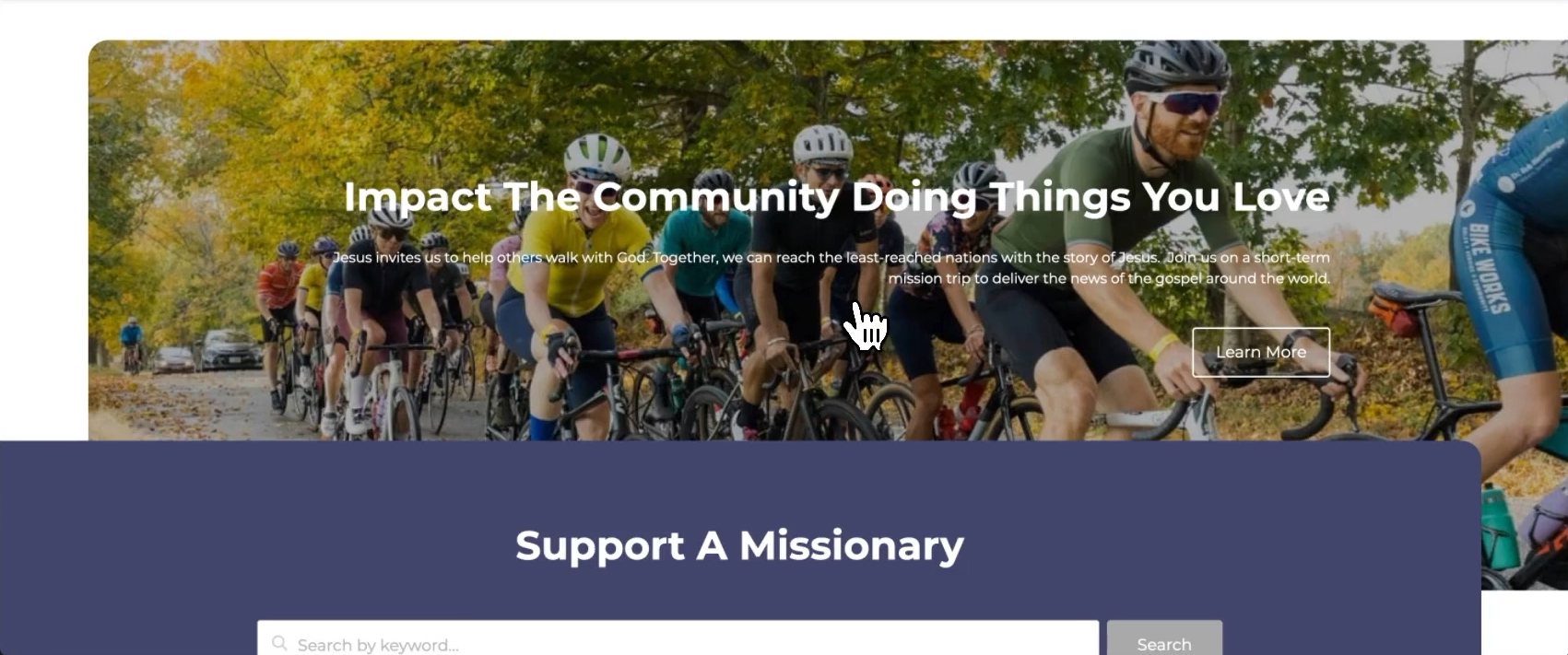
- You will want to be in Site Planner and add a new Basic Wrapper to a page with the Body (Position) and Offset Container (View) selected.
- Depending on the content you are trying to create the Overlap effects for, you can choose a combination of these different View Classes. Example: Offset Top -50%, Offset Left (90), Fixed Height (650)
- Once you have structured your first Offset Container wrapper, you will add another Basic Wrapper inside with the Basic (Base) View.
- Make sure to select under the Special Padding section for this Basic Wrapper the Padding Bottom that will counter-balance the Offset container so that your content looks correct and does not overlap! Example: Padding Bottom (150) - This is used for our previous example
- You can have fun and be creative with these new Views and View Classes by trying out different combinations!
Example: How to Use Offset / Overlapping Views
SLIDER (BASE)
PREVIEW
Content Type: Any
Position: Body
View: Slider
How to publish this:
- You will want to be in Site Planner and add a new Basic Wrapper to your page with the Body (Position) and Slider (Base) options selected.
- Find any content that you would like published within this slider and you can drag and drop that with any views how you would like them to display.
- After doing so, you can adjust the look and functionality of your slider to now fit the content within it!
- Preview your page that this slider is on and make any changes as you see fit.
Example: N/A
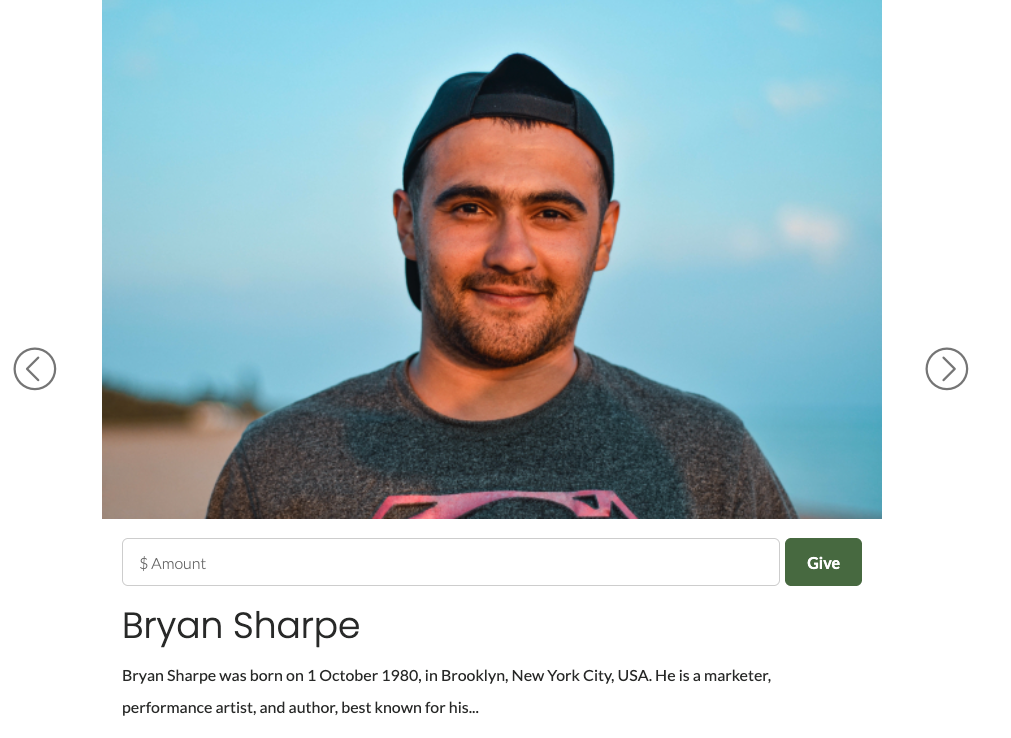
SLIDER (BASE) VIEW CLASSES
DESCRIPTION
Category: General
Example: Video Link
Arrow Padding - This will add padding to the left and right sides of your slider so that your content does not overlap the arrows at any point
Dark Color Dots - Instead of the default white dots these will become dark in color
Disable Pause on Hover - While autoplay is enabled, hovering over the slider will not pause the slider
Enable Autoplay - The slider will play through automatically without needing to manually change slides
Fade Transition - Adds a fade in and out transition to content items to the next instead of a slide animation
Featured Slider - Shows 3 items instead of a single content item
Show Arrows - This will display arrows on both sides of your Slider
TABS (BASE)
PREVIEW
Content Type: Wrapper
Position: Body and Popup
View: Tabs
How to publish this within the Body:
- You will want to be in Site Planner and add a new Basic Wrapper to your page with the Body (Position) and Tabs (Base) option selected.
- Create Wrappers with different names to hold your content within.
- Publish each of the tabs to your page to see how they will look with their titles.
- Now you can publish as much content as your heart desires within each of the tabs you have published.
- Preview the page you have these published on now and see how the functionality of switching between the tabs works!
How to publish this within the Popup (and how it works):
- You will want to be in Site Planner and add a new Basic Wrapper to your desired page with the Popup (Position) and Tabs (Base) option selected. Note: This is used frequently with the Give button in the header menu, so you may need to add this to your Assigned Content under the All Pages folder!
- To ensure that the popup works, you will need to have a menu item or a link that has a CSS Class of “open-popup” (Example of inline HTML: <a href="#" class="open-popup"> Open Popup</a>)
- You will need to now create up to 3 new Basic Wrappers which will give you multiple giving tabs on this popup. Examples: Support a Missionary, Give Where Needed and Featured Opportunity
- Once you have created these Basic Wrappers, you can then drag and drop those into the Popup wrapper we added earlier
- Create any content (static or dynamic) that you would like displayed within the Popup and test it out!
Example: How to Add the New Giving Popup (Assigned Content)
Give Popup Example (Missionary & Project Giving):
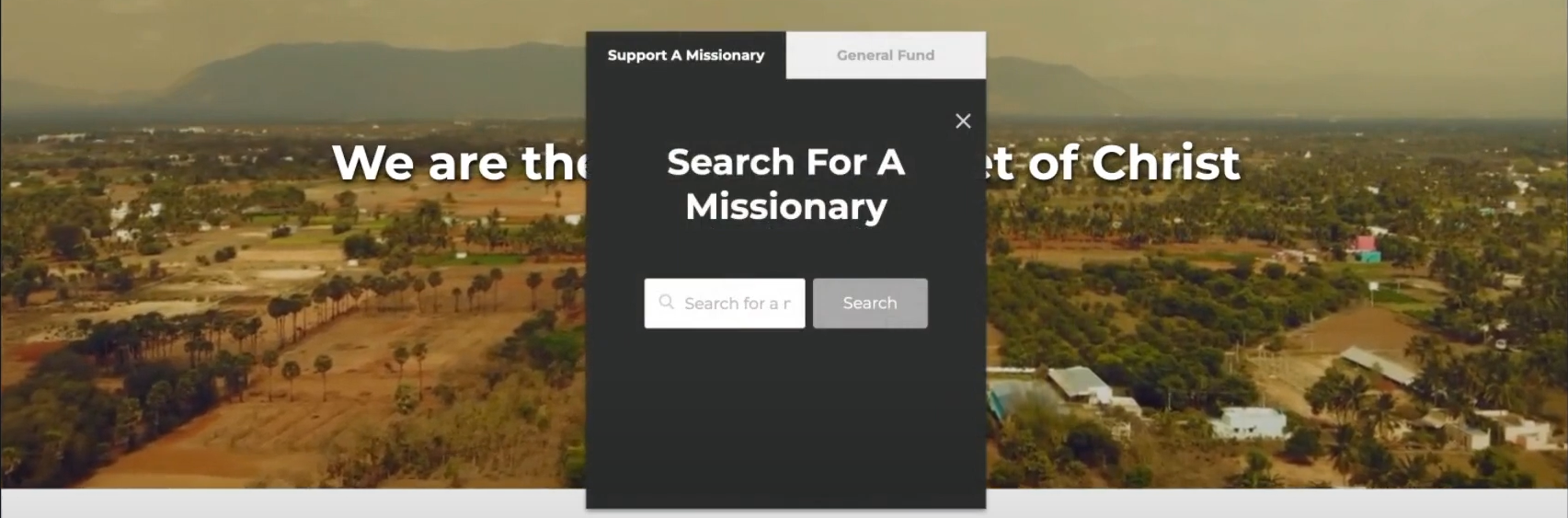 Giving Popup with Featured Project Giving
TABS (BASE) VIEW CLASSES
DESCRIPTION
Category: Background
Example: N/A
Color 1, Color 2, Color 3, Color 4 \- These will be colors based upon the Branding Guide that you provided to us and can be used to style the color of your Tabs (which will in turn make the Inactive tabs the same color, just more opaque!)
Positions Available
POSITION NAME
WHERE THIS CONTENT IS DISPLAYED
Body
Content is displayed below your Main Menu
Flyout
Shows up in the Sidebar menu, which lives in the hamburger menu
Footer
This is your Main Footer content that could potentially display extra information, company details, or a Newsletter Subscribe area (common use case)
Footer Bottom
This content shows up below your Main Footer content that would usually have links to Privacy policies, Terms & Conditions, Copyright info, etc. (frequent use)
Header Left (Logo)
Displays where your logo currently exists (at the top left-hand side of your site)
Header Search
Note: Only used with the Search Field module. Shows in the Header, and will generate extra code for a Search bar to drop down from the top of your site
Load Scripts (In Head)
Adds Javascript code to the Site header. Can be set on individual pages too
Main Menu
Where the Menu is always public-facing and visible to people visiting your site
Popup
This will take over your screen that will display in the center (usually used with Tabs and content searches to not be too crowded)
Shopping Cart
Only to be used with the Shopping Cart module to display in the header. Can be configured to show continuously, or only when gifts are added
User Drop Content
Best used with a User Menu to show options in a drop-down menu when clicked
User Menu
Displayed within your Main Menu (unless specified otherwise) to Login or used as a link to view other options when logged in
Updated on: 14/04/2026
Thank you!