CHILD GIFT PROCESS
Usage:
Permissions:
More information included under Permissions in page breakdown
- US Admin sees all gifts regardless of child or donor location.
Permission user group noted in page breakdown
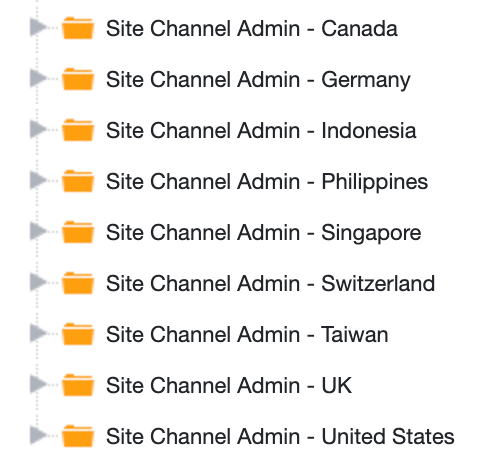
- Country Office Admin sees all gifts given by donors in their country by donor site channel specified in CRM
- Three permissions needed for caseload manager to work correctly
- SGC Country Office Admin (DB)
- Dashboard Access - Office Staff
Under Site Channel Administrators there is a list of site channels
- Add user to the site channel they should see donors from
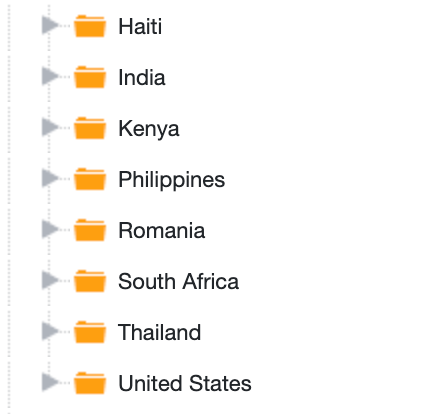
- Field Worker sees all gifts given to children in their country based on child country specified in CRM default address
- Three permissions needed for caseload manager to work correctly
- SGC Field Worker (DB)
- Dashboard Access - Office Staff
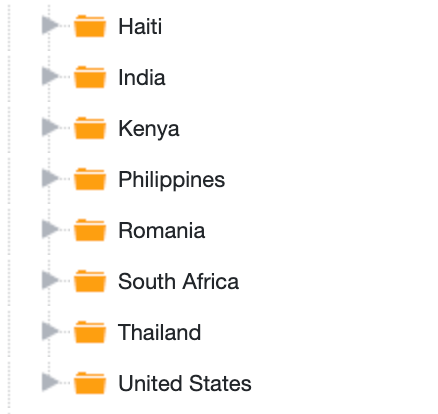
Under SGC Field Worker (DB) there is a list of countries
- Add the user to the country they should see children from
Navigation
- You can quickly navigate between the Primary caseload manager & camp caseload manager using links at the top of the screen
- Camp - <group>
- Primary - <group>

Filters
- Drop down filters for quick filtering of your caseload manager

- Selecting an option will limit the caseload manager to line items including that option
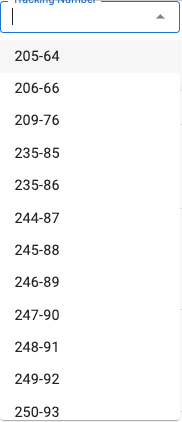 [](https://s3.amazonaws.com/cdn.freshdesk.com/data/helpdesk/attachments/production/151080637551/original/HqGprqDFRCHierZfdy3jlwlrCv4S2iQLeQ.png?1715713226)
[](https://s3.amazonaws.com/cdn.freshdesk.com/data/helpdesk/attachments/production/151080637551/original/HqGprqDFRCHierZfdy3jlwlrCv4S2iQLeQ.png?1715713226)
- After selecting ‘Tracking Number’ - ‘205-64’ the caseload is limited to that tracking number
- Advanced filters for specific filtering
- Click filters button (top right of caseload manager)
- Click the plus button beside ‘Apply Filters’
- Add Conditions
- Click Apply Filters
- Caseload will conform to the filters



- Now only Male Children will be in the caseload manager
- Multiple conditions can be added with the plus
- These stack on top of quick filters
Caseload Manager
- The caseload manager is a dynamic table including pertinent information for child gifts with the ability to quickly edit statuses & view child or donor information
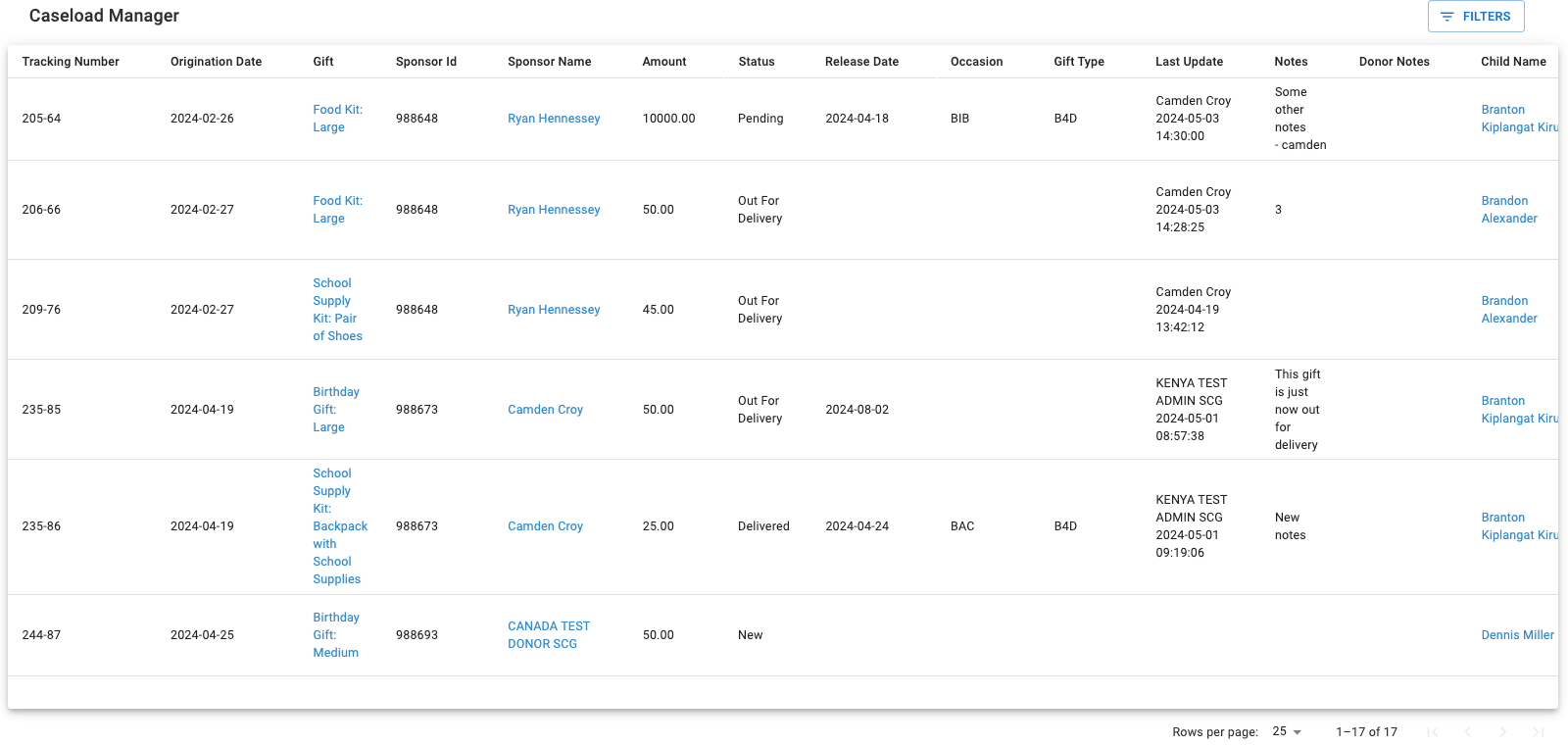
- The caseload manager includes additional columns if you scroll right or left
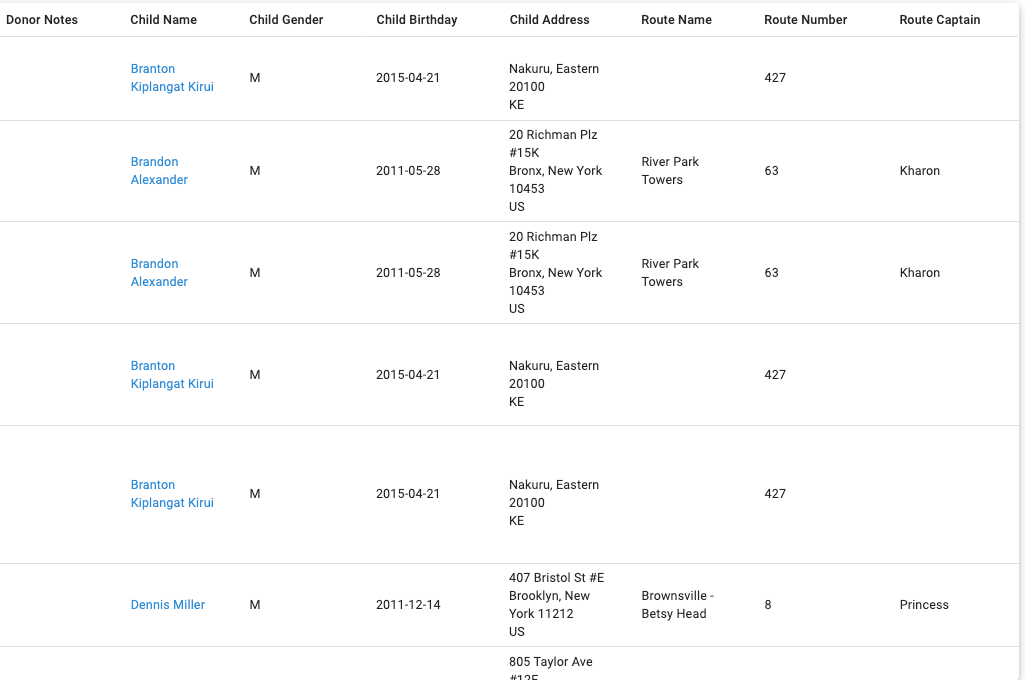
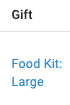
- Gift is the most important column - it is where you can edit gift status
- Clicking the blue highlighted gift name will open up the gift status editor
 = >
= > 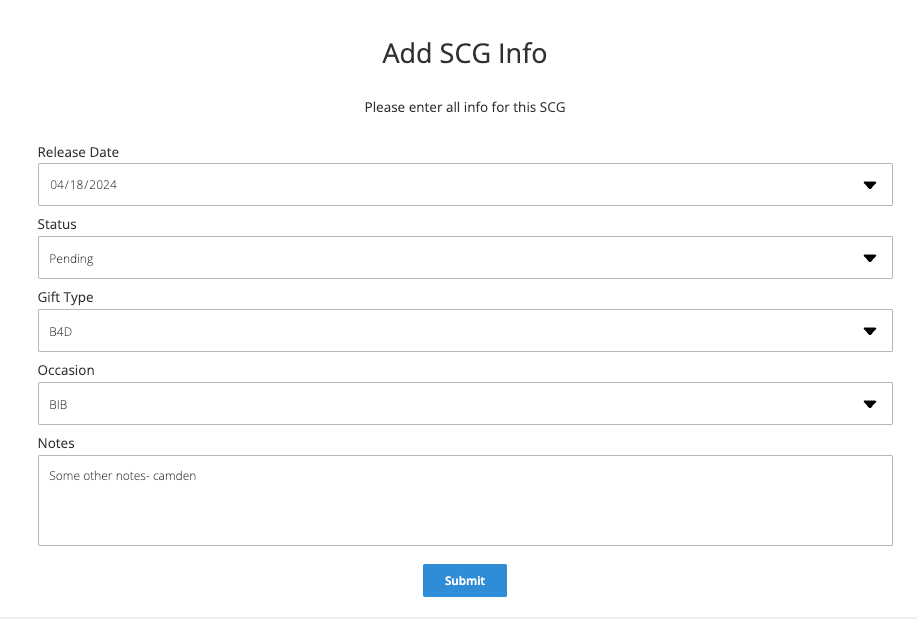
- Here you can edit or add new information, then click submit updating the gift
- If you are an admin you will have access to the following two columns buttons:
- Sponsor Name - Opens Sponsor Profile
= > 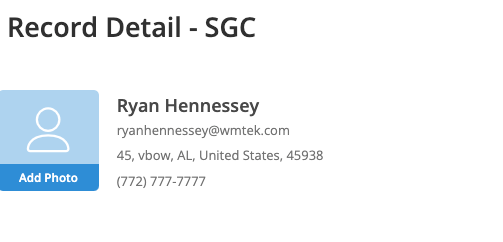
Includes more information and CRUD for many aspects of the donor profile
- Child name - Opens Child Profile
 = >
= > 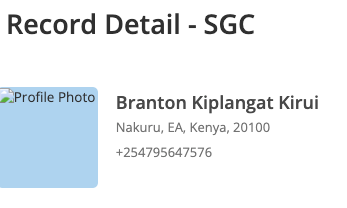
Includes more information and CRUD for many aspects of the child profile
Thanks Yous
- You can download thank you template for one or many gifts based on the case load filters
- Set your criteria to show only the gifts you want to export in caseload manager
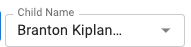 [](https://s3.amazonaws.com/cdn.freshdesk.com/data/helpdesk/attachments/production/151080637627/original/DYb6tTCw23c6dkXBG10-cGu9MafZCS1N_w.png?1715713234)
- Click the ‘Download Thank You’ Button at the top right of the page

- A new PDF is generated based on the items in the caseload manager
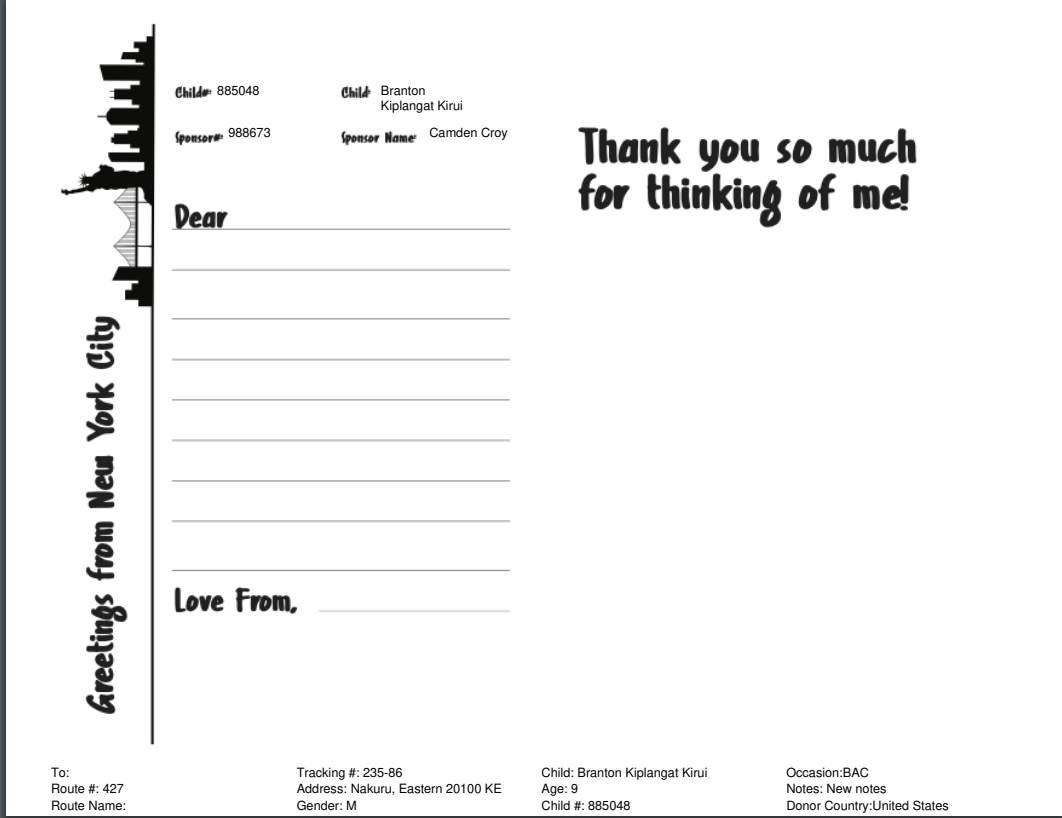 [](https://s3.amazonaws.com/cdn.freshdesk.com/data/helpdesk/attachments/production/151080637615/original/wg6aRN5SdbxKuxNWAzVzQA_maWpN6fpTeA.png?1715713234)
US Admin View
View / Permission:
All Children & Donors from all locations - Full CRUD Permission
(User Groups):


Columns:
- #### Tracking Number ((Contributions Transaction id) - (Motion Engagement Id))
- #### Origination Date
- #### Gift (Links To Edit Status)
- #### Sponsor Id
- #### Sponsor Name (Links to Donor Record Detail)
- #### Amount
- #### Status
- #### Release Date
- #### Occasion
- #### Gift Type
- #### Last Update
- #### Notes
- #### Sponsor Notes
- #### Child Name (links To Child Record Detail)
- #### Child Gender
- #### Child DoB
- #### Address
- #### Child Route Name
- #### Child Route #
- #### Child Route Captain
Office Location Admin
View / Permission:
Filtered view to donors by donor country - Full CRUD
(User Groups):
Page Permissions:
Filtering Permissions


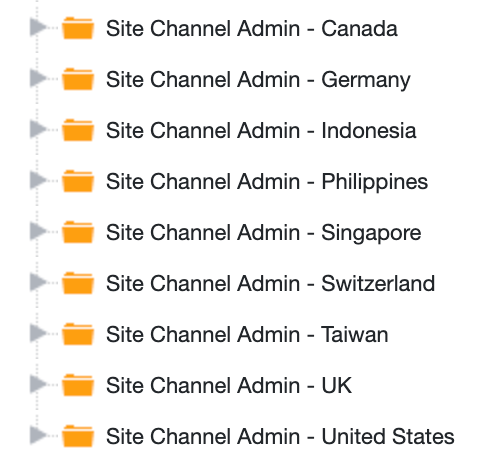
Columns:
- #### Tracking Number ((Contributions Transaction id) - (Motion Engagement Id))
- #### Origination Date
- #### Gift (Links To Edit Status)
- #### Sponsor Id
- #### Sponsor Name (Links to Donor Record Detail)
- #### Amount
- #### Status
- #### Release Date
- #### Occasion
- #### Gift Type
- #### Last Update
- #### Notes
- #### Sponsor Notes
- #### Child Name (links To Child Record Detail)
- #### Child Gender
- #### Child DoB
- #### Address
- #### Child Route Name
- #### Child Route #
- #### Child Route Captain
Field Workers View
View / Permission:
Filtered view to children by child country - UPDATE:
- Release date
- Status
- Notes
(User Groups):
Page Permissions:
Filter Permissions:


Columns:
- #### Tracking Number ((Contributions Transaction id) - (Motion Engagement Id))
- #### Origination Date
- #### Gift (Links To Edit Status)
- #### Sponsor Id
- #### Sponsor Name
- #### Amount
- #### Status
- #### Release Date
- #### Occasion
- #### Gift Type
- #### Last Update
- #### Notes
- #### Sponsor Notes
- #### Child Name
- #### Child Gender
- #### Child DoB
- #### Address
- #### Child Route Name
- #### Child Route #
- #### Child Route Captain
US Admin View - Camp
View / Permission:
All Children & Donors from all locations - Full CRUD Permission
(User Groups):


Columns:
- #### Tracking Number ((Contributions Transaction id) - (Motion Engagement Id))
- #### Origination Date
- #### Gift (Links To Edit Status)
- #### Sponsor Id
- #### Sponsor Name (Links to Donor Record Detail)
- #### Amount
- #### Status
- #### Session
- #### Notes
- #### Sponsor Notes
- #### Child Name (links To Child Record Detail)
- #### Child Gender
- #### Child DoB
- #### Address
- #### Child Route Name
- #### Child Route #
- #### Child Route Captain
Office Location Admin - Camp
View / Permission:
Filtered view to donors by donor country - Full CRUD
(User Groups):
Page Permissions:
Filtering Permissions:


Columns:
- #### Tracking Number ((Contributions Transaction id) - (Motion Engagement Id))
- #### Origination Date
- #### Gift (Links To Edit Status)
- #### Sponsor Id
- #### Sponsor Name (Links to Donor Record Detail)
- #### Amount
- #### Status
- #### Session
- #### Notes
- #### Sponsor Notes
- #### Child Name (links To Child Record Detail)
- #### Child Gender
- #### Child DoB
- #### Address
- #### Child Route Name
- #### Child Route #
- #### Child Route Captain
Field Workers View - Camp
View / Permission:
Filtered view to children by child country - UPDATE:
- Status
- Session
- Notes
(User Groups):
Page Permissions:
Filter Permissions:


Columns:
- #### Tracking Number ((Contributions Transaction id) - (Motion Engagement Id))
- #### Origination Date
- #### Gift (Links To Edit Status)
- #### Sponsor Id
- #### Sponsor Name (Links to Donor Record Detail)
- #### Amount
- #### Status
- #### Session
- #### Notes
- #### Sponsor Notes
- #### Child Name (links To Child Record Detail)
- #### Child Gender
- #### Child DoB
- #### Address
- #### Child Route Name
- #### Child Route #
- #### Child Route Captain
Updated on: 14/04/2026
Thank you!