Download Report Module
This module can be used to quickly download a report (based on existing reports per installation). This also uses the PDF template set for those specific reports (you can refer to this [](https://sitestacker.training/detail-page/print-templates)link regarding Print Templates).
How to publish this module:
- Login to the admin side of Site Stacker
- Go to the Site Planner component
- Under Content Explorer, right-click on the ‘Modules’ folder
- Add a new item called ‘Download Report’ module
- Name the module and click ‘Save’
- Once ‘Saved’ you should be able to see more fields for the module setup
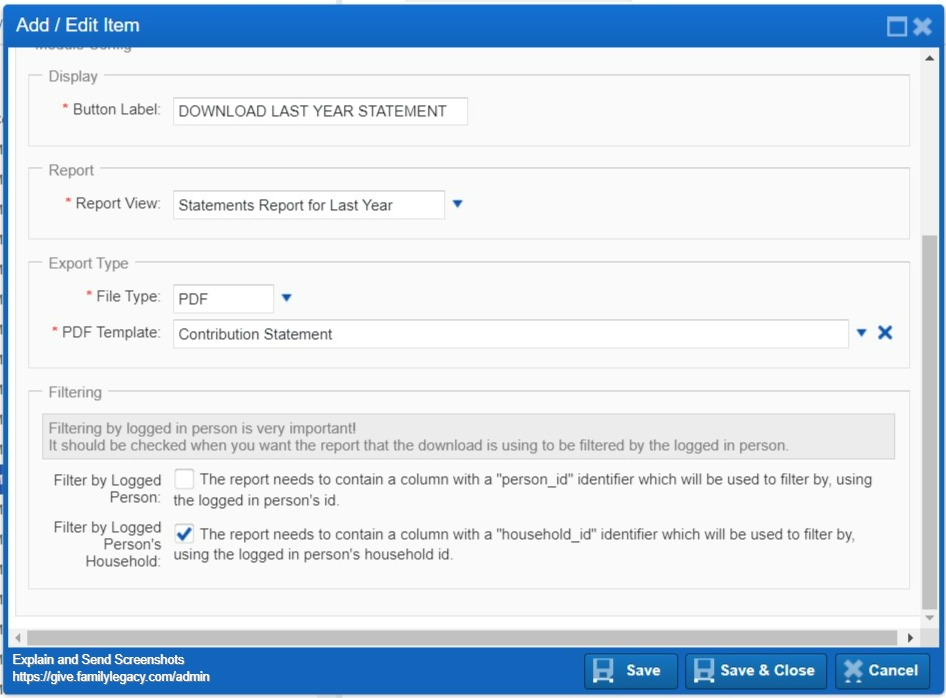
- Type in a button label
- Choose the Report View you want this button to pull from
- Choose the PDF Template you want to use for this report
- Optional: For cases where you want the data to be limited to the logged-in person, check the checkbox so this only shows data depending on the logged-in person viewing the report
- Once the module is set, you can then publish this to a page in the Site Plan side. Make sure that you publish this in a ‘wrapper’ of its own.
Please refer to an example of how this can be set below:
Updated on: 14/04/2026
Thank you!