Importing Tags & Tagging Content
Before tagging content, you will need to first import the tags into your SiteStacker installation.
Steps to follow for the Tag Import:
- Before diving into the 'Import' component, let's open the 'Tags' component
- You will want to be on the 'Categories' tab, so click that tab
- Add the category, or categories where you want your imported Tags to be put into.
- Note: You can set up as many categories that you would like, which should be related to the content on your site
- Once you have added your desired category, or multiple categories, these should now show up for when you go to import Tags
- Close out of the 'Tags' component and head on over to 'Import' component
- Click on the 'Documentation' tab and locate your newly created tag category import documentation
- Select each one and choose 'Download Selected'
- Open up the .zip file that is generated and downloaded=
- Fill out each one with all of your desired tags related to each category with the fields listed below and in your spreadsheet(s)
Below are the fields you will need to fill out for each category and all tags (Note: each field below is required!):
Column Name
Description
name
This should be the name of your tag (ex. For Age, the tag name could be Adult)
external_id
This is a unique external ID that you should set for the tag (ex. AGE-01)
external_type
Tags can belong to different categories so you can use this field to identify tags from multiple categories if necessary.
Once you have imported your tags into SiteStacker, they should now show up in their respective categories. Now let's go ahead and assign these Tags to the content on your site!
How to Tag Content:
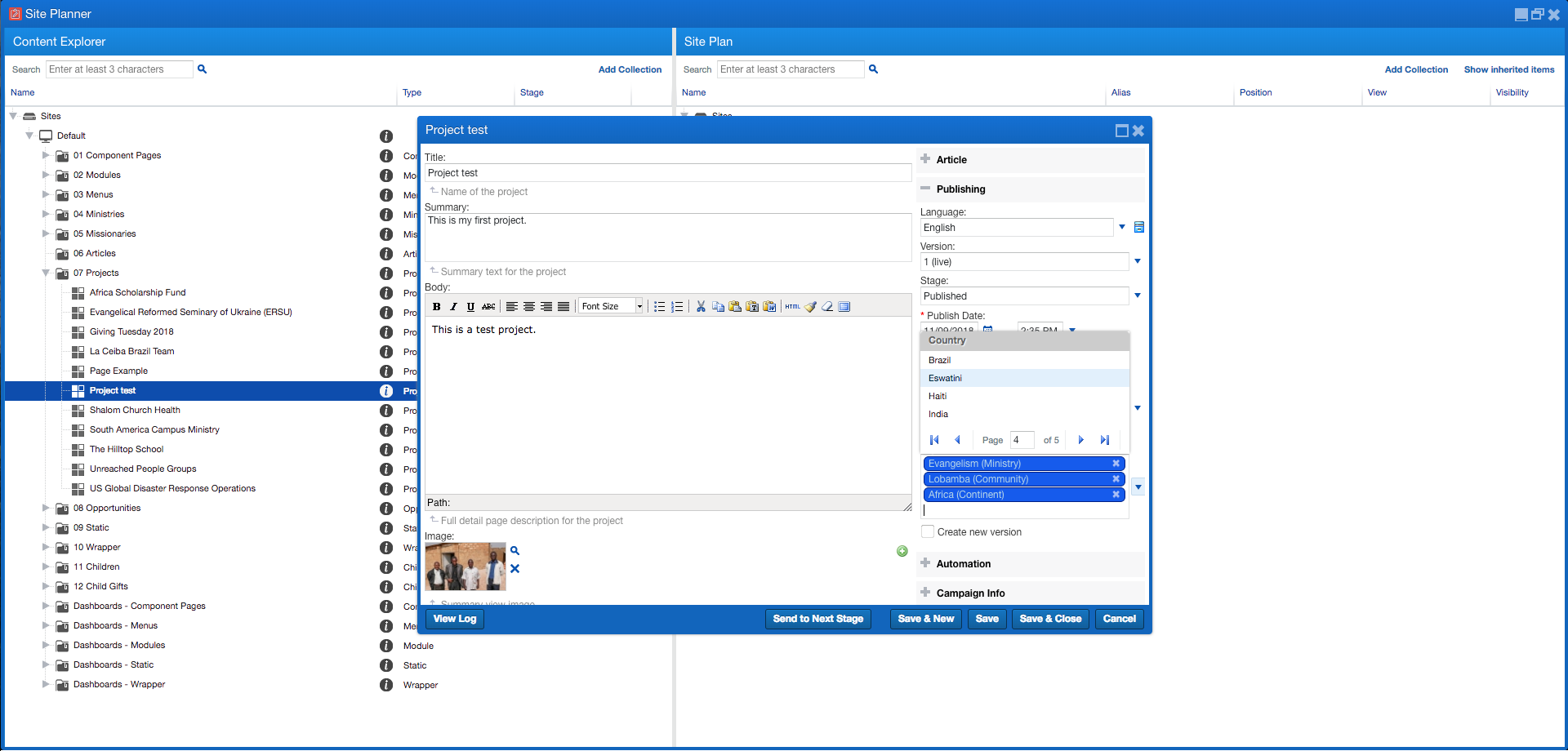
- Within your SiteStacker installation, navigate to the 'Site Planner' component
- Find the content that you created each category/categories for and double-click on the content items (Article, Missionary, Project, etc.)
- On the window for editing the content item, you should see on the right-hand side a couple of sections with '+' signs, with the 'Article' section open by default
- Click on the 'Publishing' section and it will display information regarding Publishing information
- You should see the 'Tags' field with a dropdown arrow - click it
- You will be presented with a list which should be paginated depending on the amount of tags you have
- Choose the tags that are related to that content item and you have now assigned those tags to your content
Note: If you want to set tags for related content at a higher level, simply add these at the Folder level by right-clicking on the folder with the specified content items, choosing the 'Manage Default Content' option, and then adding the tags under the 'Publishing' section.
Updated on: 14/04/2026
Thank you!