Understanding System Messages
Before diving into every single Default System Message and possible information overload, let’s go over what the System Message component is by giving a basic overview, take a glance at the high-level System Messages included in your SiteStacker installation, and then we can get into the nitty-gritty!
What are System Messages?
When you log into your SiteStacker installation, you will see the System Category with the System Messages component (the icon is a chat bubble). A brief overview of this component is the following:
- These are where automated messages are sent out when a certain action is taken on the website (new contribution, campaign removal, failed cron job, etc.).
- Default emails sent through our system can be customized in any way.
- Messages created will be on the Default site, but if you create a new Site you can assign new messages with different branding and messaging.
Do I need to set up ALL of my System Messages?
Luckily for you, we have already included a vast majority of System Messages that you could potentially edit and use right out of the box! Ranging from Users, Contributions, Messages, and more, you can easily see what is already offered. See the screenshot below to get a glimpse of what messages are included. If you don’t see a message that relates to what you are looking for, then feel free to add one! We will discuss that now.
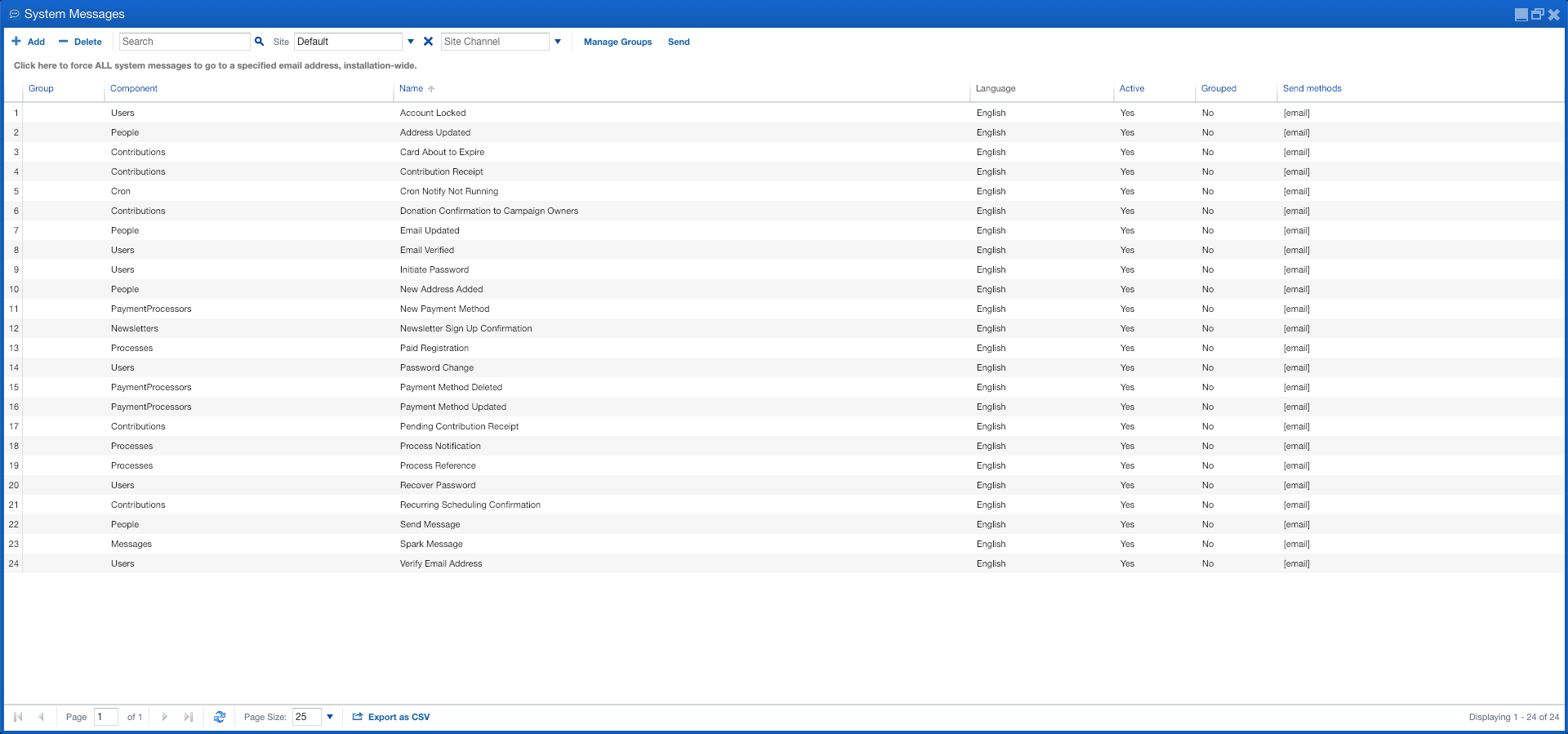 *
*
(click the image to view full size)**
How do I Add, Edit & Delete System Messages?
Always take note when you want to do any of these actions just in case something isn’t working correctly or might be needed in the future. Follow these steps to do all of the above actions:
To Add a System Message:
Note: Before adding a System Message, you should have set up a Default Sender for your site.
- Log into your SiteStacker Installation.
- Click on the ‘System Messages’ component to view your current System Messages.
- Click the ‘Add’ button at the top-left and a new window will pop up.
- If you want a new sender to have this email sent from, enter it in the ‘From’ field.
- Next, choose your ‘Component Rule’ by finding a topic similar to what you are looking to create a message for.
- Once you have chosen your ‘Component Rule’, the ‘Name’, ‘Subject’, and ‘Body’ fields should have been populated as well.
- If you have multiple of the following then please choose them: ‘Language’ and ‘Site Channel’
Note: You can also ‘Send Copies to’ other people specified, as well as add ‘Additional Receivers’.
- Choose the **\[Email\] ‘Send Method’ and click ‘Save & Close’.**
- You should now be able to see your newly created System Message in the list!
To Edit a System Message:
- With your newly created System Message, double-click on this in the list and the ‘Add / Edit Message’ window will pop up.
Note: When editing a System Message, you can not change the ‘Component Rule’, so if you chose the wrong one then you would need to delete it and choose the right one when you go to add a new System Message.
- When editing, you will notice that you can change the **‘Name’ of the message, ‘Language’, ‘Send Method’, etc. fields.**
- On the ‘Body’ portion of the System Message, you may notice some strange code (ex. {$email}, {$address.zip}, etc.). These are Variables that collect data from that specific user and/or category. You will see a list of Variables on the left-hand side of the window.
- To add variables to your message: Make sure you are in the right part of your message and simply double-click the variable. It should now show up where you had your cursor.
- **To add images to your message: Click on the tiny thumbnail with the tree on it and the ‘Insert/Edit Image’ window should pop up. You will see a ‘Browse’ icon next to the ‘Image URL’ field. Click this, search for your image, double-click it, and the path to the image will be put into here. Note: Do not remove anything from this path or this image may not render correctly when people view this message! Click insert and the image will be added to your System Message.**
- Once you are done making edits to your System Message, click ‘Save & Close’.
To Delete a System Message:
- Highlight the **System Message you would like to delete and click ‘Delete’**
- A pop-up will ask if you want to delete the selected message(s). Click Yes.
- You have successfully Deleted a System Message!
Note: Make sure that you check to make sure that you are deleting the correct image, especially if you have worked so hard on perfecting a message just to have it deleted accidentally!
What are the Different System Messages that live on my SiteStacker Installation?
Below is a list of each default System Message that comes with your SiteStacker Installation.
SYSTEM MESSAGES //
COMPONENT RULES & DEFINITIONS
MESSAGE PREVIEW (VARIABLE VIEW)
Component: Users
Name: Account Locked
Unique Variables: email, attempts, minutes
Definition: This message is sent out after many log-in attempts are unsuccessful, locking you out for too many invalid attempts and stating the amount of time until you can get back into your account.

Component: People
Name: Address Updated
Unique Variables: PreviousInfo, PersonAddressType, PersonAddress, LocationCountry, LocationState
Definition: A message is sent out stating that a user has changed their address, stating specifically what it was before and what it has been updated to.

Component: Contributions
Name: Card About to Expire
Unique Variables: card, expiration_date, days
Definition: Notification of how many days are left before a user’s Credit Card (CC) expires so that they can log into their account and renew it or input new CC information.

Component: Contributions
Name: Contribution Receipt
Unique Variables: date, total, donor, address, affiliatedPerson, affiliatedPersonAddress, contributions, transactionId, batchId, isRecurring, recurring
Definition: This will display a list of amounts, the places each one went to, and the Total amount of all combined contributions.

Component: Cron
Name: Cron Notify Not Running
Unique Variables: server
Definition: This will be sent if the Cron Jobs are not running on the server. It will also state that you can disable this notification (if known or unnecessary) and the steps to do so.

Component: Contributions
Name: Donation Confirmation to Campaign Owners
Unique Variables: Donor, Address, Phone, OwnerName, Gift
Definition: This sends a notification to the Campaign Owner whenever a Donation has successfully gone through to their Campaign. Describes the person (if not Anonymous), the amount given, and how to contact them (again, if not Anonymous).

Component: People
Name: Email Updated
Unique Variables: previousEmail
Definition: When a User updates their Email Address, then this notification is sent to them to let them know that the change was successful.

Component: Users
Name: Email Verified
Unique Variables: N/A
Definition: If an email verification message has been sent out and responded to, then this message will be sent to them to state that the confirmation was successful.

Component: Users
Name: Initiate Password
Unique Variables: url
Definition: When somebody wants to create a password for their account, then this email is sent to them with a secure link so that they may do so.

Component: People
Name: New Address Added
Unique Variables: Person, PersonAddressType, PersonAddress, LocationCountry, LocationState
Definition: When a person adds a new address to their account, this email is sent to them to let them know the exact address that they added to their account so that they can double-check if all the information input was correct.

Component: PaymentProcessors
Name: New Payment Method
Unique Variables: PaymentProcessorCard, PaymentProcessorCheck
Definition: When a new payment method is added by a User to their account, then they are notified of the change so that they can make sure that their information is correct.

Component: Newsletters
Name: Newsletter Sign-Up Confirmation
Unique Variables: Newsletter
Definition: When a person signs up for a Newsletter (if any), then they are notified about which Newsletter and on which site (if you have multiple) the Newsletter lives.

Component: Processes
Name: Paid Registration
Unique Variables: total, donor, address, affiliatedPerson, affiliatedPersonAddress, participants, transactionId, batchId
Definition: When a person pays for registration then this email is sent out to them stating the amount, who the participants are, and the total amount.

Component: Users
Name: Password Change
Unique Variables: N/A
Definition: If there was a password change on a user’s account (either manually or through staff input) then this message is sent out to the person whose password was changed to make sure it was meant to be changed or not.

Component: PaymentProcessors
Name: Payment Method Deleted
Unique Variables: PaymentProcessorCard, Payment Processor Check
Definition: When a payment method is deleted from someone's account, they are notified of which payment Method was deleted.

Component: PaymentProcessors
Name: Payment Method Updated
Unique Variables: PaymentProcessorCard, Payment Processor Check
Definition: When a payment method is updated on someone’s account, they are then notified of the current payment method.

Component: Contributions
Name: Pending Contribution Receipt
Unique Variables: date, total, donor, address, affiliatedPerson, affiliatedPersonAddress, contributions, transactionId, batchId, isRecurring, recurring
Definition: While still pending, this will display a list of amounts, the places each one went to, and the Total amount of all combined contributions.

Component: Processes
Name: Process Notification
Unique Variables: subject, body
Definition: This is a notification sent out when a process happens on your site.

Component: Processes
Name: Process Reference
Unique Variables: URL, Applicant
Definition: If an Applicant adds somebody as a Reference, then this email is sent out to that Reference with a link to fill out their reference form.

Component: Users
Name: Recover Password
Unique Variables: url
Definition: When somebody has lost or forgotten their password and wants to reset it, then this message is sent out to them so that they can do so.

Component: Contributions
Name: Recurring Scheduling Confirmation
Unique Variables: total, donor, address, affiliatedPerson, affiliatedPersonAddress, contributions, recurring
Definition: When a person has started a new recurring contribution with one or more designations (people, campaigns, projects, etc.) then this email will be sent to them. This goes over the schedule, each line item, their amounts, and the total amount that will be charged for the time chosen.

Component: People
Name: Send Message
Unique Variables: subject, body
Definition: When a message is sent to somebody in their CRM record, then this email will be sent to that person letting them know about the message.

Component: Messages
Name: Spark Message
Unique Variables: subject, body
Definition: When a Spark event is triggered to send a Spark Message, then whatever message is set in the Spark event is sent to the person who triggered the event.

Component: Users
Name: Verify Email Address
Unique Variables: confirmation_link
Definition: When a User needs to verify their email address, then this email is sent to them which includes a unique link for them to click on to verify their email address.

****
Who receives each System Message and what triggers the message to be sent?
****
Component
Name
Description
Receiver
What triggers this System Message
Advocacy
New Campaign Confirmation
Email notification on a newly created advocacy.
User (advocacy owner).
This is triggered when a user creates a new peer-to-peer campaign.
Advocacy
Campaign awaiting approval
Notification for the advocacy owner that the advocacy created is in review (for setups where the admin needs to approve an advocacy).
User (advocacy owner)
This is triggered if peer-to-peer is set that an admin will need to review the campaign first before approving to publish.
Contributions
Contribution Receipt
Notification regarding a summary of donations made.
Donor
This is sent to the donor as soon as the donor submits a donation.
Contributions
Recurring Schedule Confirmation
Notification on a recurring schedule setup.
Donor
This is sent once a donor sets up a recurring donation schedule.
Contributions
Card About to Expire
Notification that a credit card is about to expire.
Donor
Triggered based on the ‘Days Before Expiring’ value found in the System Message itself.
Contributions
Contribution Declined
Notification of a declined transaction.
Donor
Triggered when a transaction was declined.
Contributions
Contribution Declined (System Error)
Notification on why the contribution was declined.
Ministry Admin (needs to be added as an additional receiver).
Triggered when a transaction was declined.
Contributions
Recurring About to Expire Notify Donor
Notification that a recurring schedule is about to expire.
Donor
Triggered when a recurring donation is about to expire depending on what value (days before expiring) is set in the System Message.
Cron
Cron Notify Not Running
Notification that the Cron job stopped running.
WMTEK Admin
Ministry Admin (needs to be added as an additional receiver).
Triggered when a Cron job failed depending on the Cron job’s configuration.
Messages
Spark Messages
This is a notification that contains the custom Spark Messages in the Spark component.
Depending on who should receive the message in Spark.
Triggered when a message is sent from SS through a Spark trigger.
Newsletters
Newsletter Sign-Up Confirmation
Notification regarding a newsletter subscription a user subscribed to.
User
Triggered when a user signs up for a newsletter.
Newsletters
Newsletter Sign-Up Confirmation To Admin
Notification that a user has subscribed to a newsletter on the website.
Ministry Admin (needs to be added as an additional receiver)
Triggered when a user signs up for a newsletter.
PaymentProcessors
New Payment Method
Notification that a new payment method has been added to the donor’s account.
Donor
Triggered when a donor adds a new payment method under the donor’s Site Stacker account.
PaymentProcessors
Payment Method Updated
Notification that a payment method has been updated in the donor’s account.
Donor
Triggered when a donor updates an existing payment method under the donor’s Site Stacker account.
PaymentProcessors
Payment Method Deleted
Notification that a payment method has been deleted from the donor’s account.
Donor
Triggered when a donor deletes an existing payment method under the donor’s Site Stacker account.
PaymentProcessors
Failed Pending Transaction (Admin)
Notification regarding a pending transaction and why the transaction failed.
Ministry Admin (needs to be added as an additional receiver).
Triggered when a pending transaction failed.
People
Send Message
Notification on the internal message that was sent in Site Stacker.
User
Triggered when a message is sent from Site Stacker either through the dashboard or from the CRM component.
People
Address Updated
Notification of an address update in the user’s CRM.
User
Triggered when a user updates his/her address.
People
Email Updated
Notification of an email update in the user’s CRM.
User
Triggered when a user updates his/her email.
Prayers
Prayer Saved
Notification that the prayer has been saved to the user’s prayer calendar.
User
Triggered when a user has created a prayer advocacy.
Prayers
Prayer Reminder
Notification to remind the user of a scheduled prayer.
User
Triggered for prayer reminders.
Prayers
New Prayer For Content Owner
Notification to the content item owner that a user has added them to their prayer calendar.
Content Item Owner
Triggered when someone has added a prayer to their campaign.
Processes
Process Notification
Email notification sent through Motion 2.
Depending on who should receive the message in Motion 2.
Triggered when a task has been completed by a user through a Motion 2 workflow.
Processes
Process Reference
Email notification to a user assigned as a reference in a Motion 2 workflow.
User (Reference Role)
Triggered when a user listed another person as a reference through a Motion 2 workflow.
Processes
Paid Registration
Email notification on a checkout that was done through a Motion 2 workflow.
User
Triggered when a user has paid a registration fee through a Motion 2 workflow.
SitePlanner
Content Moves Stage
Email notification that lets an admin know that a content item has changed the publishing workflow (for missionary dashboard that has profile bio setup).
Ministry Admin
Triggered when an admin changes the publishing stage of a content item in Site Planner.
SitePlanner
Live Content Moves Stage
Email notification that lets an admin know that a live content item has changed the publishing workflow (for missionary dashboard that has profile bio setup).
Ministry Admin
Triggered when an admin changes the publishing stage of a live content item in Site Planner.
SitePlanner
Owned Content Stage Changed
Email notification regarding a submitted change to a content item
Content Owner
Triggered when a content item has been changed in it’s publishing stage.
Users
Recover Password
Email notification regarding password reset
User
Triggered when a user submits a request to recover the password.
Users
Account Locked
Email notification on a locked account due to failed login attempts
User
Triggered when a user has tried to log in unsuccessfully ‘X’ times based on the login configuration in Sites.
Users
Verify Email Address
Email notification for verifying an email address
User
Triggered when a new user has set up a Site Stacker account for the first time.
Users
Email Verified
Email sent to the user on a successful email verification.
User
Triggered once a user verifies his/her email address.
Users
Password Change
Email notification to the user regarding a password change.
User
Triggered when a user changes/updates his/her password.
Users
Initiate Password
Email notification for setting up a password for first-time accounts.
User
Triggered when a user needs to change/update his/her password.
Webhooks
Webhook Delivery Failed
Email notification for failed webhooks (for clients with SS-Virtuous integration).
WMTEK Admin
Triggered when a webhook delivery failed based on the webhook configuration.
Updated on: 14/04/2026
Thank you!