Year End Statements
- * *
Introduction
Purpose of This Page: Utilize the new Year End Statements page to manage your year end statements sending. Use configurable filters to send statements to specific segments of donors. See live progress of sends and previous sends. See status of each persons statement from a given send and quickly resend in the event of a failure.
Who Should Use It: Finance teams and system administrators
Prerequisites: Ensure members who need access to the page are in the group Year End Statements, the email template is configured and test mode sends have been verified. Finally turn off test mode
Visuals are available in Google document:
https://docs.google.com/document/d/1i4EHwjflPUB1jjBcmXTAXxurCvwng_cgPY3w19Y16sk/edit?usp=sharing
Key Features
- Donor Base Filtering
Select donor segments based on year, household, and email address.
- Email Template Configuration
Customizable email template to be sent out to the donor segment, with link to statement.
- Bulk Sending
Send the customized email to a filtered list of recipients.
- Recipient Status
Automatically generated log showing :
- List of all recipients
- The status of each recipients email
- Which administrator sent the statements
- When the statements were sent
Accessing and Navigating the Page
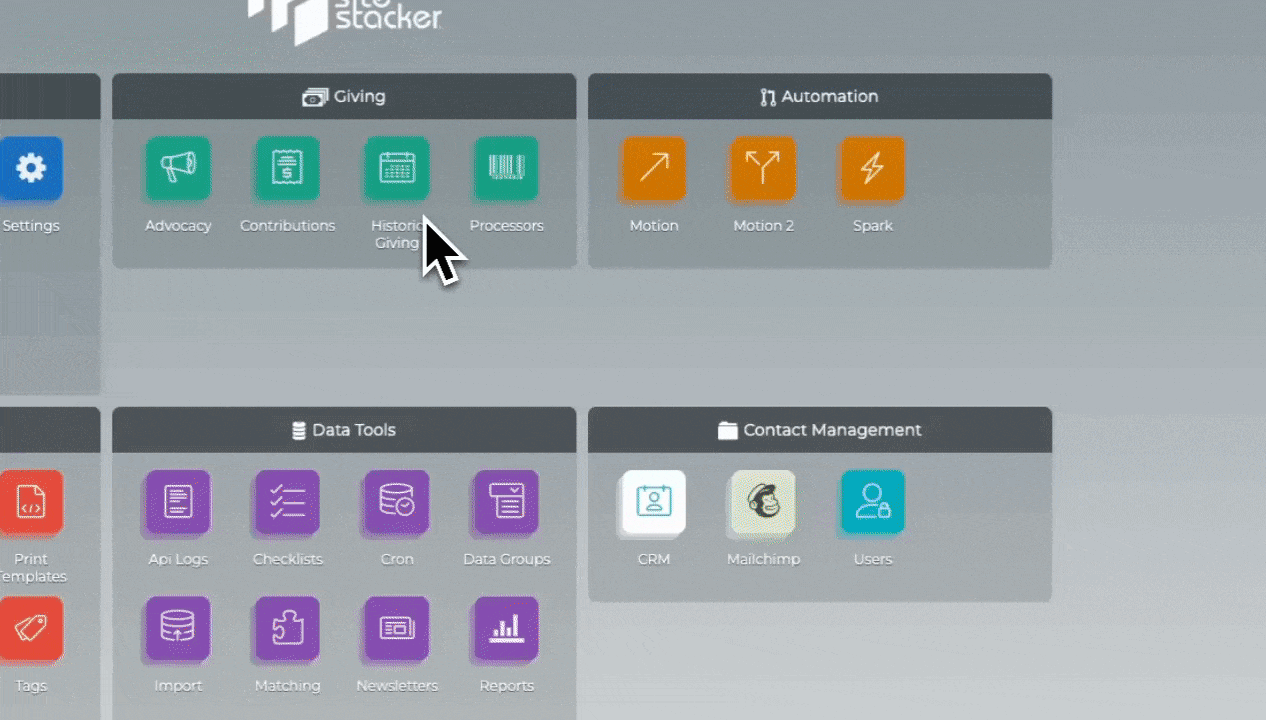
- How to Access: From /admin open the Contributions component and click the Year End Statements tab on the sidebar. This will reveal the link for the administrator to access the page.
- Navigation Overview:
- Year End Statements Module
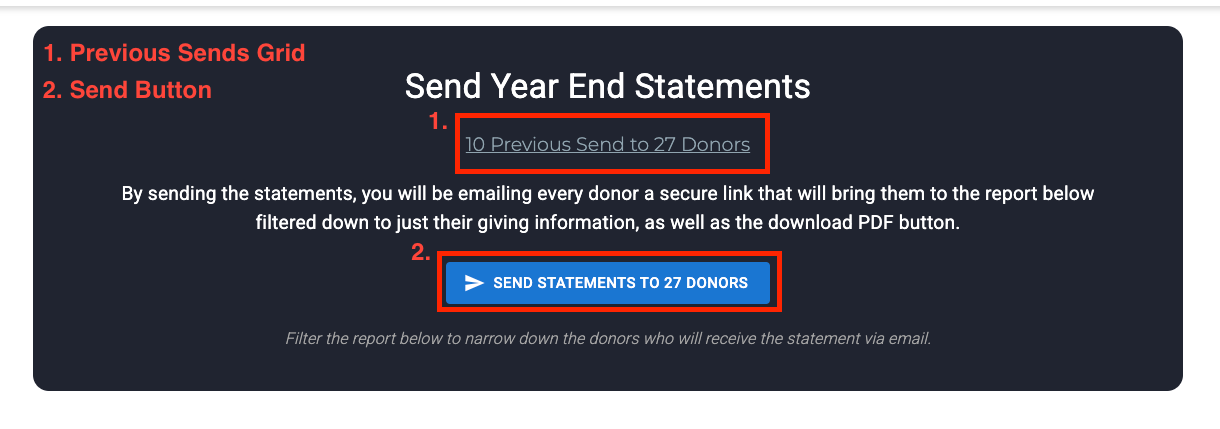
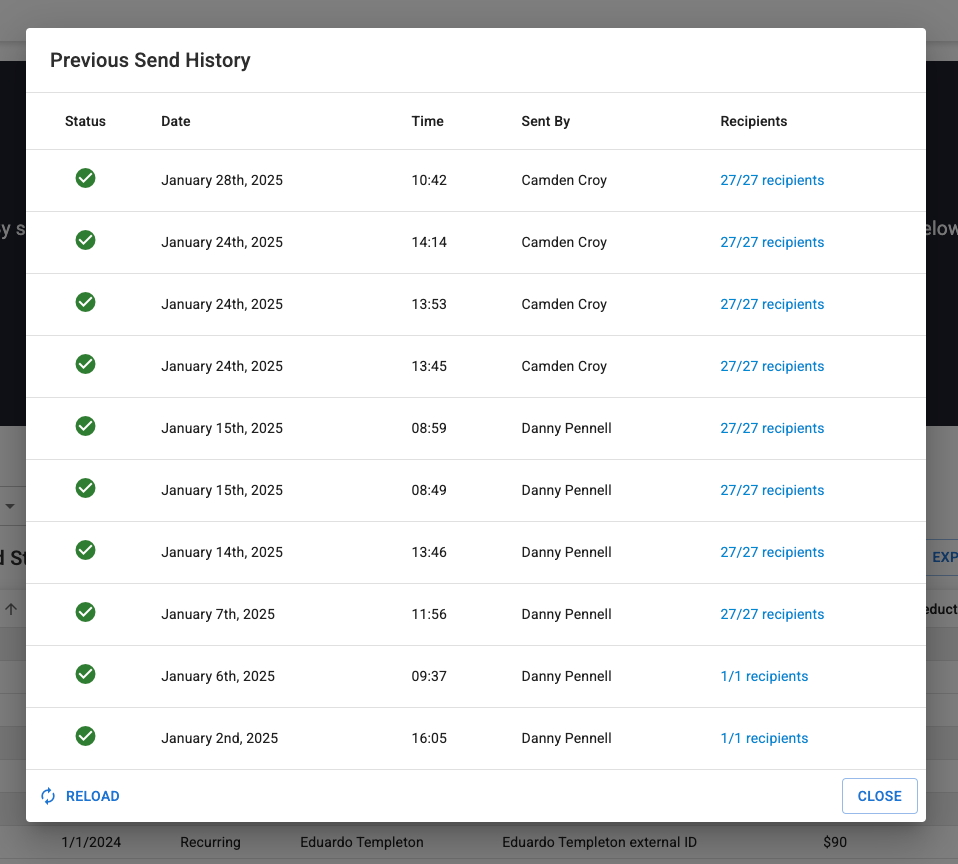
- Previous Sends Grid Overview
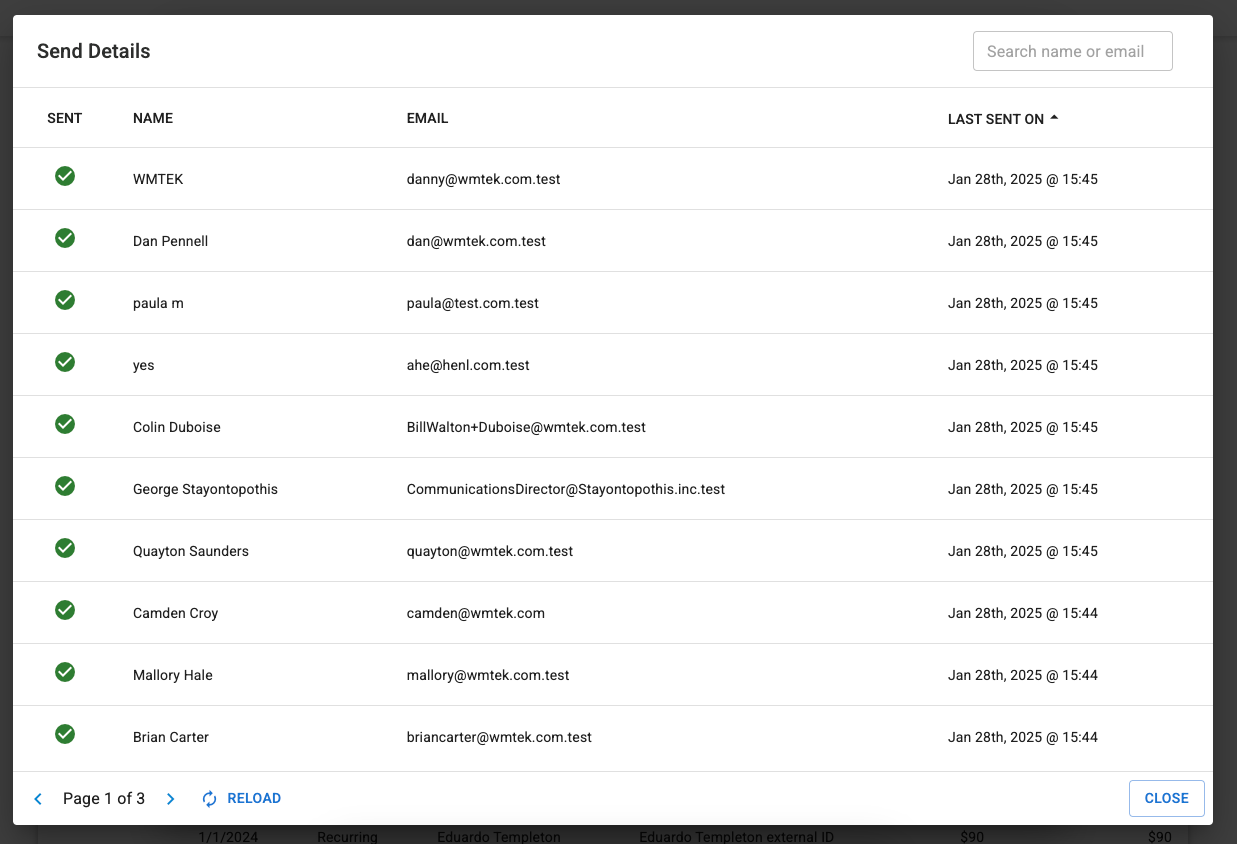
- Send Recipients List
- Filters & Download Button

- Donors Grid
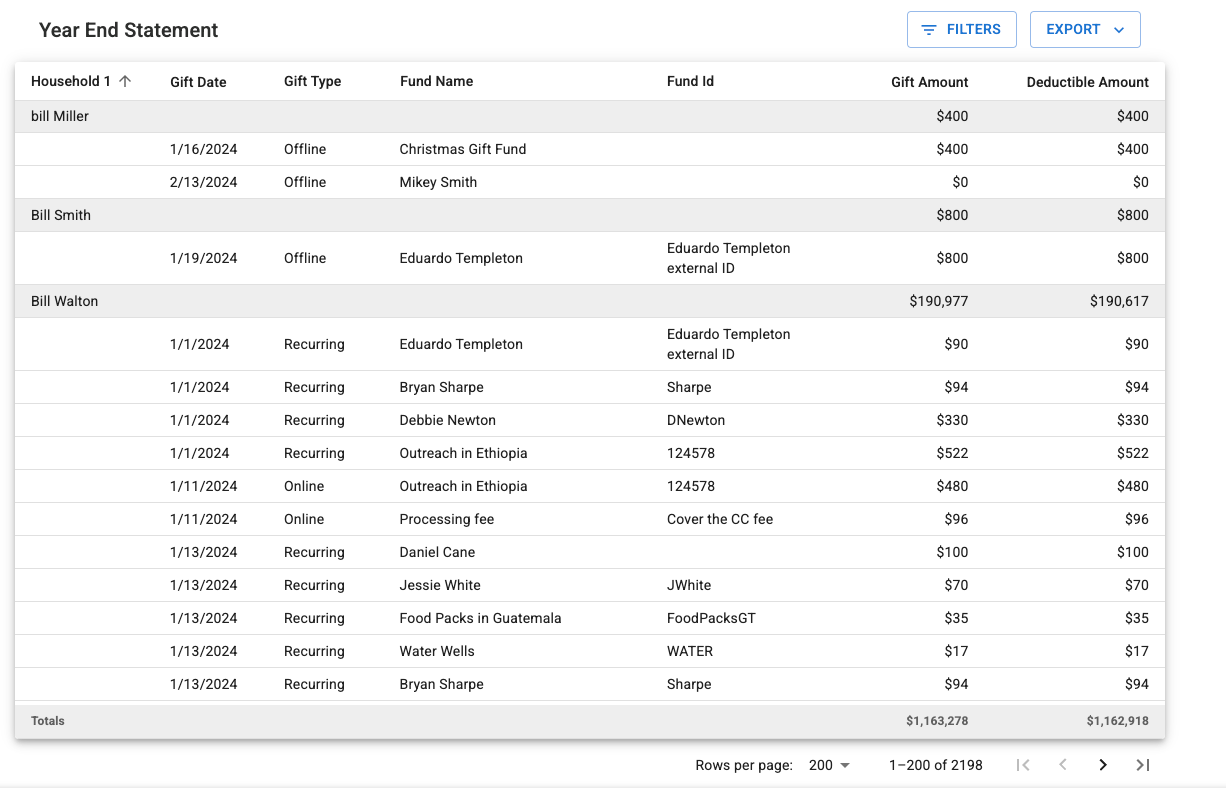
Detailed Walkthrough
Step 1: Permissions
- Go to /admin and open the Users component.
- Click the Groups tab from the left sidebar.
- Locate the group Year End Statements
- Add the appropriate users to the group.
Step 2: Add 'Personalized Data Send' System Message
- Go to /admin and open the System Messages component
- Find the Personalized Data Send system message.
- Check if this is already in your system message, if not, add it and 'Save & Close'.
Step 3: Send Test Email
- Go to /admin open the Contributions Component, then click the new Year End Statements tab.
- This will reveal the link to the administrator page.
- On that page you can click Send to Myself For Testing
- This will email you the same email a donor would get for a random donor in the context (grid below)
- Finally you can open the email, click the link in an incognito window, download the receipt and view what the donor will see.
Step 4: Turn Testing Mode Off
- Open the Site Planner Component from /admin and paste the alias from the Year End Statements Admin Page
- Expand the page and find the Send Report Page: Year End Statement module
- Right click, then edit.
- Scroll to the bottom of the configuration and uncheck Testing Mode
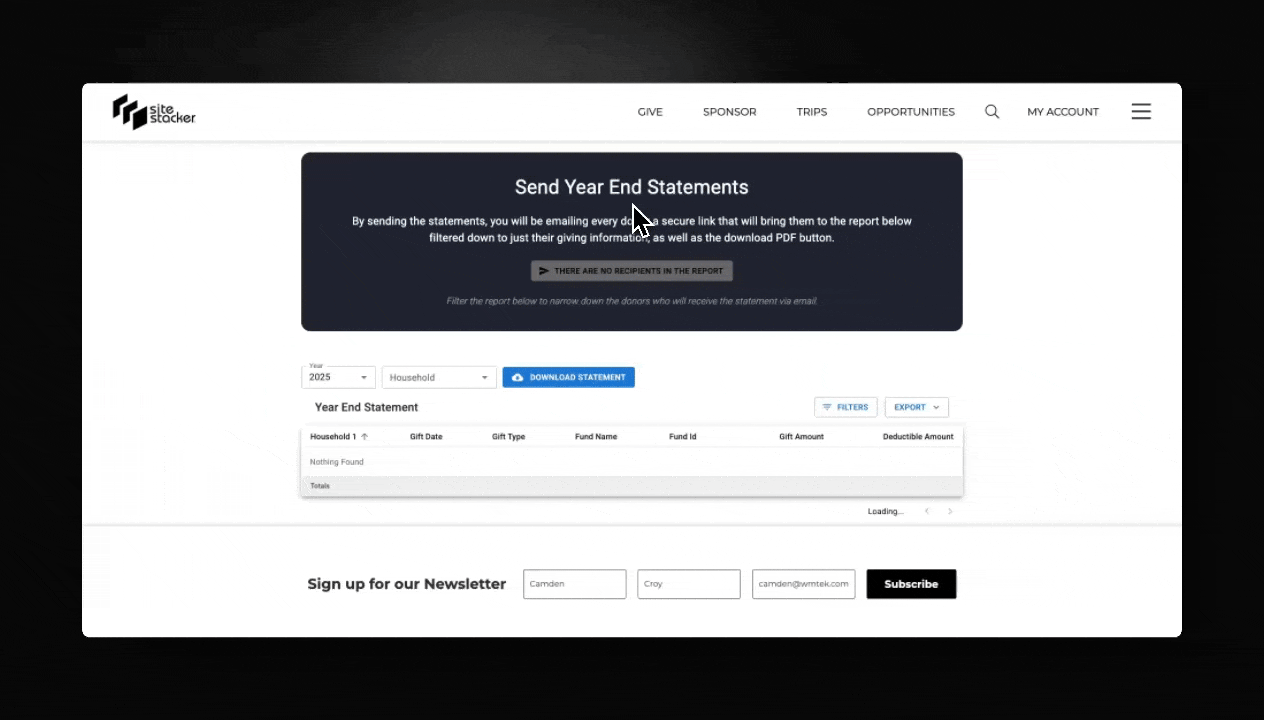
Step 5: Filter Segments
- Set Year Filter to the last year e.g. 2024
- Verify Numbers
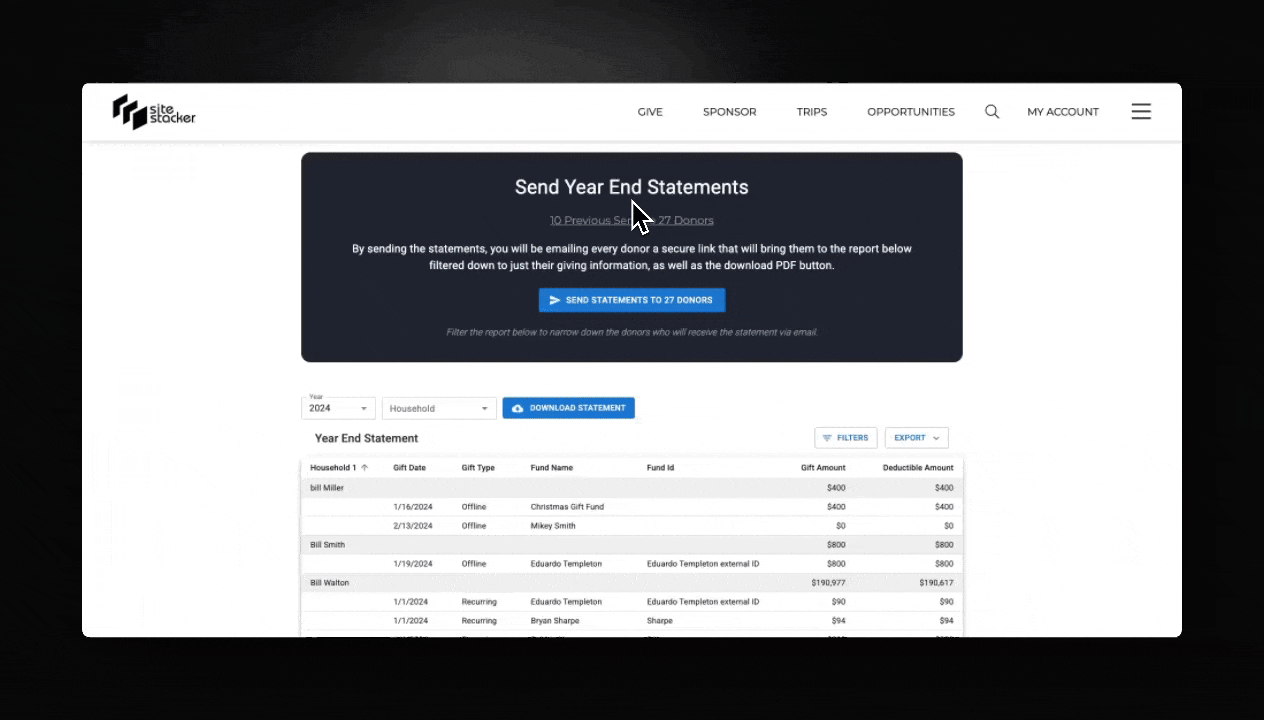
Step 6: Send
- Click Send Statements to ### Donors
- Click Confirm
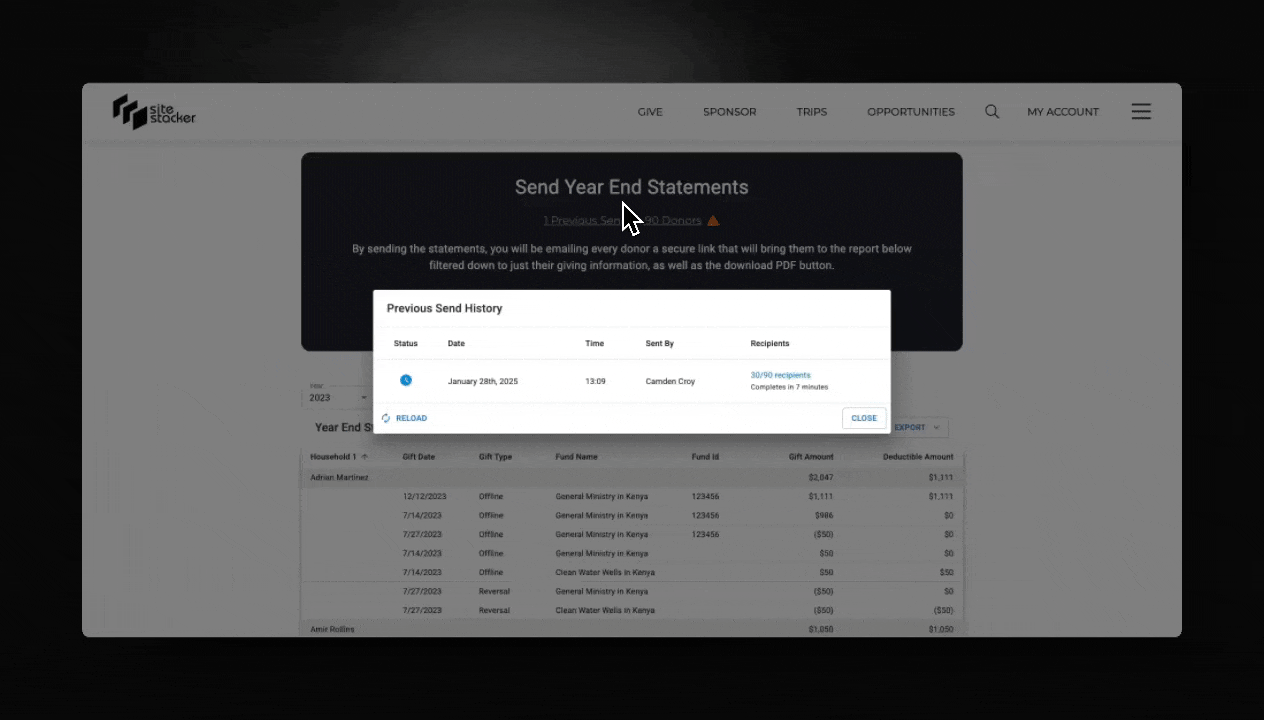
Step 7: Review Results
- Open the previous sends Grid
- Monitor the status of the send
- Once the process finishes, open the recipients and verify the status of the receipts
Tips and Best Practices
- Data Validation: Review the grid to verify donor information is correct.
- Personalization: Leverage variables to create a personalized feel in system messages email template.
- Record-Keeping: The system automatically stores the previous sends, and the status of each donor.
Troubleshooting
- Technical Support: Live chat available at https://training.sitestacker.com/en/support/home or from /admin
Here you can view the Year End Statements Video to help you through these steps:
Updated on: 14/04/2026
Thank you!