How to Replace the Images for the Receipt PDF Template
- Image Requirements:
- DPI: 300
- The image file format MUST be a JPG
- The image size MUST be TWICE the size as the parent container. If the image container is 1000px x 1000px. Then, the image should be 2000px x 2000px.
- The parent container's dimensions are defined on the same line of HTML as the image's source. An example of how the defined dimensions for a parent container will appear in HTML:
"height= 1000px" width="1000px"
- The parent container's dimensions are defined on the same line of HTML as the image's source. An example of how the defined dimensions for a parent container will appear in HTML:
Uploading Your Assets
- * *
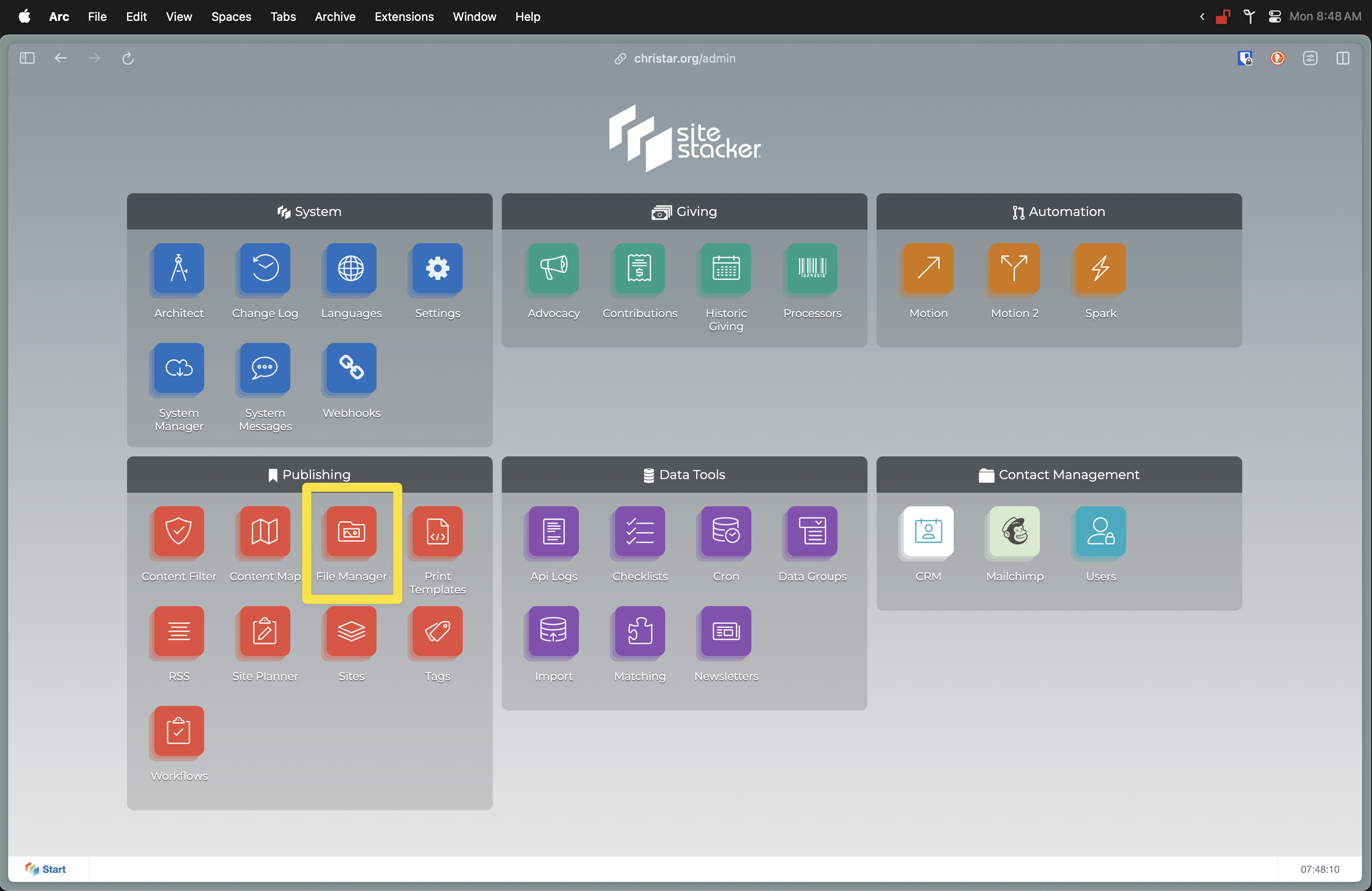
1\. . Open the "File Manager" Component
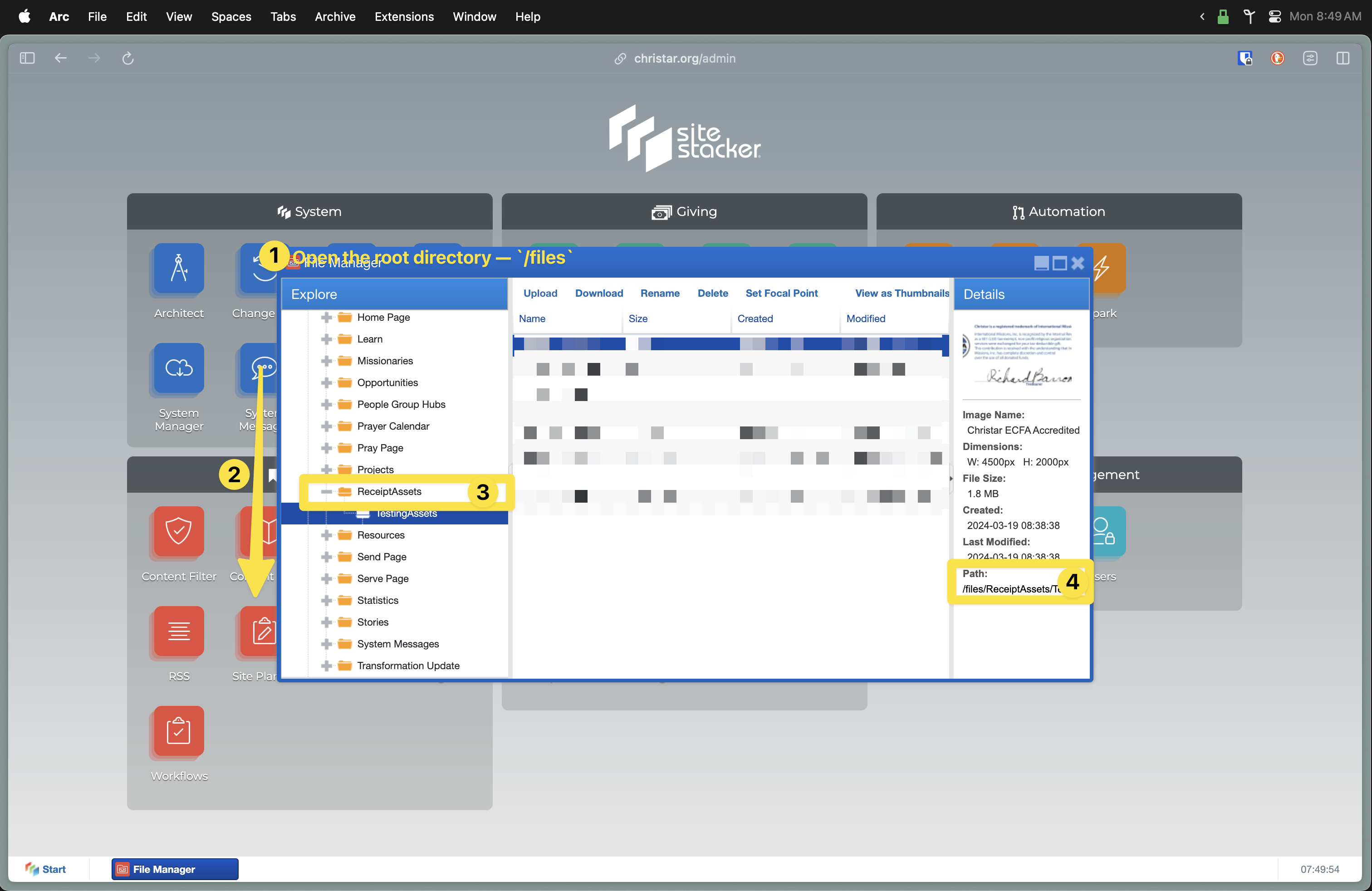
2\. Follow the steps outlined in the above screenshot in the following order:
- Open the root directory `webroot/files/`
- Scroll down the left-panel of the window until you find the `/ReceiptsAssets` folder
- Upload each of the new image assets for the PDF template to this folder
- Copy and paste the asset file paths
- Recommendation: Upload all of your assets and save the file paths in a text document for future reference when modifying the PDF template
Replacing the Image Assets in the PDF Template
- * *
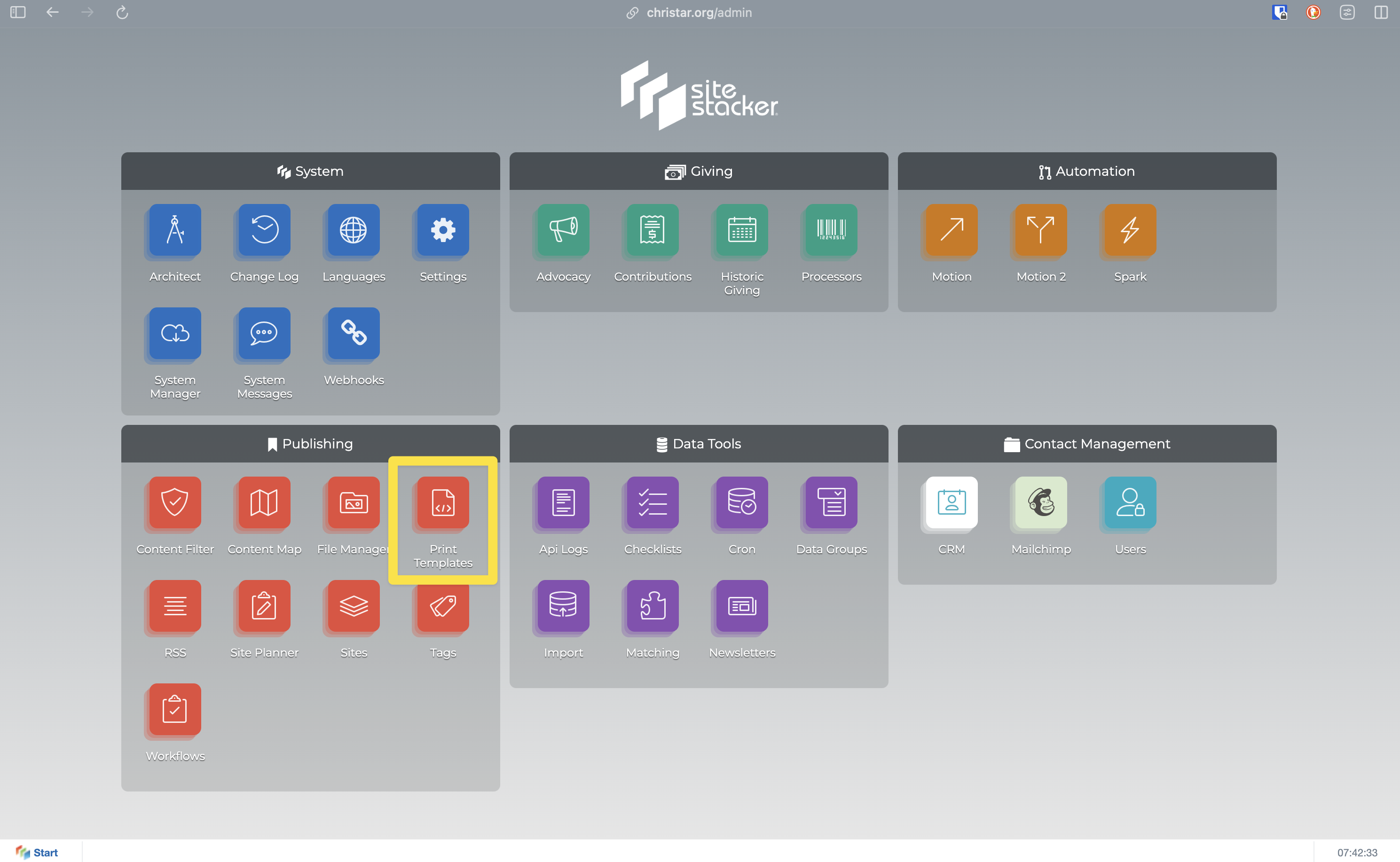
1\. Navigate to `/admin` and open the "Print Templates" component
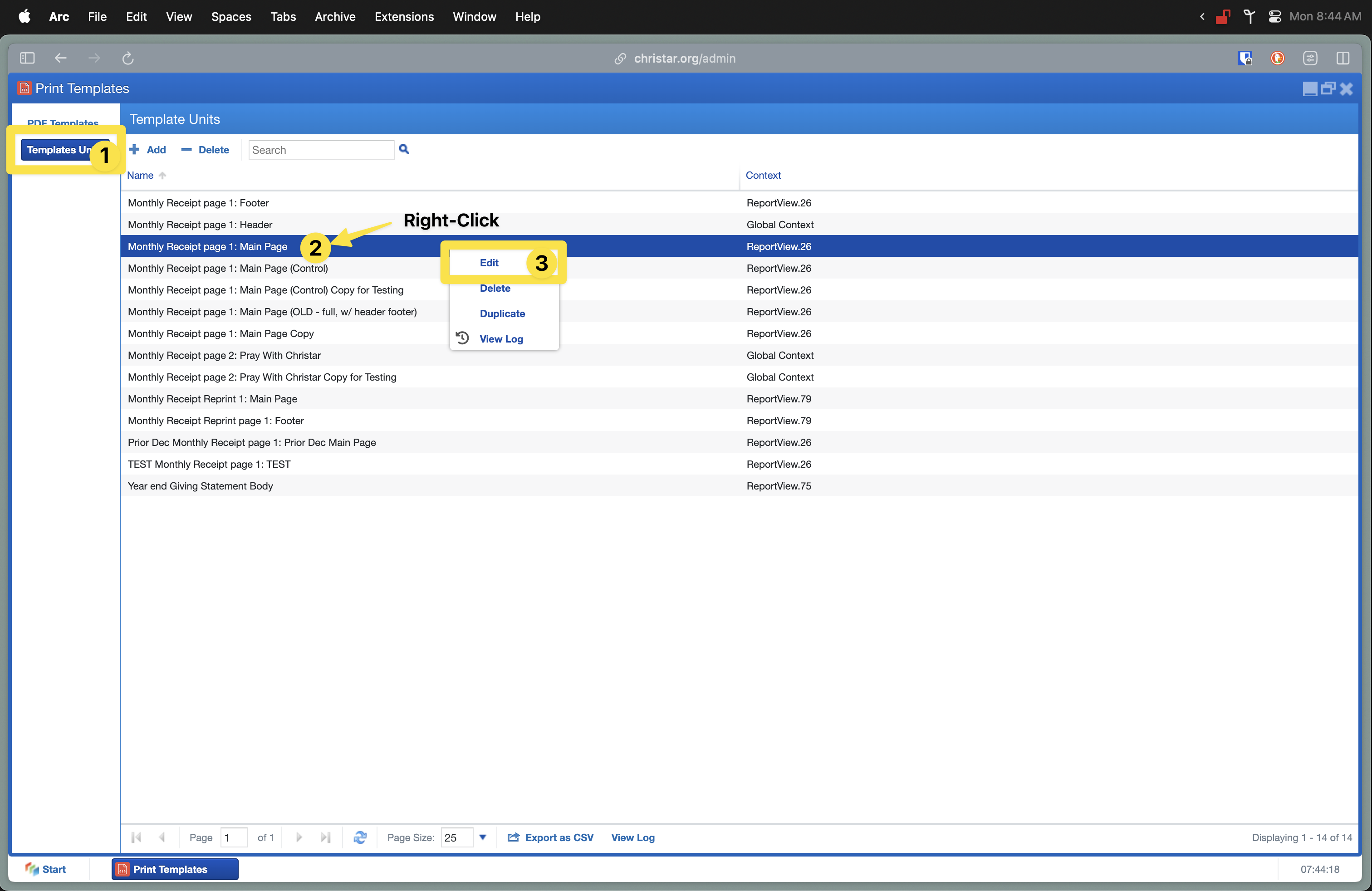
2\. Updating the Template Units:
- Select "Template Units"
- Right-click on the "Monthly Receipt page 1: Main Page" PDF Template Unit
- Select "Edit."
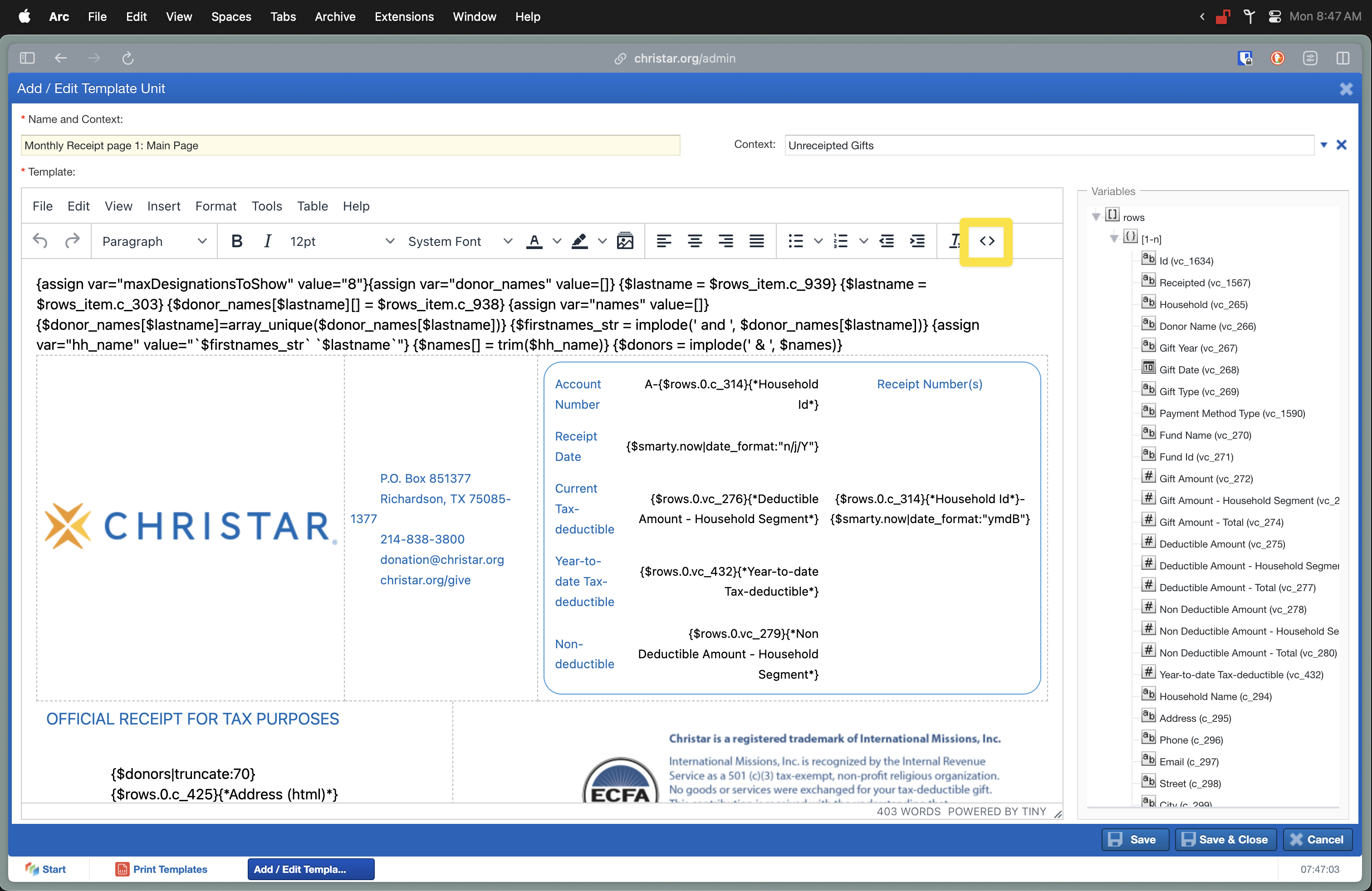
3\. Click the "HTML" button
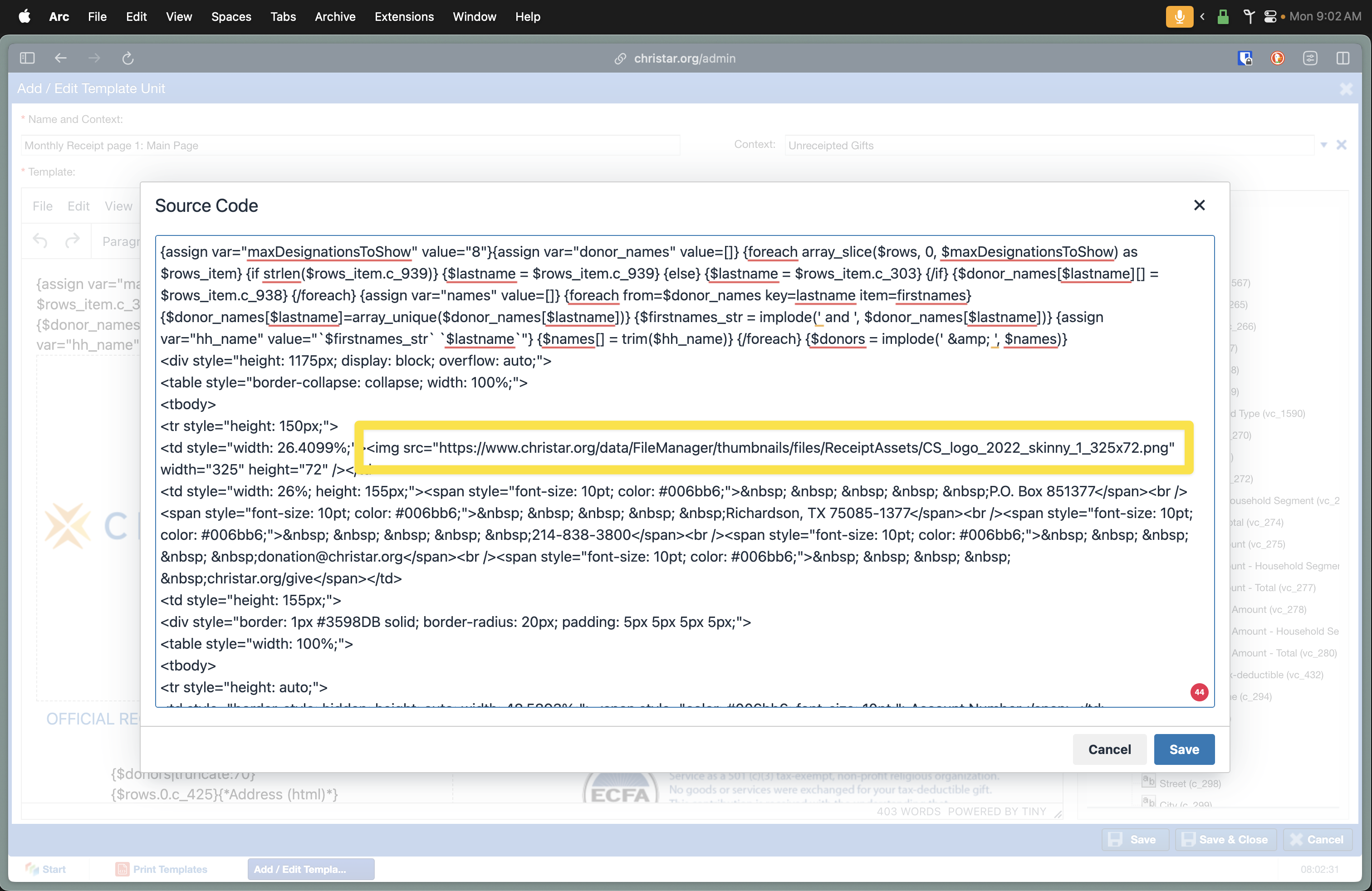
4\. Locate each of the images referenced in the HTML and edit the URL used to reference the image asset from the File Manager. For example, in the above screenshot, the image source URL is as follows:
`https://www.christar.org/data/FileManager/thumbnails/files/ReceiptAssets/CS_logo_2022_skinny_1_325x72.png`
5\. We will need to replace all the information that follows `https://www.christar.org/` in the URL with the respective file path for the image asset using the new file path that you obtained earlier from the File Manager after uploading the new assets.
`https://www.christar.org/xyz`
6\. Repeat each of the above steps for each of the image assets you wish to replace or update. Then, click "Save" to close the code editor window. Finally, click "Save & Close" to update the PDF Template Unit that is referenced in the PDF template.
Updated on: 14/04/2026
Thank you!