Importing Users
Importing Users is for the Admin to assign temporary passwords for these accounts so the user may gain access to the login from the front side to view their Donor dashboard. Before you can import Users, you will need to have the CRM records created first.
Note: Any bold fields you see below are required for the import to run correctly!
Once the CRM records for these users have been imported to SiteStacker, the Admin should:
- Click the 'Import' component.
- Click the 'Documentation' tab.
- Scroll down to check the 'User' checkbox.
- Click 'Download Selected' found on the upper right side of the window.
Reminder: The User is somebody who will be able to log in to your SiteStacker installation, and they will use their Email Address and the Password you generate for them to do so.
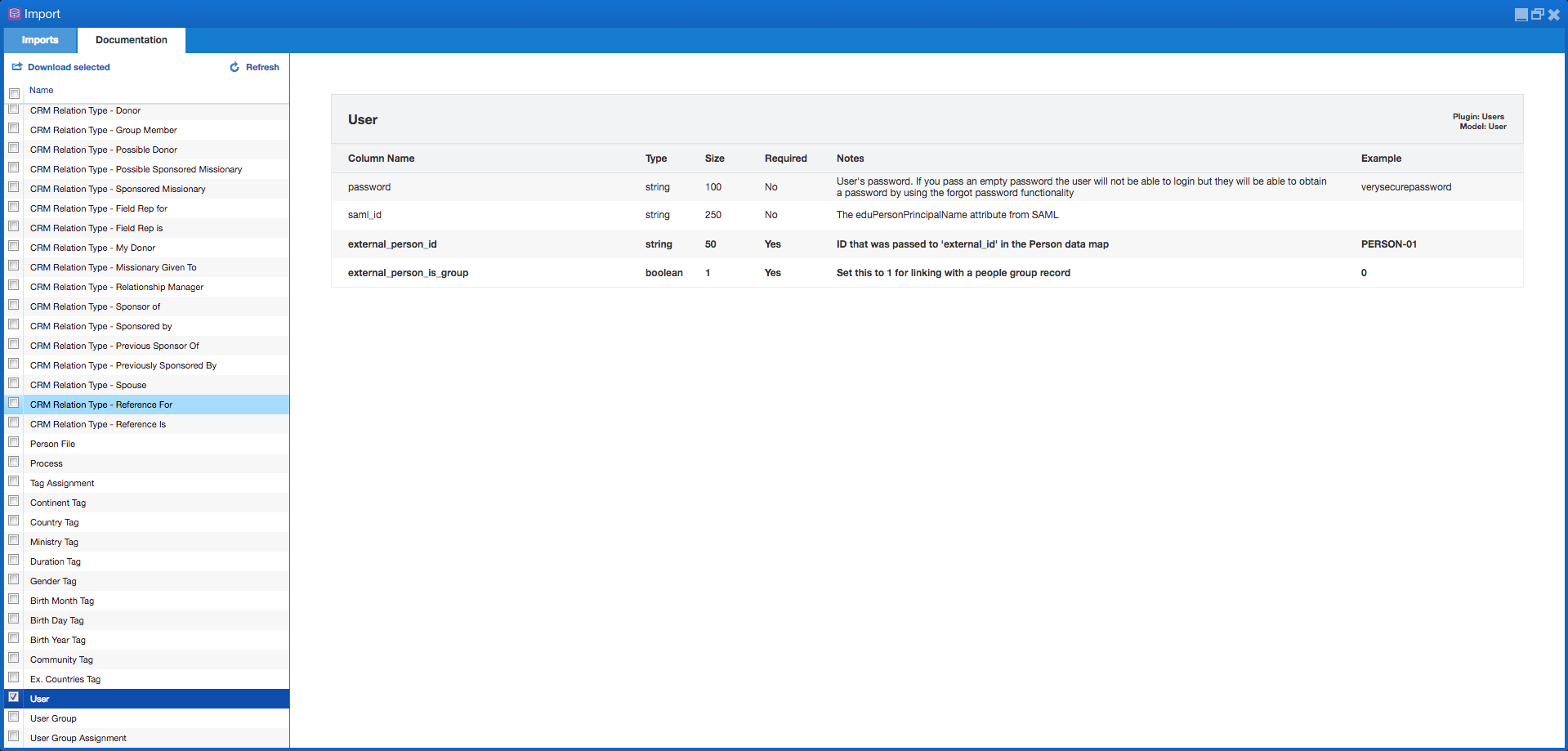
Column Name
Description
password
User's password. If you pass an empty password the user will not be able to login but they will be able to obtain a password by using the forgot password functionality
saml_id
The eduPersonPrincipalName attribute from SAML
external_person_id
ID that was passed to 'external_id' in the Person data map
external_person_is_group
Set this to 1 for linking with a people group record. 0=No, 1= Yes.
Next we will go over the User Groups Import
- Click the 'Import' component.
- Click the 'Documentation' tab.
- Scroll down to check the 'User Groups' checkbox.
- Click 'Download Selected' found on the upper right side of the window.
Reminder: The User Groups are the specific roles that a User could potentially be placed into, where specific visibility and access permissions can be granted based upon the role that is being managed. Example: The Admin user group would have more access than the Assistant user group.
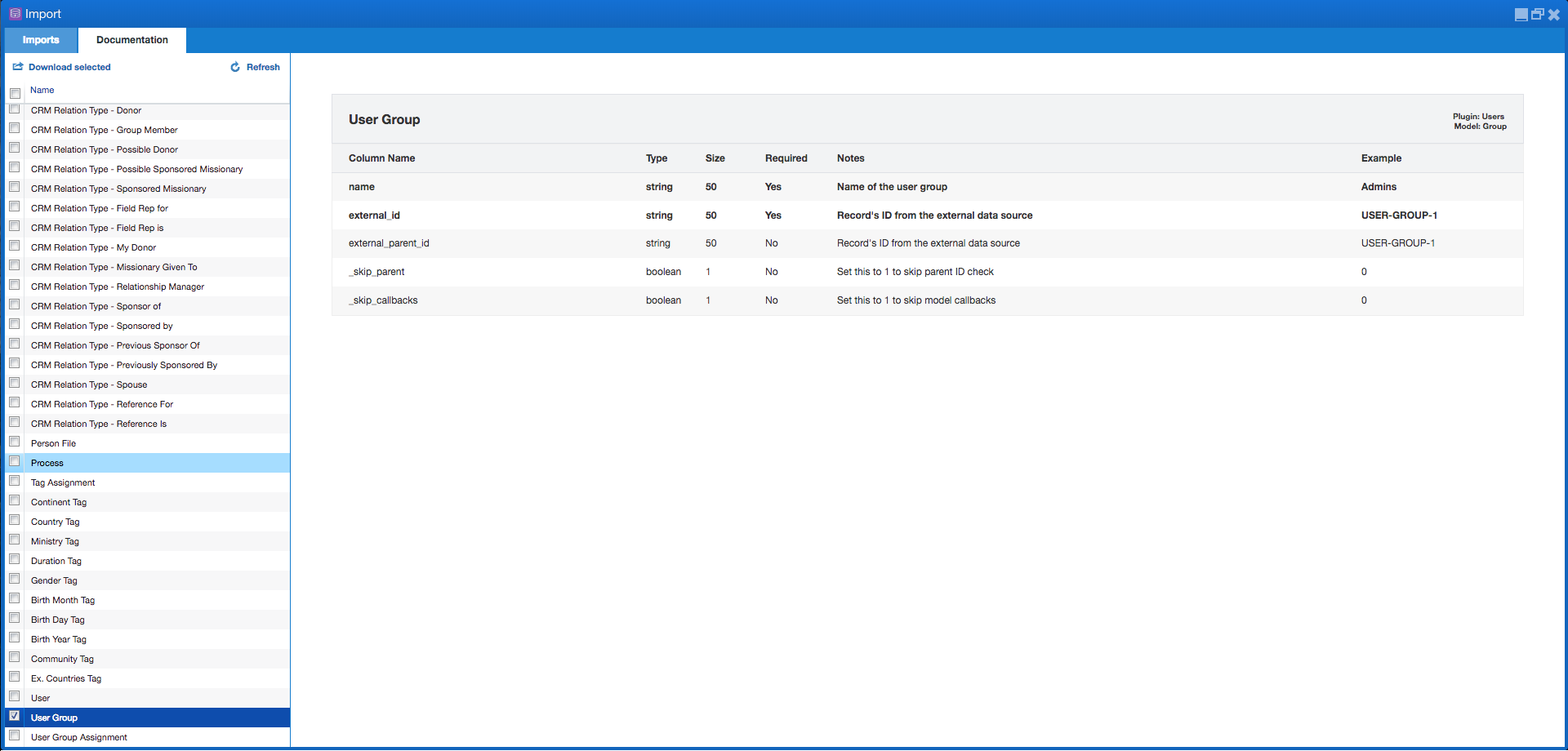
Below is the data needed for this import:
Column Name
Description
name
Name of the User Group
external_id
Record's ID from the external data source
external_parent_id
Record's ID from the external data source.
_skip_parent
Set this to 1 for skipping parent ID check. 0=No, 1= Yes.
_skip_callbacks
Set this to 1 for skipping model callbacks. 0=No, 1= Yes.
Lastly, we will need to import the User Group Assignment
- Click the 'Import' component.
- Click the 'Documentation' tab.
- Scroll down to check the 'User Group Assignment' checkbox.
- Click 'Download Selected' found on the upper right side of the window.
Reminder: The User Group Assignment is where you will be assigning Users to a specific User Group, whether they are Admin Users in the Admin User Group, Admin Assistants in the Admin Assistant User Groups, etc.
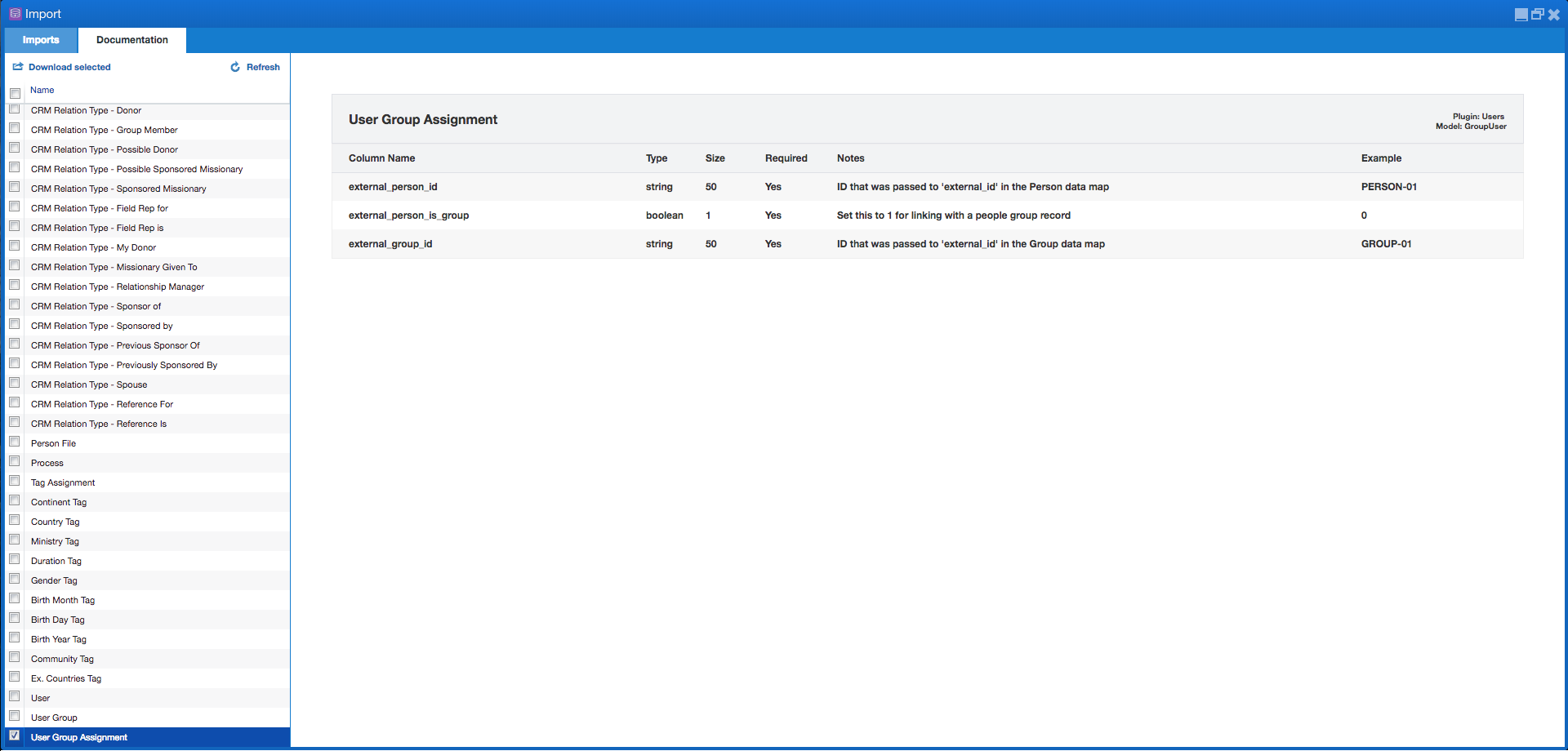
Below is the data needed for this import:
Column Name
Description
external_person_id
ID that was passed to 'external_id' in the Person data map.
external_person_is_group
Set this to 1 for linking with a people group record . 0=No, 1= Yes.
external_group_id
ID that was passed to 'external_id' in the Group data map.
Updated on: 13/04/2026
Thank you!