Formatting Business Intelligence Views
Totals and Segment Columns:
For reports, it is often useful to total and display amounts clearly and to segment information in reports so that it is easier to consume. Some formatting can be coded into the columns of our reports, to display segment totals and grand totals.
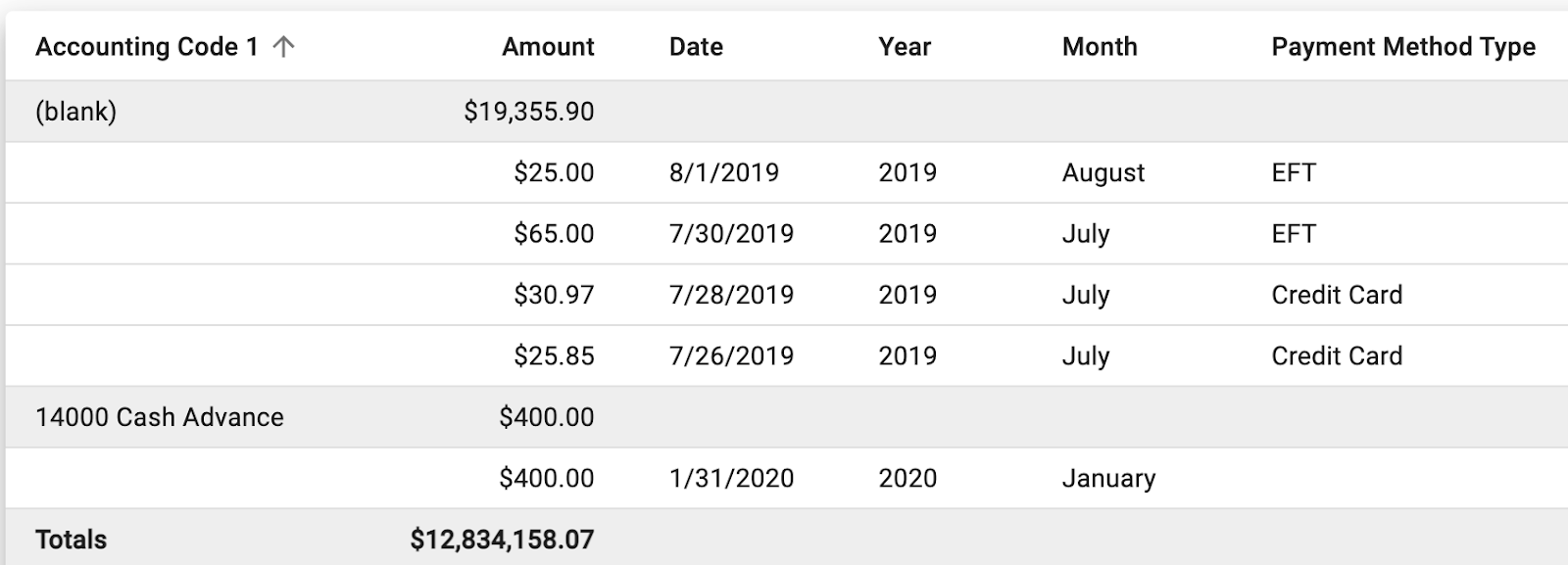
In the following example report, $19,355.90 and $400.00 are segment totals, and $12,834,158.07 is the grand total:
(Note that both of these types of columns are created in the report view, rather than the report itself.)
Totals Columns:
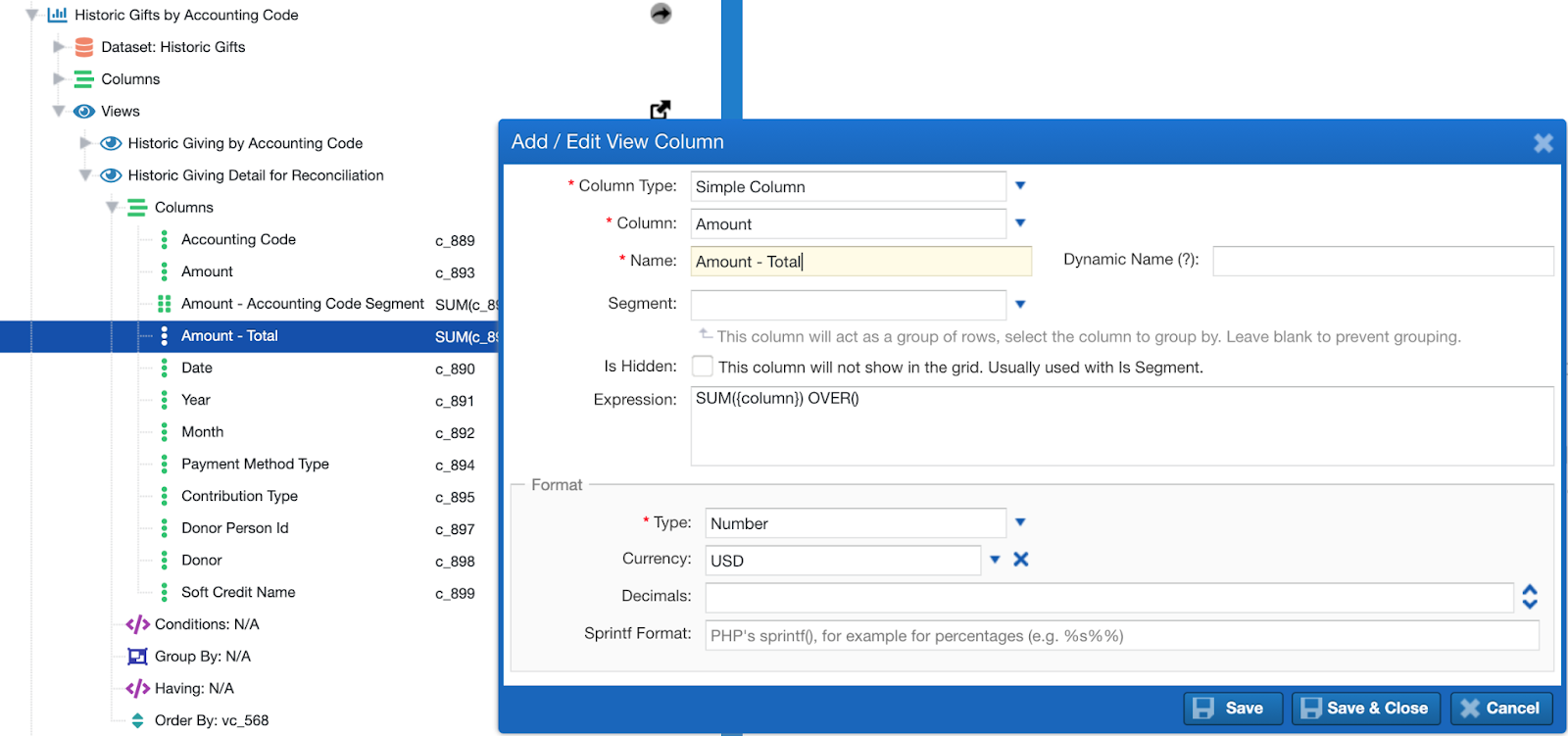
To show a total at the bottom of the report table, you need to create a special column in the view that has three properties:
- The column must use a special expression: SUM(amount) OVER(), where the amount is the amount column, and everything else stays constant.
- It will have a special name, in the form {columnName} - Total, where {columnName} is the name of the column under which the total should appear. In our example, it is Amount.
- In the columns list of the view (also known as the report tree), the special column must come right after the column under which it should appear. Important note: If there are any segment columns, the total column should be last.
Segment Columns:
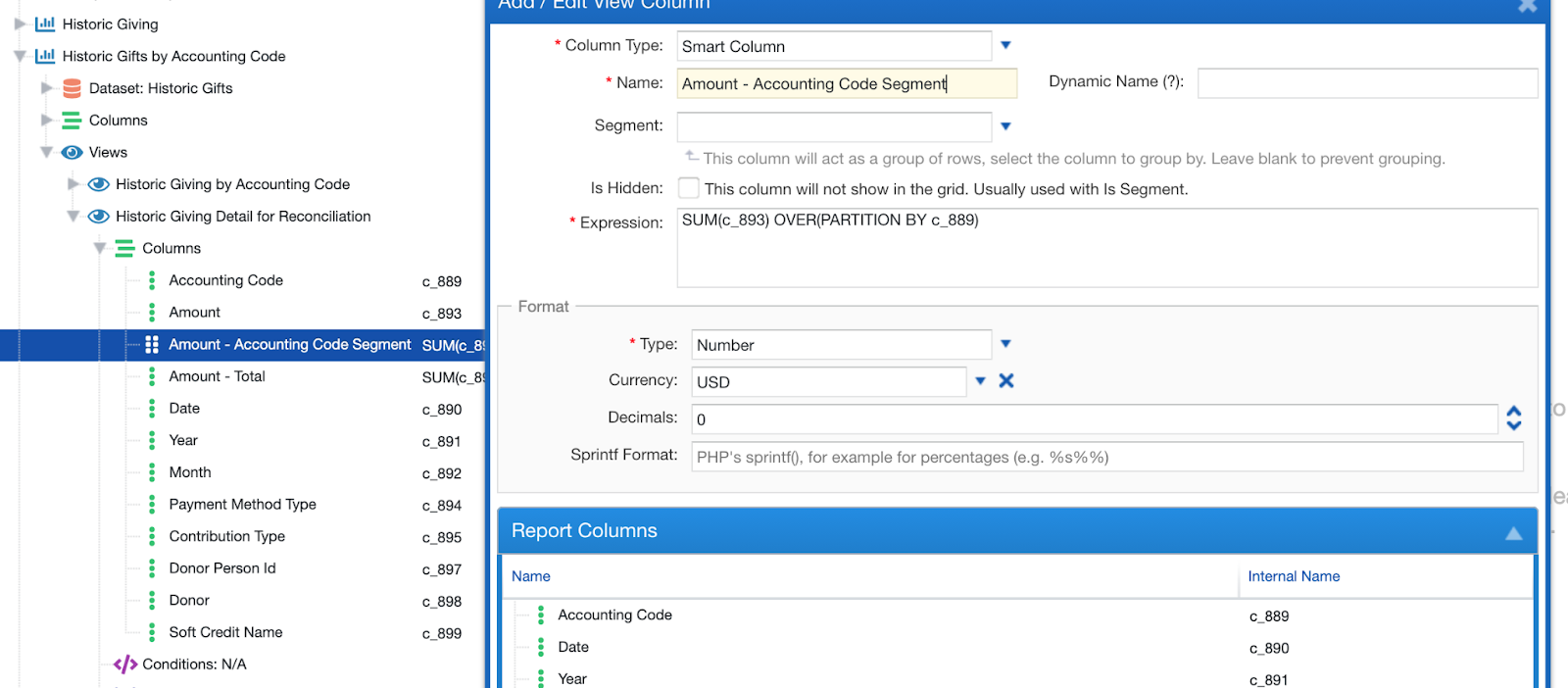
If your view uses a segment (In our example, the segment is the Accounting Code), you can display totals (or other aggregates) for every segment in the result set. To do this, you need to create a special column in the view, that has three properties:
- The column must use a special expression: SUM(amount) OVER(PARTITION BY segment_column), where the amount is the amount column and segment_column is the column that would be used for the segment. Everything else stays constant.
- It will have a special name, in the form {columnName} - {segmentName} Segment, where {columnName} is the name of the column under which the total should appear and {segmentName} is the name of the segment column. In our example, these are Amount and Accounting Code.
- In the columns list of the view (also called the report tree), the special column must come right after the column under which it should appear. Important note: Any total columns should come after the segment columns.
Order By:
When you want your report to be ordered in a specific way (by a specific column), in a dataset, or in a view, you can use the Order By modifier.
Example:
Syntax
Example input
Explanation
column ASC/DESC
value1 ASC
‘column’ is the column name (value1 here) that you want to sort by, and ‘ASC’ tells the function to sort in ascending order by that column.
Example:
Syntax
Example input
Explanation
column ASC/DESC
value2 DESC
‘column’ is the column name (value2 here) that you want to sort by, and ‘DESC’ tells the function to sort in descending order by that column.
NOTE: If you want to order by ascending order, ‘ASC’ can be omitted.
If you want to order by multiple columns, you can use the same syntax to declare multiple orders, separated by commas.
Example:
Syntax
Example input
column ASC/DESC, column ASC/DESC
value 1 ASC, value2 DESC, ….
Updated on: 02/04/2026
Thank you!